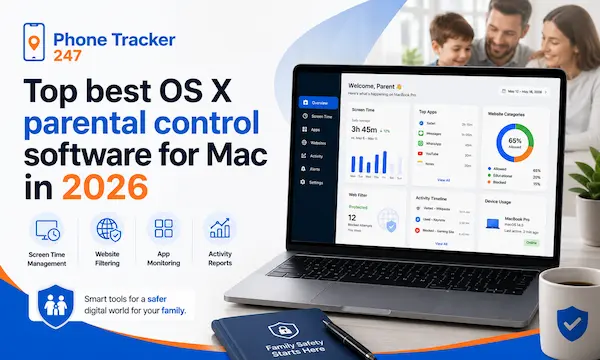
In a context where children are accessing technology at an increasingly early age, controlling content and screen time has become more important than ever. OS X parental control software has been developed to help parents manage, monitor, and protect their children while using Mac devices. So, which are the best software options in 2026 and suitable for family needs? The article below by PhoneTracker247 will help you explore and choose the most effective solutions.
Why should you use parental control software on Mac?
In today’s rapidly advancing technological era, children are exposed to the internet and devices like Mac computers at an increasingly early age for both learning and entertainment. However, alongside the benefits, the online environment also presents many risks such as inappropriate content, excessive screen time, and exposure to negative influences. Therefore, using OS X parental control software has become an effective solution to help parents better manage and protect their children.

Some key benefits of using parental control software on Mac include:
- Content control: Helps block harmful websites and age-inappropriate content, creating a safer online environment for children.
- Screen time management: Allows parents to set usage limits, helping children balance study, entertainment, and rest, and avoid screen addiction.
- Activity monitoring: Enables easy tracking of apps and websites children access, allowing timely intervention if needed.
- Online safety protection: Reduces risks from scams, harmful content, or strangers, ensuring safer internet use.
- Healthy tech habits guidance: Beyond control, it helps parents guide children in developing responsible and balanced technology usage habits.
Thanks to these benefits, parents can feel more confident when allowing their children to use Mac devices, while also building a strong foundation for learning and development in the digital age.
Top best OS X parental control software in 2026
Currently, the need to monitor children’s device usage on Mac is increasing, leading to the development of various software solutions with diverse features. From content filtering and screen time limits to online activity tracking, OS X parental control software helps parents take a more proactive role in protecting their children in the digital environment. Below are some of the most outstanding and highly rated tools in 2026:
1. Qustodio – Comprehensive and user-friendly solution
Qustodio is a top choice for many families thanks to its all-in-one management capabilities. It allows parents to monitor screen time, control accessible content, and block inappropriate websites. Additionally, Qustodio supports managing multiple devices at once, making it ideal for families with several children. Its user-friendly interface makes setup and monitoring easy.
See more: Detailed Guide to Setting Up iPod Parental Controls for Parents
2. Net Nanny – Smart content filtering technology
Net Nanny stands out with its real-time content filtering, helping detect and block inappropriate content as soon as children attempt to access it. Beyond simple website blocking, the software analyzes content context for more effective control. Its simple interface is also a big advantage for new users.
3. Kaspersky Safe Kids – Advanced features and detailed control
Kaspersky Safe Kids offers advanced features such as online activity tracking, app control, and device location tracking. It is suitable for parents who want deeper insight into their children’s digital behavior, especially when multiple devices are involved.
4. Norton Family – Supports learning and effective management
Norton Family not only controls content but also helps parents manage their children’s online learning. It provides detailed reports on browsing history, screen time, and online behavior, making it easier for parents to monitor and adjust usage.
5. Apple Screen Time – Built-in solution on macOS
Apple Screen Time is a built-in tool on Mac that allows users to set screen time limits, block content, and manage apps at a basic level. Although it lacks some advanced features compared to third-party software, it remains a convenient and easy-to-use option for basic needs.
Each software has its own strengths in terms of features, level of control, and cost. Depending on the child’s age, management needs, and budget, parents can choose the most suitable solution to ensure a safe and healthy digital environment.
Table 1: Best OS X Parental Control Software for Mac Compared
| OS X Parental Control Software | Best For | Key Features | Main Advantage | Possible Limitation |
|---|---|---|---|---|
| Qustodio | Families who want an all-in-one solution | Screen time controls, website blocking, web filtering, multi-device management | Easy to use and strong for everyday family monitoring | Some advanced monitoring needs may require a higher-tier plan |
| Net Nanny | Parents focused on smart web filtering | Real-time content filtering, website blocking, online activity visibility, alerts | Strong filtering that reacts as content appears | Can be more focused on filtering than broader device-level controls |
| Kaspersky Safe Kids | Parents who want deeper monitoring | App control, online activity tracking, location-related tools, multi-device support | Good visibility into a child’s digital behavior | Interface and setup preferences may vary by family |
| Norton Family | Households that want reports and learning-focused oversight | Browsing history reports, screen time tracking, online behavior monitoring | Helpful reporting for long-term supervision | Best suited to parents who actively review reports |
| Apple Screen Time | Parents who prefer a built-in macOS option | App & website activity, downtime, app limits, content restrictions, passcode protection | No extra installation needed on Mac | More basic than some third-party parental control platforms |

Basic guide to installing and using on Mac
Installing and using OS X parental control software on Mac is quite simple. With just a few basic steps, parents can effectively manage their children’s device usage. Below is a detailed guide:

Download and install the software
Visit the official website of your chosen software, such as Qustodio, Net Nanny, or Kaspersky Safe Kids, and download the version compatible with macOS. Then open the downloaded file and follow the instructions to install it on your Mac.
Create a parent account
After installation, sign up for a parent account. This account allows you to manage, monitor, and set rules for your child across different devices.
Set up a child profile
- Add your child’s personal information and age.
- Register the devices your child uses, such as a MacBook, iMac, or iPad, to apply control settings.
Configure control features
- Set screen time limits: Establish appropriate schedules for study, play, and rest.
- Block inappropriate websites: Restrict access to harmful or age-inappropriate content.
- Monitor online activity: Track apps, websites, and usage time to ensure safe use.
Monitor and adjust settings
Regularly review your child’s activity reports and adjust the settings based on actual needs. This helps children develop safe and healthy device usage habits.

See more: How to take off parental controls on iphone
Use Apple Screen Time if you prefer not to install third-party software
If you don’t want to install external apps, Apple Screen Time on macOS provides basic features such as:
- Limiting app and device usage time
- Blocking inappropriate content
- Generating weekly activity reports
With these simple steps, parents can easily control their children’s Mac usage, ensuring online safety while helping them build healthy technology habits.
Important considerations when using the software
To maximize the effectiveness of OS X parental control software, parents should keep in mind several important principles. Combining software use with proper guidance will help children develop healthy device habits while ensuring online safety.
- Combine management with education: Software is only a supporting tool and cannot fully replace parental guidance. Talk to your children about online risks and how to protect themselves, helping them develop safe and responsible habits.
- Respect children’s privacy: Monitoring should be done at a reasonable level, avoiding excessive control or invasion of privacy. A balance between supervision and respect helps children feel comfortable rather than pressured when using devices.
- Keep the software updated: Always update to the latest version to ensure stable performance, fix bugs, and improve security, preventing potential vulnerabilities.
- Choose age-appropriate software: Different age groups require different levels of control. Younger children need stricter limits on time and content, while older children can have more flexibility but still within safe boundaries.
- Monitor and adjust flexibly: Parents should regularly review reports, evaluate effectiveness, and adjust settings according to their child’s study, entertainment, and daily needs. This helps children use technology in a balanced and healthy way.
Table 2: How to Choose the Right OS X Parental Control Software
| If You Need… | Recommended Option | Why It Fits | Ideal User Scenario |
|---|---|---|---|
| Simple built-in parental controls on Mac | Apple Screen Time | It is already included in macOS and supports app limits, downtime, and content restrictions | Parents who want quick setup without installing extra software |
| The best all-around family control dashboard | Qustodio | It combines screen time management, web filtering, and multi-device control in one platform | Families managing several children and devices |
| Stronger website and content filtering | Net Nanny | It focuses heavily on real-time filtering and blocking inappropriate content | Parents most concerned about harmful websites and online searches |
| More detailed monitoring across devices | Kaspersky Safe Kids | It offers deeper control over apps and broader visibility into digital behavior | Parents who want more detailed oversight beyond basic limits |
| Clear reports for long-term supervision | Norton Family | It gives structured reports on browsing, screen time, and online activity | Parents who want to review habits and adjust rules over time |

FAQs – Parental control software for Mac
1. What is OS X parental control software?
OS X parental control software helps parents manage screen time, block websites, and limit app access on a Mac.
2. Does macOS have built-in parental controls?
Yes. Apple offers built-in parental control features through Screen Time on modern macOS versions.
3. Can I block websites on a Mac?
Yes. Most parental control tools let you block specific websites or filter inappropriate content.
4. Can parental control software limit screen time on Mac?
Yes. Parents can set daily limits, downtime schedules, and app restrictions for children.
5. Is Apple Screen Time enough for parents?
It is enough for basic control, but some families may prefer third-party apps for more advanced features.
6. What is the best parental control software for Mac?
The best option depends on your needs, but popular choices include Qustodio, Net Nanny, and Norton Family.
7. Can parental control software monitor app usage?
Yes. Many tools show which apps are used and how much time is spent on them.
8. Is OS X parental control software easy to set up?
Yes. Most solutions are simple to install and only take a few steps to configure.
9. Can parental controls be used on multiple devices?
Yes. Many parental control apps support Mac, iPhone, Android, and Windows devices.
10. Why should parents use parental control software on Mac?
It helps protect children online, reduce distractions, and build healthier digital habits.
Conclusion
Using OS X parental control software is an effective solution to help parents manage and protect their children while using Mac devices. With many software options available today, you can easily find a tool that fits your family’s needs.
Quick Summary Table
| Key Takeaway | What It Means for Parents |
|---|---|
| Mac parental controls can reduce online risks | Parents can block harmful content, manage app access, and create safer browsing habits for children. |
| Built-in macOS tools are useful for basic needs | Apple Screen Time works well for simple limits, downtime, and content restrictions. |
| Third-party tools offer more advanced control | Apps like Qustodio or Net Nanny can provide deeper filtering, monitoring, and multi-device management. |
| The best solution depends on your family’s needs | Some parents need simple screen time control, while others want stronger monitoring and alerts. |
| Consistency matters more than complexity | The most effective parental control setup is the one parents can use regularly and confidently. |
Want a smarter way to stay connected and protect what matters most? PhoneTracker247 gives families an easier way to monitor device activity, improve digital safety, and stay informed in real time. If you are looking for a more flexible solution beyond standard parental controls, try PhoneTracker247 today and take the next step toward better family protection.
Start setting it up today with PhoneTracker247 to create a safe, healthy, and balanced digital environment for your children!
For daily updates, subscribe to PhoneTracker’s blog!
We may also be found on Facebook!