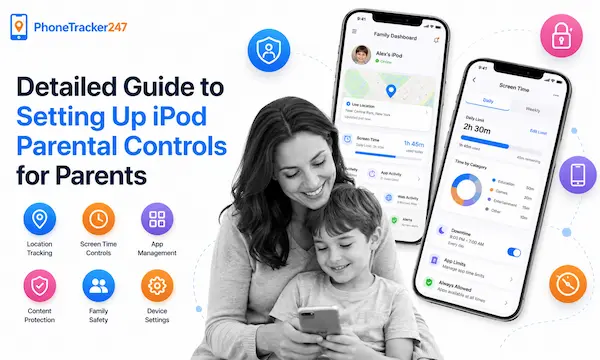
Protecting children while using an iPod has never been easier with iPod Parental Controls. In this article, PhoneTracker247 will guide parents step by step on how to set up, manage access permissions, and control content on an iPod, helping children enjoy the device safely while giving parents peace of mind about their kids’ digital activities.
Why Parents Should Use iPod Parental Controls
In the digital age, children are increasingly using iPods and iOS devices like iPhones for learning, entertainment, and communication. However, using these devices without supervision can expose them to inappropriate content, accidental in-app purchases, or excessive screen time.
Setting up iPod parental controls allows parents to easily monitor usage, manage content, and limit screen time, helping protect children from online risks. Additionally, features like parental controls for iPhones and iPod touch parental controls help create a balanced and safe environment for both learning and entertainment, giving parents greater peace of mind.
By setting parental controls on an iPod touch, parents can actively control access to apps, websites, music, and videos, while also restricting spending activities. This ensures children can learn and play safely, making it an essential step in building healthy digital habits from an early age.
Key Features of iPod Parental Controls
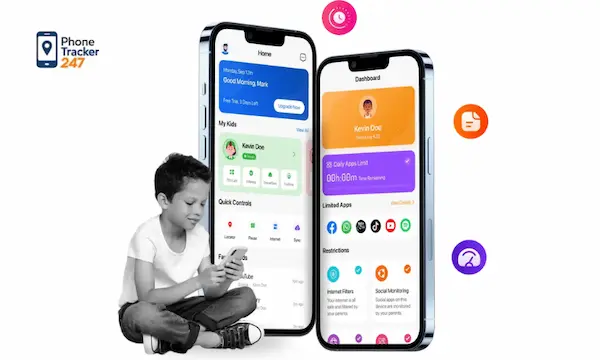
Parental controls on iOS are designed to help parents comprehensively manage their children’s device usage, including iPod Touch, iPhone, and other iOS devices. Key features include:
- Content and app restrictions: Prevent children from accessing apps, games, or websites that are not age-appropriate. Parents can customize restrictions by category, from games and videos to social media, ensuring children are exposed to safe and suitable content.
- Purchase and payment control: Limit children from making unauthorized purchases of music, apps, or books on the App Store. Parents can require password authentication for every transaction, ensuring spending is securely managed.
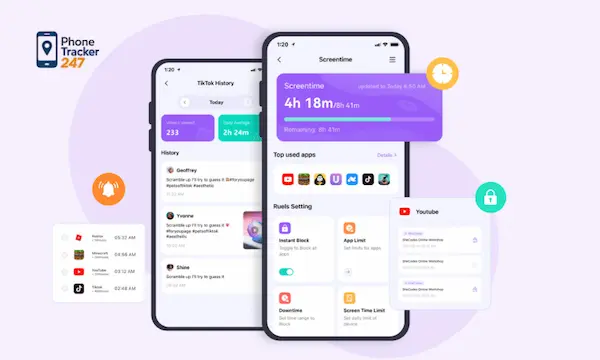
- Screen time limits: Set downtime schedules or limit time spent on games and videos, helping children balance learning and entertainment. The Screen Time feature on iOS also provides detailed reports on app usage, allowing parents to adjust settings accordingly.
- Settings security: All changes to permissions and restrictions are protected by a passcode, preventing children from modifying them. This ensures parents maintain full control over their child’s digital environment.
With these features, setting parental controls on an iPod touch becomes simple and effective—helping protect children while allowing parents to manage usage easily and create a safe, balanced digital experience across iOS devices.
Table 1: iPod Parental Controls Features at a Glance
| Feature | What Parents Can Control | Why It Matters | Best Use Case |
|---|---|---|---|
| Screen Time Passcode | Lock parental settings with a separate code | Prevents children from changing restrictions | Every family using shared or personal iPod devices |
| Content & Privacy Restrictions | Block explicit content, limit apps, and manage privacy permissions | Reduces exposure to age-inappropriate material | Kids who use media, games, and web browsers regularly |
| App Limits | Set daily time limits for specific apps or app categories | Helps reduce overuse and build healthier habits | Gaming, video, and social-style entertainment apps |
| Downtime | Restrict device access during chosen hours | Supports bedtime, study time, and family routines | Evening schedules, homework hours, and school nights |
| Purchase Restrictions | Disable app installs, deletions, and in-app purchases | Prevents accidental spending and unauthorized downloads | Younger children using the App Store or games |
| Web Content Filters | Limit adult websites and unsafe online content | Adds an extra layer of browsing safety | Children who search, stream, or browse independently |
| Communication Limits | Control who children can contact during allowed time or downtime | Improves safety and reduces unwanted interactions | Parents who want tighter communication boundaries |
| Usage Reports | Review app activity and total screen time | Helps parents adjust rules based on real behavior | Ongoing monitoring and routine digital check-ins |
See more: How to take off parental controls on iphone
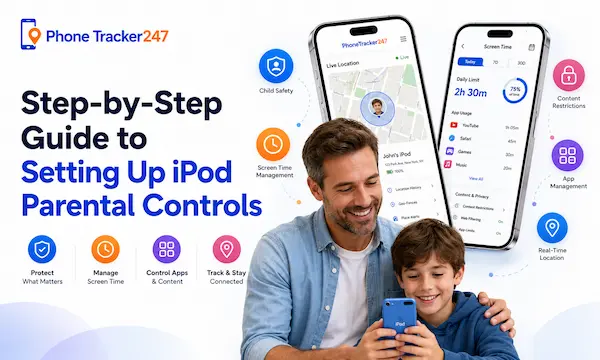
Step-by-Step Guide to Setting Up iPod Parental Controls
Setting parental controls on an iPod Touch is a straightforward process when parents follow the right steps. These settings not only help manage content and app access but also play a key role in protecting children from online risks and building healthy digital habits.
Step 1: Access Settings on the iPod
Open the Settings app on the iPod or iPhone. From there, select Screen Time (or Restrictions on older iOS versions). This is the central place where all parental control features are managed.
Step 2: Create a parental control passcode
Tap Use Screen Time Passcode and set a secure, unique password. It’s important to choose a passcode different from the device unlock code so children cannot easily guess or change the settings without permission.
Step 3: Set content and app restrictions
Turn on Content & Privacy Restrictions to start customizing controls. Here, parents can block or limit access to apps, games, websites, and explicit content. Settings can be adjusted based on the child’s age to ensure a safe and appropriate digital experience.
Step 4: Set screen time limits
Use App Limits to define how long children can use specific apps or categories each day. You can also enable Downtime to restrict device usage during certain hours, such as study time, family time, or bedtime, helping children maintain a healthy routine.
Step 5: Review and monitor regularly
Review Screen Time reports to understand usage patterns, including the most-used apps and total screen time. Based on this data, parents can fine-tune restrictions to better suit their child’s needs. Regular monitoring ensures the controls remain effective over time.
By following these steps, parents can confidently manage their child’s iPod or iPhone usage. Beyond safety, these tools encourage a balanced lifestyle—helping children enjoy technology responsibly while maintaining a healthy balance between learning and entertainment.
See more: How to remove Parental Controls on Android
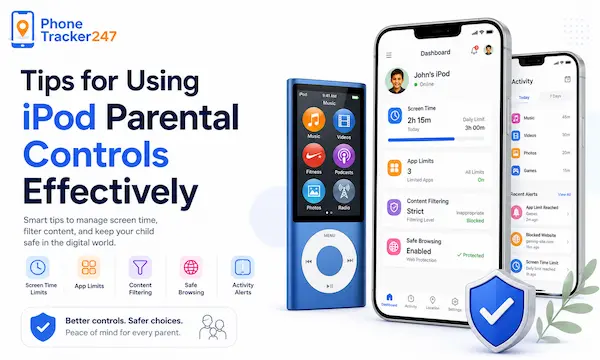
Tips for Using iPod Parental Controls Effectively
To maximize the benefits of iPod parental controls, parents should go beyond basic setup and adopt smart management habits. The following tips will help ensure better protection, improved control, and a healthier digital experience for children:
- Keep iOS updated regularly: Always make sure the iPod or iPhone is running the latest iOS version. Updates not only fix security vulnerabilities but also enhance parental control features, offering more precise control over apps, content, and privacy settings.
- Use a strong and separate passcode: Set a Screen Time Passcode that is completely different from the device unlock code. Choose a strong, hard-to-guess password and avoid sharing it with children. This ensures that all parental control settings remain secure and unchanged.
- Monitor usage consistently: Regularly review Screen Time reports to understand how your child uses the device. Pay attention to frequently used apps, browsing habits, and total screen time. This insight allows you to adjust limits and restrictions to better suit your child’s routine and needs.
- Customize settings based on age and behavior: Not all children have the same needs. Adjust app limits, content filters, and screen time rules according to your child’s age, maturity level, and daily schedule. Flexible customization helps maintain both safety and usability.
- Set clear rules and expectations: Establish clear guidelines for device usage, such as no phones during meals or before bedtime. When children understand the rules, they are more likely to follow them and develop discipline in using technology.
- Combine with digital education: Talk to your child about online safety, appropriate content, and responsible device use. Explaining the purpose of restrictions helps children understand that these controls are for their protection, not punishment.
- Review and update settings over time: As children grow, their needs and habits change. Periodically revisit and adjust parental control settings to ensure they remain relevant and effective.
By applying these strategies, parents can fully optimize iPod parental controls—protecting children from online risks while fostering a safe, balanced, and responsible digital lifestyle across iOS devices.
Table 2: Recommended iPod Parental Control Setup Checklist
| Setup Step | Recommended Action | SEO-Friendly User Intent Covered | Practical Tip |
|---|---|---|---|
| 1. Open Screen Time | Go to Settings and open Screen Time | how to set up iPod parental controls | Start from the child’s main device, not just the parent’s phone |
| 2. Create a Passcode | Use a unique Screen Time passcode different from the unlock code | how to lock parental controls on iPod | Never reuse the device PIN |
| 3. Turn On Content & Privacy Restrictions | Enable restrictions for apps, purchases, web content, and privacy changes | how to block content on iPod touch | Review each category one by one for better control |
| 4. Set App Limits | Add daily limits for games, video, or other distracting apps | how to limit screen time on iPod | Begin with realistic limits to reduce pushback |
| 5. Schedule Downtime | Choose hours for study, sleep, or offline family time | how to stop kids using iPod at night | Keep emergency or essential apps allowed if needed |
| 6. Restrict Purchases | Block app installs, deletions, and in-app purchases | how to stop in-app purchases on iPod | Protects against both accidental and intentional spending |
| 7. Filter Web Content | Limit adult websites and unsafe browsing access | how to make iPod safe for kids | Combine filters with regular parent check-ins |
| 8. Review Weekly Reports | Check usage trends and adjust rules over time | best way to manage child iPod usage | Use reports to guide conversations, not only punishments |
FAQs – Setting Up iPod Parental Controls for Parents
1. Can you put parental controls on an iPod?
Yes. You can use Screen Time to set limits, block content, and manage privacy settings.
2. Which iPod models support parental controls?
Most iPod touch models running a supported version of iOS include Screen Time parental controls.
3. How do you turn on parental controls on an iPod?
Go to Settings > Screen Time, turn it on, and choose the child device setup options.
4. Can you block apps on an iPod?
Yes. Parents can block apps, set age limits, or restrict app usage with Screen Time.
5. Can you limit screen time on an iPod?
Yes. App Limits and Downtime let parents control how long and when the iPod can be used.
6. Can parental controls stop in-app purchases?
Yes. You can disable app installs, deletions, and in-app purchases in Content & Privacy Restrictions.
7. Can you filter websites on an iPod?
Yes. Screen Time allows parents to limit adult websites and restrict web content.
8. Do parental controls on iPod need a passcode?
Yes. A Screen Time passcode helps prevent children from changing the settings.
9. Can parents monitor iPod usage?
Yes. Screen Time shows app activity, usage reports, and screen time trends.
10. Are iPod parental controls enough for child safety?
They help a lot, but parents should also review settings regularly and talk with children about safe device use.
Conclusion
Setting up iPod parental controls is an essential step in protecting children in the digital world. Not only does it help restrict inappropriate content, but parental controls for iPhones also enable parents to effectively manage screen time and spending on iOS devices.
Apply the steps for setting parental controls on an iPod Touch today so children can learn and play safely. For more details and tips on using iPod Touch parental controls effectively, parents can visit Apple’s official support page or consult trusted tech experts.
Quick Summary: What Parents Should Do Next
The table below gives readers a fast, practical recap of the most important actions to take after reading this guide. It reflects the core Screen Time controls Apple provides for iPod and related devices.
| Priority | What to Do | Why It Matters |
|---|---|---|
| Essential | Turn on Screen Time and create a separate passcode | Prevents children from changing limits on their own |
| Essential | Enable Content & Privacy Restrictions | Helps block inappropriate content and control permissions |
| Important | Set App Limits for games, videos, and distracting apps | Reduces overuse and supports healthier device habits |
| Important | Schedule Downtime for school, sleep, and family hours | Creates structure and limits late-night device use |
| Important | Restrict app installs and in-app purchases | Prevents surprise downloads and unwanted spending |
| Ongoing | Review weekly activity reports | Helps parents adjust rules based on actual behavior |
| Ongoing | Revisit settings as the child gets older | Keeps restrictions age-appropriate and realistic |
Basic iPod parental controls are a strong starting point, but smart digital parenting works best when protection is proactive, not reactive. If you want to build a safer setup with more confidence, clearer oversight, and better day-to-day awareness, PhoneTracker247 is the next step worth exploring. Use it alongside Screen Time to create a more complete family safety routine — before too much screen time, risky downloads, or privacy issues become harder to manage. Start with the tools you already have, then strengthen your approach with PhoneTracker247 today.
For daily updates, subscribe to PhoneTracker’s blog!
We may also be found on Facebook!