If you’re looking for how to take off parental controls on iPhone this is a common issue for many users. These controls can sometimes restrict access to apps, content, or important settings on your device. Whether you want to regain full control or simply adjust the restriction level, understanding the correct steps is essential. In this article, PhoneTracker247 will guide you through simple, safe, and effective ways to turn off parental controls on your iPhone quickly and easily.
Why should you turn off Parental Controls on iPhone?
Parental Controls is a feature designed to limit content, apps, and usage time on an iPhone. However, in many cases, these restrictions can become barriers that prevent users from fully utilizing the device’s features.
Here are some common reasons why you should consider turning off Parental Controls:
- Restrictions on downloading apps or accessing certain features
- Inability to change system settings or account configurations
- The device has been transferred to a different user
- Desire to use all functions without limitations
Additionally, in some situations, Parental Controls can be inconvenient when you need to use your device for work, study, or installing apps for personal needs.
Disabling this feature allows you to regain full control and enjoy all the functionalities of your iPhone more flexibly and conveniently. However, you should ensure that you follow the correct steps to avoid affecting your data and device security.

How to turn off Parental Controls on iPhone when you remember the password
When you still remember the Screen Time passcode, turning off Parental Controls on your iPhone is quick and straightforward. This is the simplest way to remove all restrictions currently applied to the device.
Steps to follow:
- Go to Settings on your iPhone
- Select Screen Time
- Scroll down and tap Turn Off Screen Time
- Enter your Screen Time passcode
- Confirm to complete the process
What changes after turning it off?
After completing these steps:
- All restrictions on apps, content, and usage time will be removed
- You can freely download apps, change settings, and use all features
- Privacy and content limitations will return to default settings
See more: How to remove Parental Controls on Android
Notes when performing:
- Make sure to enter the correct passcode to avoid temporary lockouts
- If the device is part of Family Sharing, you may need permission from the organizer account
- It’s recommended to review settings afterward to ensure everything works as expected
Disabling Parental Controls when you remember the passcode is a fast, safe method that does not affect your device’s data.
Table 1. Ways to Remove Parental Controls on iPhone
| Method | Best For | Main Steps | What You Need | Expected Result |
|---|---|---|---|---|
| Turn Off Screen Time with Passcode | Users who still remember the Screen Time passcode | Open Settings → Screen Time → Turn Off Screen Time → enter the passcode → confirm | Correct Screen Time passcode | All app, content, and usage restrictions are removed |
| Reset via “Forgot Passcode?” | Users who forgot the Screen Time passcode | Go to Settings → Screen Time → Change Screen Time Passcode → Forgot Passcode? → sign in with Apple ID → reset or disable Screen Time | The same Apple ID used to set up Screen Time and an internet connection | You regain access without deleting device data |
| Turn Off Using Apple ID Verification | Users who still know their Apple ID but not the passcode | Open Settings → Screen Time → Turn Off Screen Time → verify with Apple ID → confirm | Apple ID credentials and internet access | Parental controls are turned off safely |
| Family Sharing Approval | Devices managed under Family Sharing | Ask the organizer account for permission or approval before changing Screen Time settings | Access to the organizer account or approval from the family manager | Restrictions can be removed if the organizer allows it |

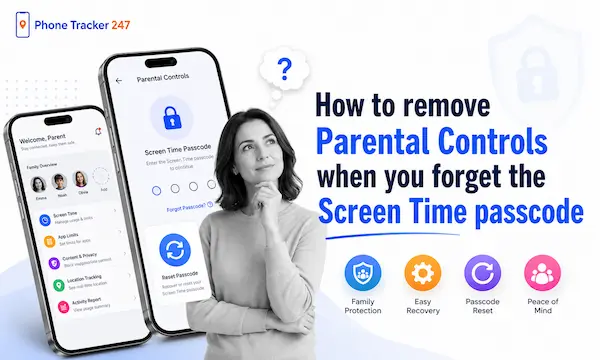
How to remove Parental Controls when you forget the Screen Time passcode
In case you forget your Screen Time passcode, you can still turn off Parental Controls on your iPhone using the Apple ID previously linked to the device. This is the official and safe method supported by Apple Inc..
Steps to follow:
- Go to Settings → Screen Time
- Select Change Screen Time Passcode
- Tap Forgot Passcode?
- Enter the Apple ID and password used to set up Screen Time
- Reset a new passcode or choose to turn off the feature completely
If you don’t remember your Apple ID:
- You won’t be able to reset the Screen Time passcode in the usual way
- You may need to verify your account via email or phone number
- In some cases, you must contact Apple’s official support
Important notes:
- The Apple ID must match the one originally used for Screen Time
- The device needs an internet connection for verification
- Avoid entering incorrect information multiple times to prevent temporary lockouts
Using your Apple ID to recover access is the most effective solution when you forget the passcode, allowing you to quickly regain control of your device without losing data.
Guide to turning off parental controls on iPhone using Apple ID
In addition to using the Screen Time passcode, you can also turn off Parental Controls on your iPhone using your Apple ID—especially if the device is managed through an account or belongs to a Family Sharing group. This is a convenient method for those who don’t remember the passcode but still have access to their Apple ID.
Steps to follow:
- Go to Settings on your iPhone
- Select Screen Time
- Tap Turn Off Screen Time
- The system will prompt you to sign in with your Apple ID
- Enter your account credentials for verification
- Confirm to complete the process
When should you use this method?
- When you don’t remember the Screen Time passcode but still know your Apple ID
- When the device is linked to a Family Sharing account
- When you want to disable it quickly without resetting a new passcode
Important notes:
- The Apple ID must be the one used to set up or manage Screen Time
- The device must be connected to the internet for verification
- If using Family Sharing, you may need permission from the organizer account
This method allows you to disable Parental Controls quickly, safely, and without affecting the data on your device.
Important things to note when turning off Parental Controls
Before turning off Parental Controls on your iPhone, you should prepare carefully to avoid potential risks. Below are important notes to ensure the process is safe and effective:
- Ensure proper authorization: Only proceed if you are the device owner or have permission to change settings, especially for devices under Family Sharing
- Remember your Apple ID and password: These are essential for verification and to avoid getting locked out during the process
- Back up your data beforehand: It’s recommended to back up via iCloud or a computer in case any issues occur
- Check for a stable internet connection: Some steps require Apple account verification, which needs a reliable connection
- Review settings after disabling: Make sure all restrictions are fully removed and the device functions normally
- Avoid repeated incorrect attempts: Entering the wrong passcode or Apple ID multiple times may temporarily lock the device
Following these precautions will help you disable Parental Controls quickly while keeping your data and device secure.
Table 2. Important Notes and Common Fixes When Turning Off Parental Controls
| Situation | Why It Happens | What to Do |
|---|---|---|
| You are not authorized to change settings | The device may belong to another user or be managed through Family Sharing | Make sure you are the device owner or have permission from the organizer |
| You cannot remember your Apple ID or password | Apple verification is required for passcode recovery | Recover your Apple ID first through Apple account verification methods |
| No internet connection during verification | Apple ID checks require an active connection | Connect to stable Wi-Fi or mobile data before trying again |
| You entered the wrong passcode too many times | Multiple failed attempts can trigger a temporary lock | Wait a while, then retry carefully or use Forgot Passcode? |
| Screen Time does not appear in Settings | The device may be restricted by Family Sharing or a configuration profile | Check device management settings and sign in with the correct primary account |
| Apple ID cannot be verified | Incorrect credentials or weak internet can block verification | Recheck your Apple ID details and use a more stable connection |
| Parental controls do not turn off completely | Temporary iPhone glitches or system conflicts may interrupt the process | Restart the device and repeat the steps from the beginning |
| You want to avoid data risk | Changing settings without preparation can cause problems if verification fails | Back up your iPhone through iCloud or a computer before making changes |
| You want to confirm everything is removed | Some restrictions may remain unnoticed | Review app, privacy, and content settings after disabling Screen Time |
| Nothing works after all attempts | The issue may require account or device-level support | Contact official Apple Support for safe assistance |
See more: Geofencing App for Parents: Way to Keep Kids Safe in 2026
Common issues and how to fix them
During the process of turning off Parental Controls on your iPhone, users may encounter some issues that interrupt the process. Below are common problems and effective solutions:
- Unable to enter the Screen Time passcode: This may be due to multiple incorrect attempts or a keyboard issue. Double-check your input, switch keyboards if needed, or use the “Forgot Passcode” option to reset it via your Apple ID.
- Screen Time option not visible: This can happen if the device is restricted by a configuration profile (MDM) or is part of Family Sharing. Check management permissions or sign in with the correct primary account.
- Apple ID cannot be verified: Usually caused by a weak internet connection or incorrect login details. Ensure a stable connection and verify your Apple ID email and password.
- Unable to completely turn off Parental Controls: This may be due to system glitches or temporary conflicts. Restart your device and try the steps again from the beginning.
- Device temporarily locked: Entering the wrong passcode too many times may lock the iPhone for a short period. Wait and try again later to avoid more serious issues.
If you’ve tried all the above solutions and still can’t resolve the issue, it’s recommended to contact official support from Apple Inc. for detailed and safe assistance.

FAQs – Take off parental controls on iphone
1. How do I turn off parental controls on an iPhone?
Go to Settings → Screen Time → Turn Off Screen Time and enter the passcode.
2. What if I remember the Screen Time passcode?
You can disable parental controls directly in Screen Time settings.
3. What if I forgot the Screen Time passcode?
Tap Forgot Passcode? and use the Apple ID linked to Screen Time.
4. Can I remove parental controls with Apple ID?
Yes. You can verify your Apple ID to reset or turn off Screen Time.
5. Do I need internet to turn off parental controls?
Yes, internet is usually needed for Apple ID verification.
6. Will turning off parental controls delete data?
No. The article says this method does not affect device data.
7. Can Family Sharing stop me from changing Screen Time?
Yes. You may need permission from the Family Sharing organizer.
8. Why is Screen Time missing in Settings?
The device may be managed by Family Sharing or a configuration profile.
9. What happens after parental controls are turned off?
App, content, and usage restrictions are removed.
10. What should I do if nothing works?
Restart the iPhone or contact official Apple Support for help.
Conclusion
Understanding how to take off parental controls on iPhone will help you easily regain control of your device and use all its essential features. Whether you remember the passcode or not, there are still multiple ways to handle it quickly and effectively.If you encounter any difficulties during the process or need more detailed guidance, don’t hesitate to reach out to PhoneTracker247 and leave your questions for the fastest support!
Quick Summary Table
| Situation | Best Solution | What You Need | Key Note |
|---|---|---|---|
| You remember the Screen Time passcode | Turn off Screen Time in Settings | Screen Time passcode | Fastest and easiest method |
| You forgot the Screen Time passcode | Use the Forgot Passcode option | Correct Apple ID and password | Must match the Apple ID used for Screen Time |
| The iPhone is under Family Sharing | Get organizer approval | Access from the family organizer | Some changes may be blocked without permission |
| Apple ID verification fails | Recheck account details and internet | Stable Wi-Fi or mobile data | Weak connection often causes verification issues |
| Screen Time is missing in Settings | Check device management or account restrictions | Primary account access | The device may be managed by a profile or family setup |
| Nothing works after multiple attempts | Restart the device or contact Apple support | Device access and account verification | Avoid too many wrong attempts in a row |
Still having trouble turning off parental controls on your iPhone? Do not waste hours trying random fixes that may not work. Read the full step-by-step guide on PhoneTracker247 and follow the exact method for your case. Get clear instructions, avoid common mistakes, and restore full access to your iPhone the right way.
For daily updates, subscribe to PhoneTracker’s blog!
We may also be found on Facebook!