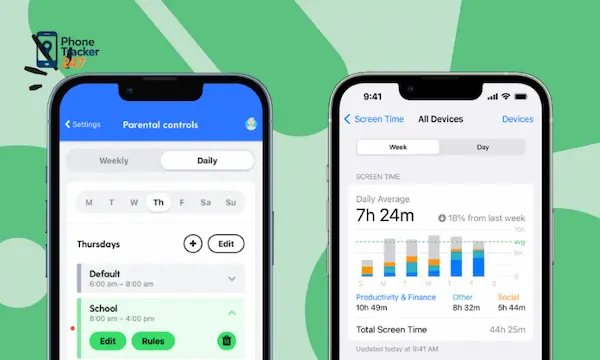
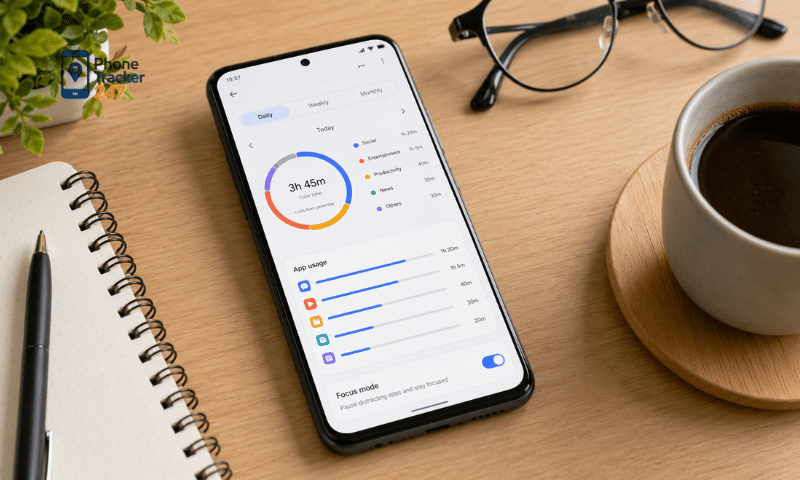
Excessive phone use can affect daily routines, learning, and concentration, especially for children and teenagers. A Screen Time Tracker Android helps monitor device usage, check how much time is spent on each app, and identify which apps take up the most screen time. With this data, parents can better understand their child’s phone habits and set appropriate limits, creating a healthier balance between entertainment, learning, and offline activities. Let’s explore with PhoneTracker247 how to track app usage and build better digital balance on Android.
Contents
How Does a Screen Time Tracker Android Monitor Usage?
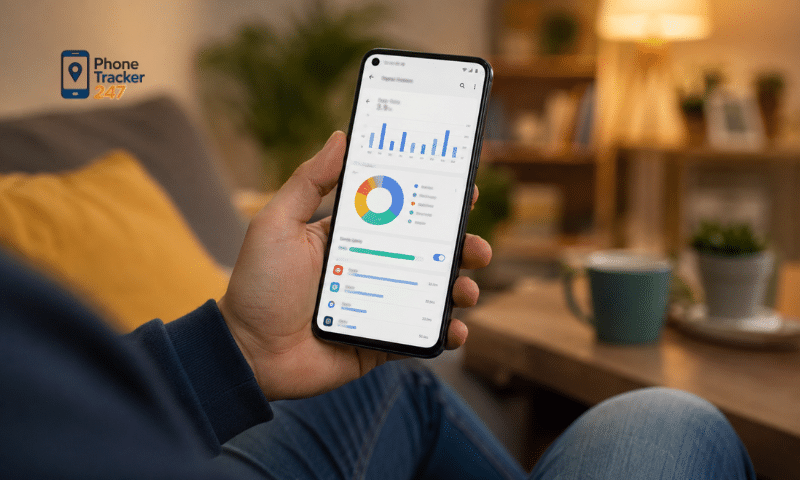
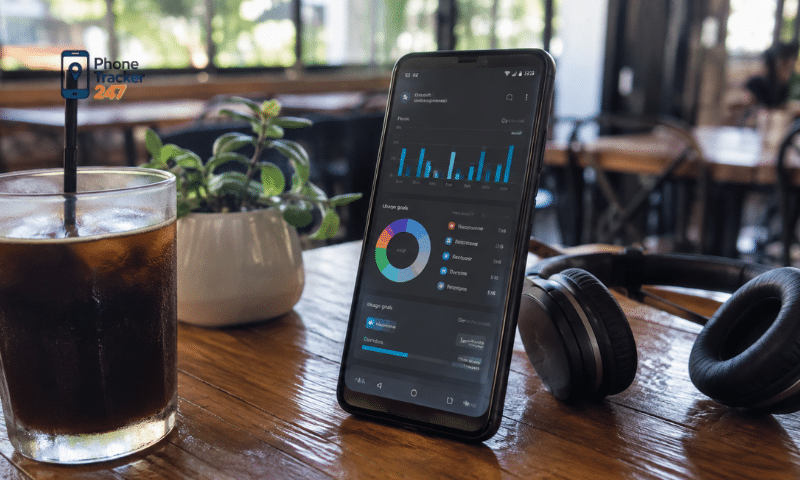
A Screen Time Tracker Android works by recording how long the device and individual apps are used throughout the day. The system can then turn this data into reports that help parents understand how much time their child spends on the phone, which apps are used the most, and how usage patterns change over time.
Tracking Total Device Usage Time
One of the most basic metrics provided by a Screen Time Tracker is the total amount of time the screen is active each day. This gives parents an overall view before looking more closely at individual apps.
The system may typically record:
- Total device usage time per day.
- Usage during different time periods.
- Usage differences across days of the week.
- The hours when the device is used most.
- Daily or weekly changes in Screen Time.
Rather than focusing on a single number, parents should review trends over several days to get a more accurate picture of device usage habits.
Tracking Time Spent on Individual Apps
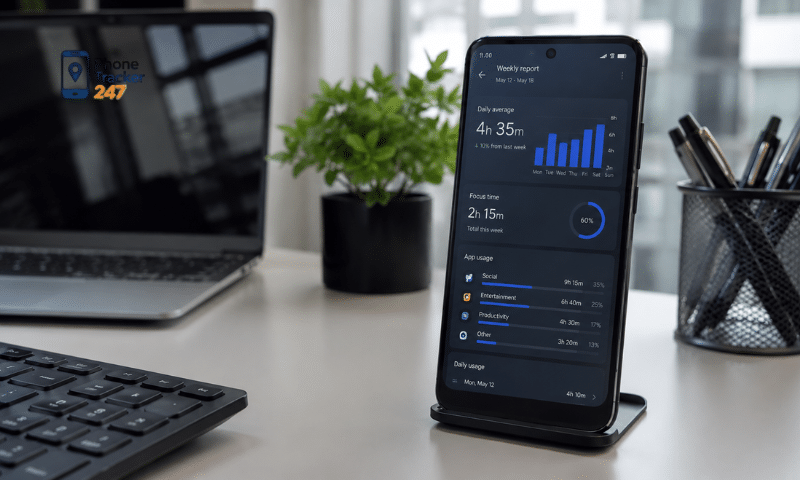
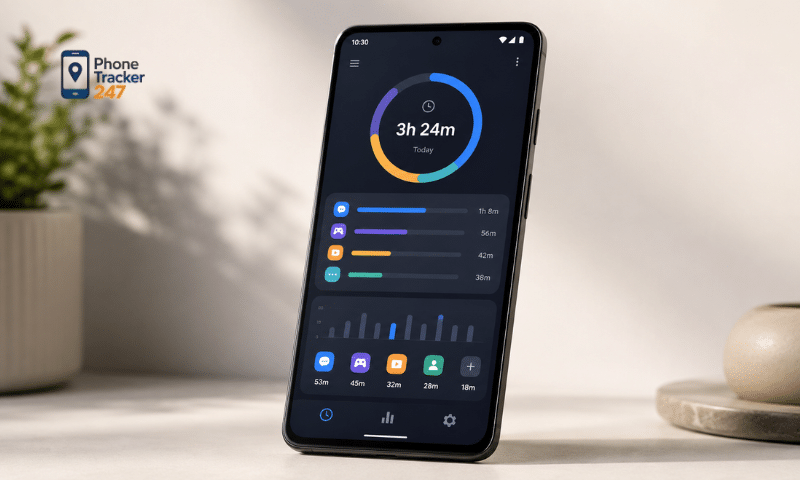
A Screen Time Tracker can break down total usage by individual application. This is important because two devices may have the same total Screen Time while being used for completely different purposes.
An App Usage report may show:
- Which apps are opened most often.
- Total time spent on each app.
- Time spent on social media.
- Time spent on games.
- Time spent on learning or reading apps.
- Which apps account for the largest share of total Screen Time.
This helps parents evaluate screen use based on content and purpose instead of relying only on a fixed daily time limit.
Tracking App-Opening Frequency
In addition to duration, how often a child checks the phone can also reveal important usage habits. An app may only be used for a few minutes at a time but still cause interruptions if it is opened repeatedly throughout the day.
A Screen Time Tracker can help identify:
- Apps that are opened frequently.
- The number of times an app is accessed per day.
- Time periods with high usage frequency.
- Habits of repeatedly checking the phone.
- Apps that are commonly used late at night.
By combining usage duration with access frequency, parents can gain a more complete understanding of App Usage.
How Does App Usage Help Parents Understand Phone Habits?
App Usage data does more than show how long a child uses a phone. It also helps explain what that time is being used for. This gives parents a better basis for setting reasonable limits instead of applying the same restrictions to every app.
See more: Android Parental Control App: How It Connects With Tracking
Identifying the Most-Used Apps
App Usage reports can rank applications by usage duration or frequency. This makes it easier for parents to quickly identify which apps are taking up the largest share of device time.
Common app categories to review include:
- Social media.
- Games.
- Video streaming apps.
- Messaging apps.
- Web browsers.
- Educational apps.
- Study or productivity tools.
For example, three hours spent mainly on language-learning apps is very different from three hours of continuously watching short videos. App Usage data therefore helps put Screen Time into the right context.
Detecting Inappropriate Usage Times
Time-based usage data can also reveal habits that may interfere with daily routines.
Parents may want to pay attention to:
- Using the phone immediately after waking up.
- Browsing social media during study time.
- Playing games when homework should be completed.
- Extended device use late in the evening.
- Checking the phone repeatedly within short periods.
- Using entertainment apps before bedtime.
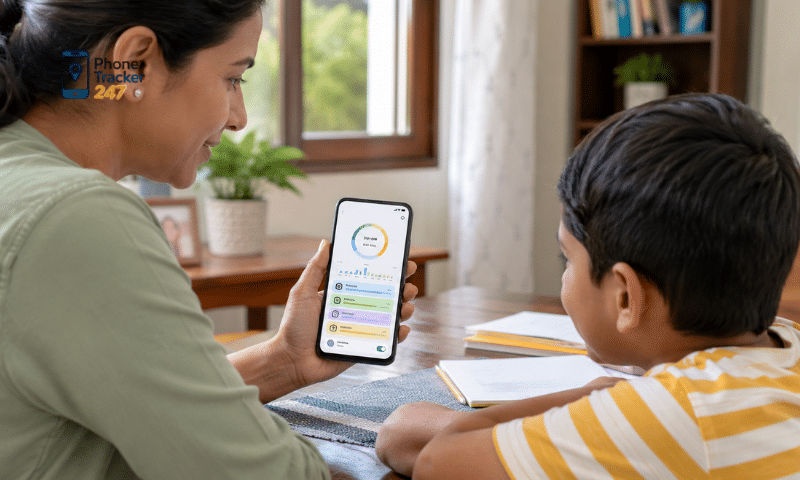
When these patterns appear regularly, parents can discuss them with their child and adjust usage habits instead of reacting only when total Screen Time becomes high.
Distinguishing Learning Time From Entertainment
Not all Screen Time is negative. Smartphones and tablets are also widely used for online learning, research, reading, and language practice.
For this reason, App Usage can be divided into categories such as:
- Learning: Online learning apps, reading tools, dictionaries.
- Communication: Calls and messages with family members.
- Creativity: Photo editing, video editing, design, or writing.
- Entertainment: Games, videos, and music.
- Social Media: Platforms for interaction and content sharing.
This classification allows parents to set more flexible Screen Time limits and avoid restricting activities that are genuinely useful or necessary.
Essential Features of a Screen Time Tracker Android
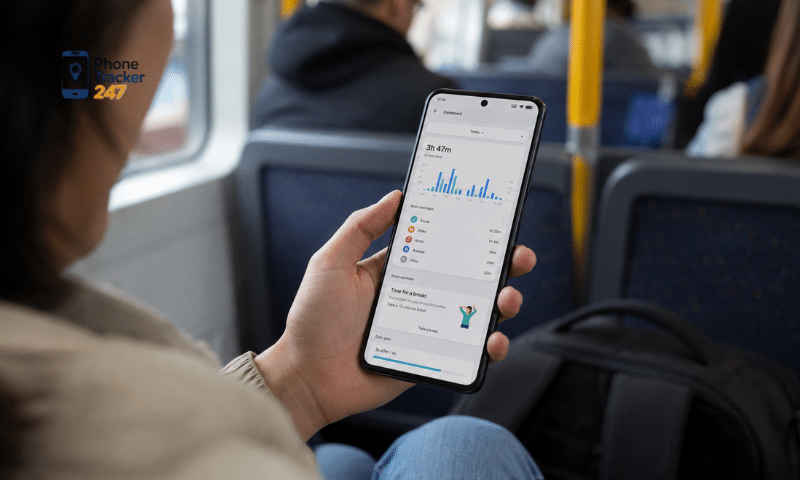
An effective Screen Time Tracker Android should do more than show the total amount of time spent on a phone. It should provide enough information to help parents understand device habits and set reasonable limits when needed.
Key features should include:
- Screen Time Reports: Show daily and weekly usage, average screen time, and the periods when the device is used most.
- App Usage Statistics: Display time spent on each app, how often apps are opened, and which apps consume the most time.
- App Limits and Time Limits: Allow separate limits for individual apps, app categories, or total entertainment time.
- Usage History and Trends: Help compare Screen Time across days and weeks and identify unusual changes in usage.
- Limit Alerts: Notify users when the device or an app is approaching or has exceeded a preset time limit.
When these features are combined in one system, parents can monitor App Usage more clearly, adjust limits more appropriately, and gradually support healthier device habits for their children.
How to Use a Screen Time Tracker to Build Better Digital Balance
The goal of a Screen Time Tracker is not simply to reduce phone use to the lowest possible number. Digital Balance is about using technology with purpose while still leaving enough time for learning, rest, physical activity, and real-world interaction.
Start by Observing Actual Screen Time
Before setting limits, parents should monitor usage data for a period of time to understand current habits.
Consider:
- Total daily Screen Time.
- Which apps take up the most time.
- When the device is used most.
- Differences between school days and weekends.
- The balance between learning and entertainment.
Having baseline data helps parents create limits based on real usage instead of assumptions.
See more: Android Location Tracking App: Accuracy, Battery and Privacy
Set Limits by App Category
Educational apps and entertainment apps should not always be restricted in the same way.
Parents may choose to:
- Keep necessary access to educational apps.
- Set limits for games and social media.
- Restrict entertainment videos during study hours.
- Create specific periods for entertainment.
- Adjust limits on weekends when necessary.
Managing apps based on purpose makes Digital Balance more flexible and can reduce the feeling of excessive control.
Create Device-Free Periods
Certain times of the day should be reserved for activities that do not involve screens.
Families can establish rules such as:
- No phones during meals.
- Limit device use during homework or study time.
- Make time for outdoor activities.
- Stop entertainment apps before bedtime.
- Create family time without phones or tablets.
Consistent habits like these can be more effective over the long term than relying only on a daily Screen Time limit.
Review Reports and Adjust Limits Regularly
Digital Balance is not a one-time setup. As school schedules, age, and device needs change, usage limits may also need to be updated.
Parents should regularly:
- Review App Usage reports.
- Compare Screen Time from week to week.
- Talk with their child about changes in usage.
- Adjust limits that are no longer appropriate.
- Encourage children to manage their own device time.
The long-term goal is to help children develop self-control around technology rather than relying entirely on technical restrictions.
Conclusion
A Screen Time Tracker Android provides useful data that helps parents understand how a phone is being used, from total Screen Time to individual app usage and peak usage periods. When interpreted properly, App Usage data can identify habits that may need adjustment without treating all screen time in the same way. Digital Balance is therefore not simply about “using the phone less.” It is about using devices at the right time, for the right purpose, without allowing technology to interfere with learning, sleep, physical activity, or real-world interaction.
If you are looking for a solution that supports Screen Time tracking, App Usage monitoring, and Android device habit management, PhoneTracker247 is an option worth exploring. Start by reviewing actual usage data, setting suitable limits, and adjusting them over time to support healthier and more balanced technology habits.