Parental controls on iPhone can feel like a locked door with several keys hidden in different places. Many users think there is one simple switch for everything, then get stuck when the problem turns out to be Screen Time, Content & Privacy Restrictions, a Screen Time passcode, or Family Sharing settings. That is why learning how to take off parental controls on iPhone starts with finding the exact layer that is blocking you. Once you identify where the restriction lives, the process becomes much simpler, faster, and less frustrating for both parents and children. Let’s find out more in this article with PhoneTracker247.
What Parental Controls on iPhone Actually Include
Before you remove anything, it helps to understand what iPhone parental controls really cover. Apple places these settings inside different sections, so users often disable one limit while another one stays active.
Screen Time is the main control center
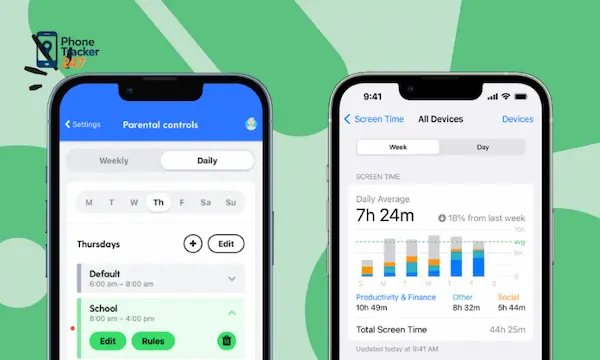
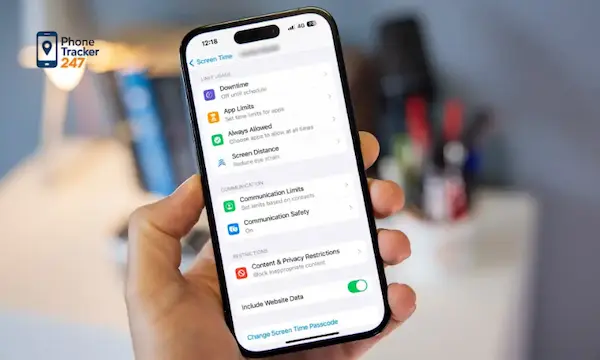
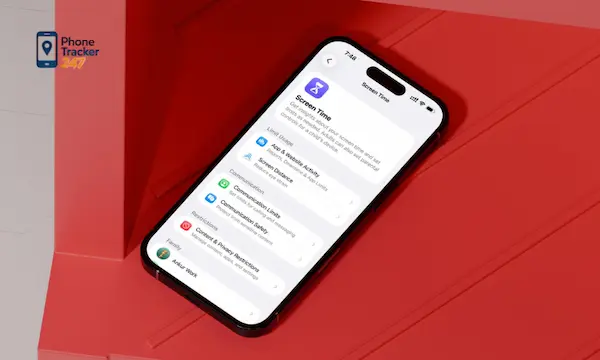
Screen Time is the feature most people mean when they talk about parental controls on iPhone. It acts like the main dashboard for managing how a child uses the device, how long they stay on certain apps, and which activities are limited during the day.
Inside Screen Time, parents can manage several controls at once. These often include:
- App Limits: restrict time spent on apps or categories such as games or social media. This is useful when a child spends too much time on one type of activity.
- Downtime: blocks most apps and notifications during selected hours. Parents often use it for bedtime, homework time, or family routines.
- Communication limits: control who a child can contact during allowed time or downtime. This helps reduce unwanted conversations and distractions.
If you want to know how to turn off parental controls on iPhone, Screen Time is usually the first place to check. However, turning off Screen Time completely is not always necessary if only one restriction is causing the issue.
Content & Privacy Restrictions are usually what block actions
Content & Privacy Restrictions are the settings that most often stop users from doing specific actions on the iPhone. If someone cannot install apps, delete apps, access certain websites, make purchases, or change account settings, this section is usually the reason.
These restrictions are more targeted than Screen Time itself. Common examples include:
- iTunes and App Store Purchases: can block app installs, app deletion, or in-app purchases. This often creates confusion because the phone looks normal, but basic actions are unavailable.
- Allowed Apps and Features: can hide or disable apps like Safari, AirDrop, Siri, or Camera. Users may think an app is missing, when it is actually restricted.
- Web Content and Privacy settings: can block adult sites, limit websites, or stop changes to location services, passcodes, and accounts. These are strong controls for younger children.
If your goal is to remove parental controls on iPhone without turning off all family protections, this is the best section to adjust first.
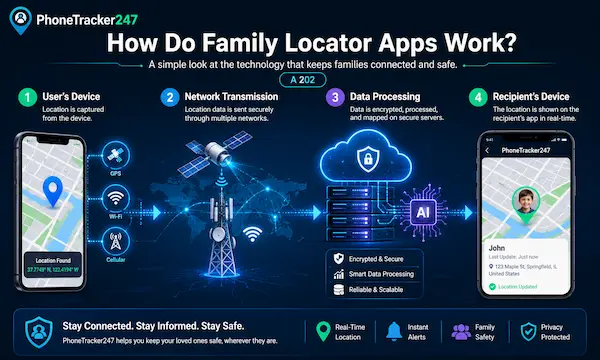
See more: How Do Family Locator Apps Work? A 2026 Guide to Technology
Family Sharing can place controls from a parent’s device
Sometimes the settings are not controlled on the child’s iPhone at all. If the device is part of Family Sharing, a parent may manage Screen Time remotely from their own Apple device. In that case, the child may see the restrictions but cannot fully remove them alone.
This matters because many people try to change settings on the restricted iPhone and get nowhere. The real control may be sitting on the organizer’s device. In practice, this means:
- Parents can approve or deny requests remotely: such as app downloads, purchases, and extra screen time. The child’s phone is only one side of the system.
- Screen Time passcodes may be managed by the parent: so entering the device unlock code will not work. These are two separate codes.
- Some settings cannot be changed locally: because the parent account still controls them through Family Sharing. That is why removal must happen from the right device.
If you are trying to remove parental controls on a child iPhone, always check whether Family Sharing is part of the setup.
How to Take Off Parental Controls on iPhone Step by Step
Once you know which control is active, you can choose the right way to remove it. This avoids unnecessary changes and keeps useful protections in place when you still need them.
How to turn off Screen Time completely
If you want to remove the whole parental control system at once, turning off Screen Time is the most direct method. This works best when the restrictions are no longer needed and the device should return to normal use.
Follow these steps:
- Open Settings
- Tap Screen Time
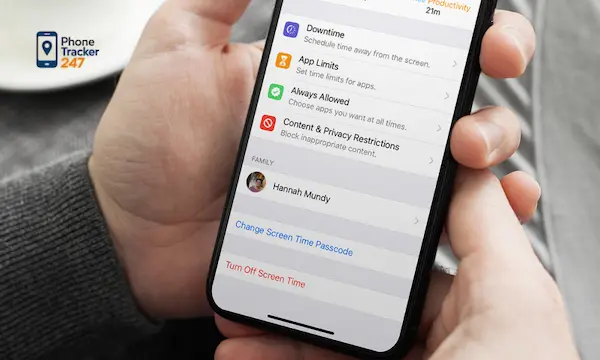
- Scroll down and tap Turn Off Screen Time
- Enter the Screen Time passcode
- Confirm your choice
This option removes App Limits, Downtime, communication limits, and related controls in one move. It is a good choice for older teens, adults using a secondhand device, or parents who want a clean reset.
Still, this is not always the smartest path. If the only problem is blocked websites or app installation, turning off everything may create more freedom than you actually want.
How to remove Content & Privacy Restrictions only
If you want to keep Screen Time but stop the blocking behavior, remove only the restrictions that are causing the issue. This approach gives more control and avoids wiping out the full setup.
Here is the path:
- Open Settings
- Tap Screen Time
- Tap Content & Privacy Restrictions
- Enter the Screen Time passcode
- Toggle Content & Privacy Restrictions off
You can also leave the master setting on and change only one category. For example:
- Allow app installs and deletions if the user needs to manage apps normally. This is often the fastest fix for day-to-day frustration.
- Adjust web content filters if Safari is blocking too many websites. This works well when a child has outgrown stricter browsing rules.
- Allow account or privacy changes if the user needs to update settings. This matters when basic account management has been locked down.
This method is often the best answer for users searching how to take off parental controls on iPhone without removing every digital safety layer.
How to turn off App Limits, Downtime, or web filters one by one
Many families do not need to disable all parental controls. They only need to soften certain rules because the child’s age, school needs, or daily schedule has changed.
You can do that by adjusting limits individually:
- App Limits: go to Screen Time, open App Limits, then delete the limit for a specific app category. This works when games, social media, or streaming no longer need tight daily caps.
- Downtime: go to Screen Time, tap Downtime, then turn it off or edit the hours. This helps when routines change during vacations, exam periods, or weekends.
- Web Content restrictions: go to Content Restrictions, then Web Content, and choose a less restrictive option. This is useful when educational or normal websites are getting blocked by mistake.
This selective method creates a smoother balance. It keeps healthy boundaries in place while removing the exact friction points that are making the phone harder to use.
What to Do If You Forgot the Screen Time Passcode
For many users, the biggest problem is not finding the settings. The real issue is forgetting the Screen Time passcode. Without that code, you cannot make meaningful changes to parental controls.
How to change or reset the Screen Time passcode
If the Screen Time passcode was set up properly, it can often be reset through the linked Apple account. This is the safest and most legitimate way to regain access.
Try this process:
- Open Settings
- Tap Screen Time
- Select an option that asks for the passcode
- Tap Forgot Passcode?
- Enter the Apple ID and password used for the Screen Time setup
- Create a new passcode
This method is important because many people keep entering the iPhone unlock code and wonder why it fails. The device passcode and Screen Time passcode are different, and mixing them up is a common mistake.
What happens if the iPhone belongs to a child in Family Sharing
If the iPhone is connected to a child account under Family Sharing, the parent or organizer may need to make the change. In many cases, the child cannot reset or remove the restrictions directly from their own device.
That means the parent may need to:
- open Screen Time on their own Apple device
- select the child’s name
- adjust or remove the active restrictions
- reset the Screen Time passcode if needed
This is why some users feel stuck even when they know the correct settings path. The controls may not be locked by the phone itself, but by the parent account behind it.
When you may need Apple support instead of repeated guesses
If the reset path fails, repeated guessing usually makes the situation worse. It is better to stop and review the account setup instead of trying random combinations.
You may need extra help in these situations:
- You do not know which Apple account was used: this happens often on shared family devices or older phones handed down to children.
- The device was bought secondhand: restrictions may still be tied to a previous setup. In that case, proof of ownership may matter.
- Family Sharing access is unclear: one parent may have configured the controls long ago and forgotten the details. This can delay removal.
When this happens, the best move is to work through the correct Apple account path instead of looking for ways around the system.
PhoneTracker247’s Take on Safe Digital Parenting
At PhoneTracker247, digital parenting should feel clear, ethical, and practical. Families need tools that support safety without turning device management into a constant battle or a hidden surveillance habit.
That is why a healthy setup should focus on three things:
- Transparency: children should understand what is being limited and why. Clear rules usually create less resistance than silent controls.
- Flexibility: settings should change as needs change. What works for a 9-year-old rarely fits a 15-year-old in the same way.
- Safety with respect: protection works best when it supports trust, consent, and open communication instead of secrecy.
Parental controls on iPhone are useful, but they work best as part of a broader digital safety plan. The strongest family habits come from clear expectations, regular review, and age-appropriate freedom.

Final Thoughts on How to Take Off Parental Controls on iPhone
If you want to learn how to take off parental controls on iPhone, the key is to identify the exact kind of restriction first. It may be Screen Time, Content & Privacy Restrictions, a forgotten Screen Time passcode, or remote management through Family Sharing. Once you find the source, removing the control becomes much more straightforward.
Need a smarter way to manage family device safety without creating unnecessary friction? Explore PhoneTracker247 and build a more flexible, transparent digital parenting routine that protects your household while still respecting independence.
For daily updates, subscribe to PhoneTracker’s blog!
We may also be found on Facebook!
FAQs – How to Take Off Parental Controls on iPhone
1. How do I take off parental controls on iPhone?
Go to Screen Time and turn off active restrictions.
2. Can I turn off Screen Time completely?
Yes, if you know the Screen Time passcode.
3. Where are iPhone parental controls?
They are mainly inside Settings > Screen Time.
4. What are Content & Privacy Restrictions?
They control apps, purchases, websites, and privacy settings.
5. Can I remove only one restriction?
Yes, you can adjust limits one by one.
6. What if I forgot the Screen Time passcode?
Use the Apple ID linked to Screen Time.
7. Can Family Sharing control restrictions?
Yes, a parent may manage settings remotely.
8. Do I need the parent account?
Yes, for child accounts under Family Sharing.
9. Is removing controls always recommended?
No, only remove them when appropriate and authorized.
10. What is the best first step?
Check whether the limit comes from Screen Time or Family Sharing.