The internet can feel like a busy city with bright signs, safe streets, dark alleys, and doors that open too easily. That is why internet browser parental controls matter. They help parents guide children toward safer online habits without standing over them every minute. Used well, these settings can reduce exposure to harmful content, limit risky browsing, and create a healthier digital routine. Still, they work best as part of a wider safety plan. In this guide, you will learn what internet browser parental controls do, how to set them up, where they fall short, and when broader family safety tools make sense. Let’s find out more in this article with PhoneTracker247.
Contents
- 1 What are internet browser parental controls and how do they work?
- 2 Why parents use internet browser parental controls for child online safety
- 3 How to set up internet browser parental controls effectively
- 4 Best browser options parents commonly use
- 5 Final thoughts on internet browser parental controls
- 6 FAQs – Internet Browser Parental Controls
What are internet browser parental controls and how do they work?
Internet browser parental controls are tools that help parents shape what children can search, open, download, and interact with while browsing online. They work at the browser level, which means they affect activity inside a specific browser rather than the whole device.

Browser parental controls are designed to filter and limit risky web activity
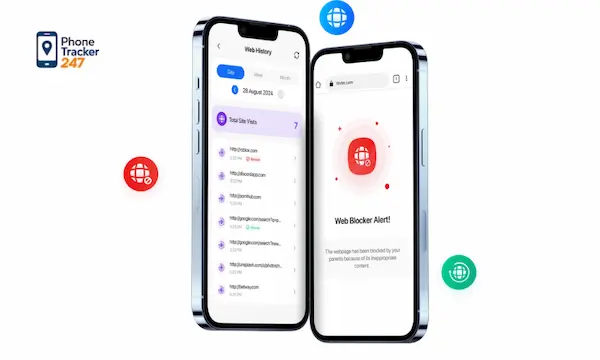
Internet browser parental controls act like a first checkpoint between your child and the open web. They do not remove every risk, but they can reduce accidental exposure and make browsing more age-appropriate. Most browser controls focus on filtering content, blocking selected websites, limiting explicit search results, and reducing unsafe permissions that expose children to questionable pages or unwanted pop-ups.
- Content filtering: This feature helps block explicit, violent, or otherwise inappropriate websites before a child can open them. It is often the first setting parents turn on.
- Search protection: SafeSearch and similar options reduce explicit results in search engines, which is useful when children are curious but still too young to judge risky content.
- Site blocking: Parents can manually add websites they never want their children to visit, creating a simple but effective layer of protection.
- Permission control: Some settings limit downloads, pop-ups, notifications, and location requests, which lowers the chance of unsafe interactions.
What internet browser parental controls can help parents manage
Parents often assume browser controls only block adult websites, but they can do much more when configured carefully. They help create a safer browsing environment, especially for younger children who mainly use search engines, video sites, school pages, and a small number of approved websites. That makes them a practical starting point for child online safety at home.
- Inappropriate content access: Parents can reduce exposure to adult material, graphic violence, gambling pages, and other websites that are not suitable for children.
- Unsafe search behavior: Browser tools can hide explicit search results and reduce the chance of children landing on harmful pages by mistake.
- Risky downloads and pop-ups: Settings can limit files, suspicious prompts, and redirects that may lead to scams or malware.
- Basic privacy risks: Some controls help manage cookies, tracking permissions, and website requests that children may click without understanding.
See more: Effective Tips for Parental Control for Video Games to Keep Kids Gaming Safely
The difference between browser controls, device controls, and parental monitoring apps
It is important to understand that browser controls are only one layer of protection. They help inside a browser, but children now move across apps, devices, and platforms very quickly. That means parents need to know where browser parental controls end and where broader safety tools begin.
- Browser controls: These only affect browsing inside Chrome, Safari, Edge, Firefox, or another selected browser.
- Device controls: These work across the phone, tablet, or computer and may include app limits, content ratings, and screen time settings.
- Parental monitoring apps: These can provide broader visibility into digital behavior, such as app use, browsing patterns, and location awareness, depending on features and legal use.
- Best use case: Browser controls are ideal for quick setup and younger children, while broader tools help families manage more complex digital habits.

Why parents use internet browser parental controls for child online safety
Parents use internet browser parental controls because they want a practical way to reduce risk without turning home internet use into a constant conflict. These tools create boundaries that support safer behavior while still giving children room to learn, explore, and grow online.
Reducing exposure to explicit, violent, and harmful content
One of the main reasons parents look for parental controls for browsers is simple: the open internet moves faster than a child’s judgment. A basic search can lead to content that feels harmless at first but quickly turns unsuitable. Browser filters help slow that process down and remove many of the easiest paths to harmful material.
- Adult content blocking: This helps protect children from explicit websites that may appear through search, ads, or shared links.
- Violent or disturbing material: Filters can reduce the chance of children viewing graphic content they are not emotionally ready to process.
- Scam and malicious pages: Some settings lower the risk of fake websites, misleading downloads, and harmful redirects.
- Early prevention: Blocking before exposure is usually more effective than reacting after a child has already seen something upsetting.
Building healthier browsing habits without constant supervision
Most parents cannot watch every click, every search, or every online conversation. Internet browser parental controls help shift safety from constant supervision to structured guidance. Instead of relying only on verbal reminders, parents can create a browsing environment that encourages better choices by default.
- Consistent boundaries: Children learn what is allowed and what is restricted through repeated experience, not just one-time rules.
- Lower daily conflict: Settings reduce the need for constant correction, which can make digital parenting feel calmer and more sustainable.
- Routine support: Safer browser settings help children stay focused on school, hobbies, and approved content instead of wandering toward risky pages.
- Habit formation: Good digital behavior becomes easier when the online environment supports it instead of working against it.
See more: Top best OS X parental control software for Mac in 2026
Supporting age-appropriate internet access at home
A seven-year-old and a fourteen-year-old should not browse the internet under the same rules. Browser parental controls allow families to adjust access based on age, maturity, and daily needs. That flexibility matters because digital safety is not only about blocking content. It is also about matching online freedom to a child’s readiness.
- Younger children: They usually need stricter filters, approved website lists, and tighter search protection.
- Older children: They may need broader access, but still benefit from guardrails around explicit content, downloads, and private browsing.
- Shared family devices: Browser settings can help keep one household device safer for several age groups with fewer mistakes.
- Balanced parenting: Age-appropriate access feels more reasonable to children than blanket restrictions that ignore their stage of development.

How to set up internet browser parental controls effectively
Setting up internet browser parental controls is not difficult, but doing it well requires more than turning on one filter. The goal is to build several small protections that work together. That approach creates a safer browser experience without making the internet unusable for learning and daily life.
Start with SafeSearch, content filters, and blocked website lists
The most effective setup usually begins with the simplest tools. SafeSearch reduces explicit search results, content filters block broader categories of harmful pages, and blocked website lists let parents remove specific sites they already know are not appropriate. Combined, these settings create a stronger first layer than any single option on its own.
- Turn on SafeSearch: This should be one of the first steps because search engines often act as the gateway to unsafe content.
- Use category-based filters: Block adult, gambling, violent, or suspicious website categories whenever the browser or connected parental controls allow it.
- Create a custom block list: Add websites that you specifically want to keep off limits, especially if your child has already tried visiting them.
- Review the list regularly: Online risks change over time, so blocked websites and filters should be updated as your child’s habits evolve.
Review privacy, permissions, and download settings
Many parents focus only on website blocking, but browser safety also depends on privacy and permissions. A child can still face risk through pop-ups, downloads, tracking prompts, and notification requests. Tightening these settings makes browser parental controls more complete and reduces weak points that harmful pages often exploit.
- Disable unnecessary pop-ups: Pop-up windows often push scams, adult content, or misleading offers that children may click without thinking.
- Restrict downloads: Limit file downloads where possible, especially on shared devices used for school and entertainment.
- Manage site permissions: Review camera, microphone, location, and notification access so children do not grant permissions to unsafe websites.
- Strengthen browser privacy: Basic privacy settings help reduce tracking and lower exposure to aggressive or manipulative web experiences.
Pair browser settings with family rules and regular check-ins
Even the best internet browser parental controls work better when children understand why they exist. Settings should support family conversations, not replace them. When children know the goal is safety rather than punishment, they are more likely to cooperate and less likely to look for ways around the rules.
- Explain the purpose clearly: Tell your child these settings are there to protect them, not to remove trust without reason.
- Set browsing expectations: Define what kind of sites are allowed, what should be asked first, and what happens when rules are broken.
- Schedule regular reviews: Revisit browser settings and online habits together so safety becomes an ongoing discussion.
- Adjust over time: As children grow, parental controls for browsers should change too, becoming more flexible where maturity allows.

Best browser options parents commonly use
Different browsers offer different strengths, so parents should choose based on the device their child uses most often and how much control they need.
- Google Chrome parental controls: Chrome becomes much more useful for families when paired with supervised accounts or connected family safety settings.
- Safari parental controls: Safari works best when combined with system-level controls on Apple devices, especially for web content restrictions.
- Microsoft Edge family settings: Edge can be a practical option for Windows households that want tighter integration with family account management.
- Firefox browser tools: Firefox offers privacy benefits, but parents often need extra setup or add-ons for stronger child-focused restrictions.
Final thoughts on internet browser parental controls
Internet browser parental controls are a strong first step for families that want to make the web safer for children. They can block harmful content, improve search safety, and support healthier online habits. Still, they are only one layer. The best protection comes from combining browser settings, device rules, family conversations, and age-appropriate oversight.
If your family needs more than simple browser restrictions, explore PhoneTracker247 and build a safer, clearer, and more transparent digital safety system today.
For daily updates, subscribe to PhoneTracker’s blog!
We may also be found on Facebook!
FAQs – Internet Browser Parental Controls
1. What are internet browser parental controls?
They help filter, block, and limit risky web activity.
2. Do browser controls block adult content?
Yes, they can reduce access to adult websites.
3. Can browser controls block specific websites?
Yes, parents can add sites to a block list.
4. Is SafeSearch a browser parental control?
Yes, it helps filter explicit search results.
5. Do browser controls work across all apps?
No, they mainly work inside the browser.
6. Can parents restrict downloads?
Yes, some browser settings limit risky downloads.
7. Should parents manage site permissions?
Yes, review camera, location, and notification access.
8. Are browser controls enough?
No, they work best with device rules and check-ins.
9. Which browsers support parental controls?
Chrome, Safari, Edge, and Firefox offer safety options.
10. What should parents set first?
Start with SafeSearch, filters, and blocked sites.