Removing parental controls on Android can feel like trying to open a door with the wrong key. The problem is not always the restriction itself. In many cases, it is confusion about where that restriction comes from. On Android, parental controls may come from Google Family Link, the Google Play Store, built-in screen time tools, or third-party apps.
That is why the best way how to remove parental controls on Android is to identify the active system first, then follow the correct method. Once you do that, the process becomes much more manageable and far less frustrating. Let’s find out more in this article with PhoneTracker247.
What parental controls on Android actually include
Before changing any settings, it helps to understand what parental controls mean on Android. Many users assume there is one master switch, but Android uses several different tools that can limit access in different ways.
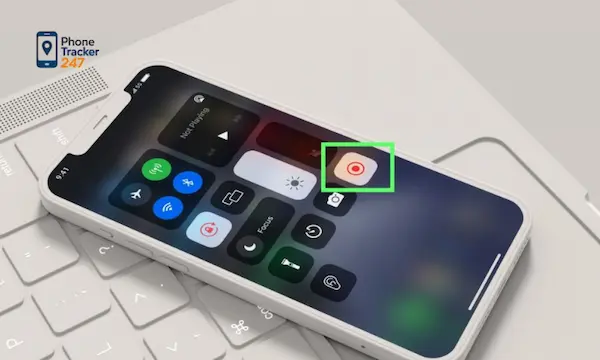
Google Family Link and supervised Android accounts
Google Family Link is one of the most common parental control systems on Android. It allows parents to supervise a child’s Google account, approve app downloads, set screen time, view device activity, and apply content filters. When Family Link is active, the device may show signs that it is supervised.
A supervised Android phone often behaves differently from a standard device. You may notice blocked settings, approval prompts for downloads, or notifications that mention parent permission. In this case, removing parental controls usually requires access to the parent account linked to that child device.
If the phone belongs to a teen who has reached an eligible age in their region, Google may allow a transition out of supervision. Still, this usually happens through the official Family Link process rather than through random device settings.
Google Play parental controls and content restrictions
Google Play parental controls are more limited than Family Link. They focus on filtering content such as apps, games, movies, and books. These controls are set inside the Play Store and protected by a PIN.
This matters because many people think they need to remove full parental supervision when the real issue is only a Play Store restriction. If app downloads are blocked based on maturity level, or if certain content categories are hidden, the Play Store settings may be the only place you need to change.
In that case, the removal process is usually straightforward. Enter the correct PIN, turn the controls off, and confirm the changes.
See more: How Does Parental Control Work in Protecting Children on the Internet
Device-level limits, screen time settings, and third-party parental control apps
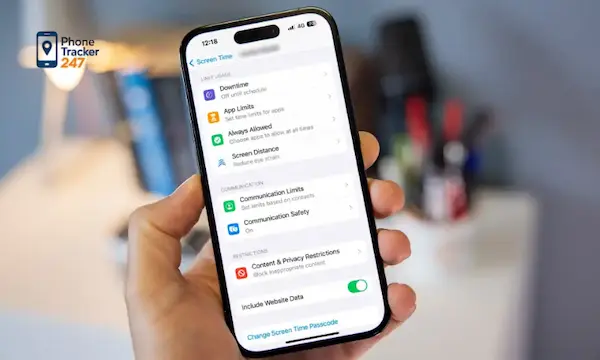
Some Android devices also include built-in restrictions through Digital Wellbeing, Kids Mode, or brand-specific family tools. On top of that, many families install third-party parental control apps for location tracking, app blocking, browser filtering, or screen time management.
These tools may use device admin access, accessibility permissions, or VPN-based filtering. That is why they can remain active even after a user deletes the visible app icon. To remove them correctly, you often need to disable their permissions first and then uninstall the app.
How to identify which parental control is active on your Android device
Many removal attempts fail because people start in the wrong menu. A quick diagnosis saves time and prevents unnecessary account problems.
Signs that Family Link is controlling the phone
Family Link usually leaves clear traces on the device. The phone may state that it is supervised, app installations may require approval, or certain settings may be greyed out. In some cases, account settings mention family supervision directly.
Look for these clues:
- Supervision notices: The device or account settings may mention parental supervision or family management.
- Approval prompts: New apps cannot be installed without permission from the parent account.
- Restricted settings: Some system menus may be unavailable or locked.
When these signs appear together, Family Link is likely the control layer you need to remove.
Signs that Google Play parental controls are enabled
Play Store restrictions are easier to spot because they mainly affect content visibility. The device may work normally, but some apps, games, or media will not appear or will require a PIN.
Common indicators include:
- Filtered search results: Mature content does not show in the Play Store.
- Blocked downloads: Certain apps cannot be installed because of rating limits.
- PIN prompts: The Play Store asks for a parental control PIN before changes.
If the rest of the phone works normally, the issue may be limited to Google Play.
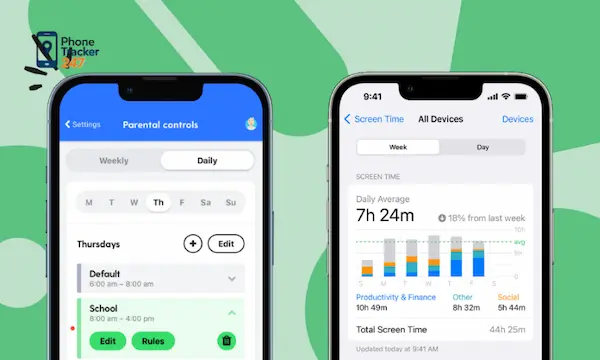
Signs that a third-party parental control app is installed
Third-party tools often behave differently from Google’s own controls. You may see unusual notifications, blocked websites, or app limits that do not mention Google at all. Some apps also hide themselves or use generic names.
Watch for these signs:
- Admin requests: The app has device admin or accessibility permissions.
- Hidden behavior: Restrictions remain even when no obvious app icon appears.
- Custom alerts: Notifications come from a non-Google service.
When this happens, check the installed apps list, device admin settings, and accessibility menu before uninstalling anything.
How to remove parental controls on Android step by step
Once you identify the active system, the process becomes much easier. The right steps depend on where the restriction is coming from.
Remove parental controls through Google Family Link
If Family Link is managing the device, the parent account usually needs to make the change. Open the Family Link app on the parent’s phone, choose the child account, and review the supervision settings. Depending on the child’s age and account status, you may see an option to stop supervision or adjust restrictions instead of removing them completely.
Follow this path:
- Open Family Link: Use the parent device that manages the child account.
- Select the child profile: Choose the device or account with active restrictions.
- Review controls: Check screen time, content filters, and supervision settings.
- Stop supervision if eligible: Confirm the prompts and review what changes will happen next.
After removal, some controls will disappear immediately, while others may require the device to sync or restart. Keep in mind that this method is intended for authorized account holders managing their own family devices.

Turn off parental controls in Google Play Store
If the issue comes from Play Store content restrictions, the fix is simpler. Open the Google Play Store, tap the profile icon, go to Settings, then Family, then Parental controls. From there, enter the PIN and switch parental controls off.
Use these steps:
- Open Google Play Store: Tap the profile icon in the top corner.
- Go to Settings: Expand the Family section.
- Tap Parental controls: Enter the existing PIN.
- Disable the feature: Toggle the setting off and confirm.
Once completed, the store should show full content based on the account and region. This method only removes Play Store filtering. It does not remove Family Link or other app-based restrictions.
Delete or disable a third-party parental control app
Third-party apps often require an extra step before uninstallation. If you try to remove the app first, Android may block the process because the app still has elevated permissions.
A safer sequence looks like this:
- Open Settings: Go to Security, Device admin apps, or Privacy menus depending on the phone.
- Disable elevated access: Remove admin rights, accessibility access, or VPN permissions.
- Return to Apps: Find the parental control app in the installed apps list.
- Uninstall the app: Restart the device if restrictions continue.
If the restrictions remain after removal, check for companion apps, hidden profiles, or leftover permissions that still need to be disabled.
What to do if you cannot remove parental controls on Android
In some cases, the problem is not technical. It is tied to account ownership, missing credentials, or policy limits within the parental control system itself.
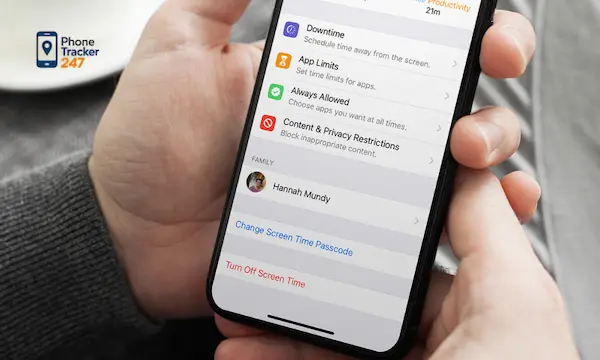
You do not have the parent account, PIN, or access code
This is one of the most common reasons removal fails. Without the authorized account or PIN, Android may not let you disable the restriction. That is especially true for Family Link and third-party tools with admin-level access.
In this situation, the safest path is to use official account recovery options or contact the person who manages the device. Trying random workarounds can create more problems, including lost data, broken syncing, or account flags.
Family Link removal is greyed out or restricted by age settings
Family Link may not always allow immediate removal. In some cases, the account is still within an age range that requires supervision, or the settings must be changed from the parent device rather than the child phone.
When this happens:
- Verify the managing account: Make sure the correct parent account is being used.
- Check account age rules: Eligibility can depend on region and account setup.
- Review Family Link prompts: Google may offer reduction of limits before full removal.
This is why clear account ownership matters more than random setting changes.
Restrictions remain after uninstalling the app
If restrictions continue after the app is gone, the phone may still have related permissions or profiles active. Some tools also leave behind browser filtering, VPN settings, or accessibility controls.
Check these areas carefully:
- Device admin apps: Make sure the old app no longer has authority.
- Accessibility settings: Remove any leftover monitoring service.
- VPN or private DNS settings: Some filtering tools remain active here.
- Restart the phone: A reboot may clear cached policy behavior.
This extra check often solves the problem when uninstallation alone does not.

A smarter way to manage Android safety after removing parental controls
Removing strict controls does not mean giving up visibility. In many families, the better long-term solution is shifting from hard blocks to informed monitoring, healthy communication, and transparent boundaries. That approach fits modern digital parenting far better than relying only on rigid lockouts.
PhoneTracker247 is positioned as a privacy-first, consent-based phone monitoring platform focused on device safety, activity visibility, and responsible oversight rather than hidden spying . For parents, that creates a more flexible middle ground. Instead of blocking everything, they can stay informed, discuss risks early, and support better digital habits in a more balanced way.
Conclusion
If you want to remove parental controls on Android, the key is to identify which system is active before changing anything. Google Family Link, Google Play parental controls, built-in device tools, and third-party apps all work differently. Once you match the restriction to the right control layer, the steps become much clearer.
In most cases, the process is simple for authorized users managing their own device or family account. And after removal, it often makes more sense to replace strict lockouts with transparent, privacy-aware supervision that supports both safety and trust.
Want a safer and more flexible way to manage Android activity after removing strict restrictions? Explore PhoneTracker247 and take a more balanced, privacy-first approach to family device safety.
For daily updates, subscribe to PhoneTracker’s blog!
We may also be found on Facebook!
FAQs – How to Remove Parental Controls on Android
1. How do I remove parental controls on Android?
First, identify which control system is active.
2. Can I remove Family Link controls?
Yes, through the parent account if eligible.
3. Can I turn off Google Play parental controls?
Yes, open Play Store settings and enter the PIN.
4. What if I forgot the parental control PIN?
Use official account recovery or contact the account owner.
5. Can I uninstall a parental control app?
Yes, but disable its permissions first.
6. Why won’t parental controls turn off?
They may be linked to Family Link, admin access, or VPN settings.
7. Do I need the parent account?
Yes, for supervised accounts or Family Link controls.
8. Is removing parental controls always safe?
Only remove them if you are authorized.
9. What should parents do after removal?
Use clear rules and responsible monitoring.
10. What is the best first step?
Check whether the limit comes from Family Link, Google Play, or an app.