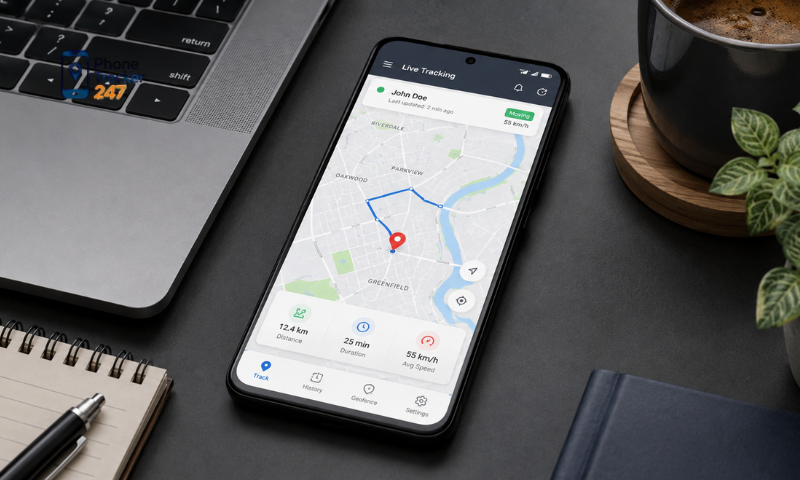
Android phone tracking app can help users manage devices, check locations, and monitor device status in a variety of appropriate situations. However, if the app is configured incorrectly from the beginning, location updates may be delayed, background activity may stop, or data may fail to sync as expected. This guide from PhoneTracker247 explains the most common setup mistakes and how to configure the app properly for more stable performance.
Contents
Common Mistakes When Setting Up an Android Phone Tracking App
Most setup problems on Android are not necessarily caused by the app itself. They are often related to permissions, Internet connectivity, battery settings, or user account configuration. Checking each of these factors carefully from the start can help PhoneTracker247 run more reliably and reduce connection interruptions or incomplete data updates.
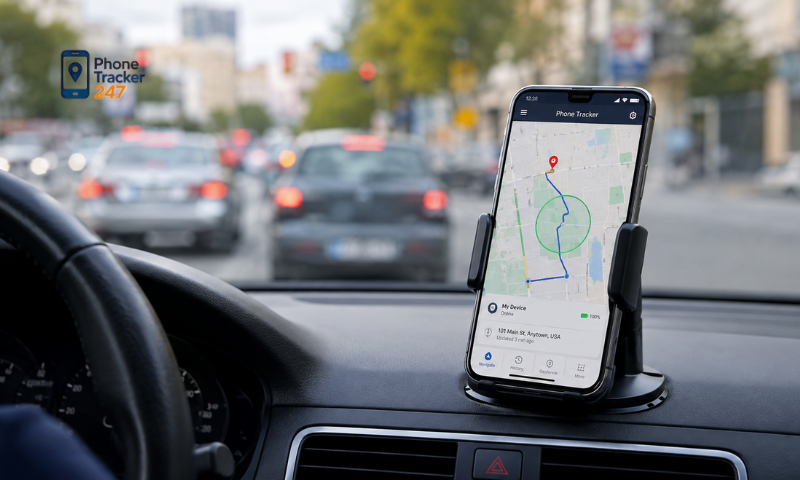
Not Granting All Necessary App Permissions
A tracking app needs certain permissions to perform its intended functions correctly. If users skip or deny important permissions during setup, the app may not be able to update information properly.
Users should check:
- Location access permission.
- Background activity permission.
- Mobile data access.
- Notification permission when alerts are required.
- Other permissions directly related to the features being used.
Granting the correct permissions can help PhoneTracker247 work more consistently. However, users should only allow permissions that are genuinely necessary and appropriate for their intended use.
Allowing Location Access Only While Using the App
Android offers several levels of location access. If an app needs to update location information in the background but is only allowed to access location while the app is open, data syncing may stop after the screen is turned off or the app is closed.
Users should check:
- The app’s current location permission status.
- Whether background location access is allowed when needed.
- Whether the phone’s location services are enabled.
- Whether any location-saving or GPS restriction settings are active.
If PhoneTracker247 needs background location updates, location permissions should be configured according to the specific feature the user has chosen to use.
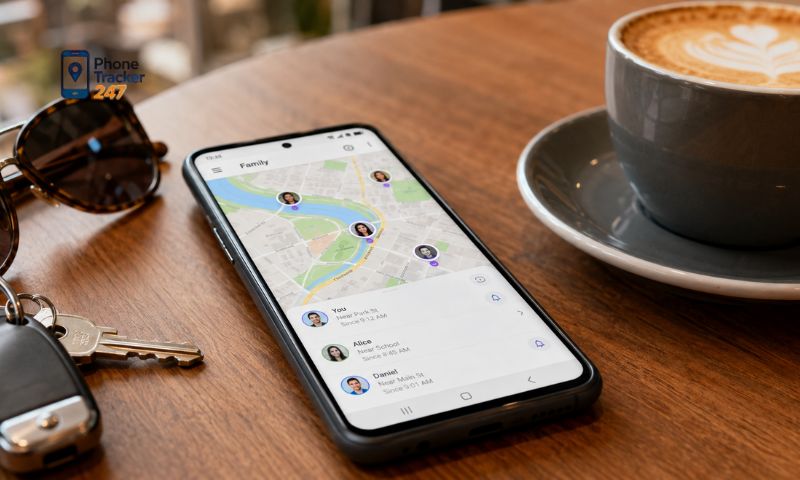
Battery Saver Preventing the App from Running in the Background
Many Android devices automatically restrict background activity to extend battery life. This is a common reason why tracking apps may work inconsistently even when the initial installation appears to be correct.
Common signs include:
- Location updates are inconsistent.
- Data only changes when the app is opened.
- Information is delayed for long periods.
- Background activity is interrupted.
- Notifications arrive late or do not appear.
Users can review the Battery, Battery Optimization, or Background Apps settings in Android to make sure PhoneTracker247 is not being restricted unintentionally.
Unstable Internet Connection
Tracking apps typically require an Internet connection to send and synchronize information between the device and the system. If Wi-Fi is weak, mobile data is turned off, or the network connection frequently drops, information may not update at the expected time.
Users should check:
- Whether Wi-Fi is connected and stable.
- Whether 4G or 5G is enabled when Wi-Fi is unavailable.
- Whether PhoneTracker247 is allowed to use background data.
- Whether Data Saver is restricting the app.
- Whether the device frequently loses signal or switches networks.
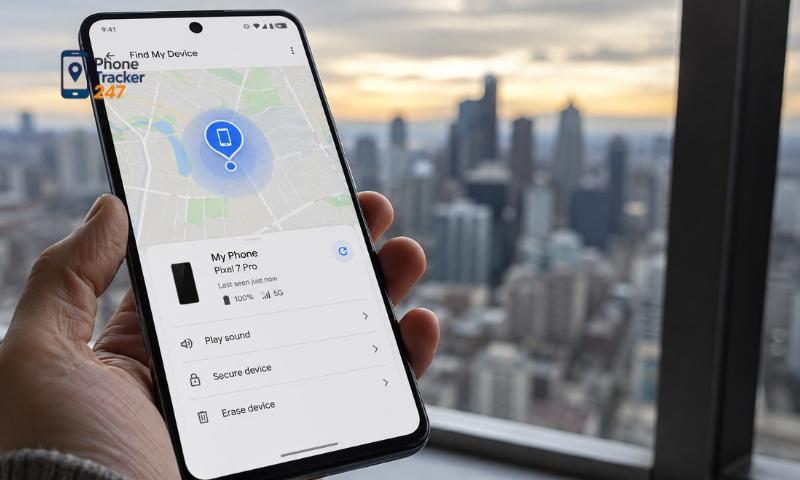
A stable Internet connection is important for regular data synchronization and can help reduce delayed updates.
See more: Best Phone Tracker App for Android: Parent and Business Use
Signing In With the Wrong Account or Linking the Wrong Device
In some cases, the app may be working correctly, but the user cannot see the intended device. This may happen if the wrong account was used or the wrong device was linked during setup.
Before reinstalling the app, users should check:
- The email address or account currently signed in.
- The account used on the device being managed.
- The device name and identifying information.
- The connection status between the account and the device.
- Whether the correct device appears in the management list.
Checking the account and device information first can eliminate simple errors and prevent unnecessary troubleshooting.
Not Updating the App to the Latest Version
An outdated app version may have compatibility problems with newer Android versions or may still contain technical issues that have already been fixed in newer releases. This can affect synchronization and long-term stability.
Users should:
- Check the version of PhoneTracker247 currently installed.
- Update the app from the official source when a new version is available.
- Review the update notes when relevant.
- Restart the app after updating if necessary.
- Recheck permissions after major Android system updates.
Keeping PhoneTracker247 updated and compatible with the operating system can help reduce problems during long-term use.
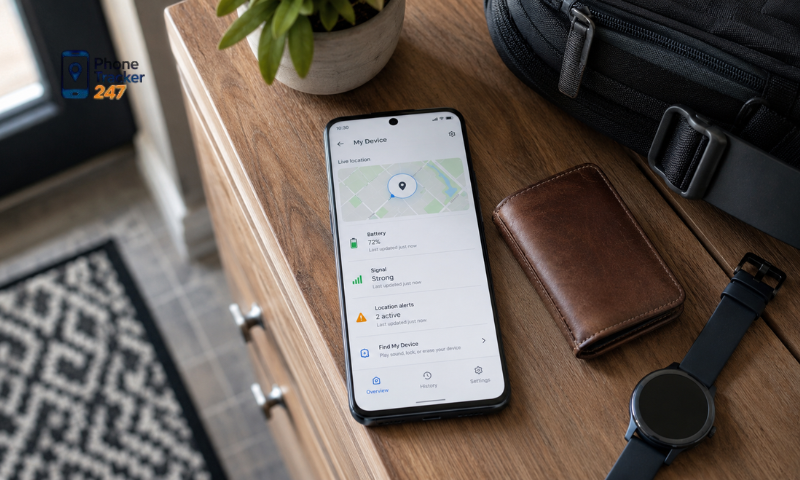
How to Set Up an Android Phone Tracking App Correctly
For more stable performance, the setup process should be completed in the correct order rather than simply installing the app and using it immediately.
First, install PhoneTracker247 from the official source and sign in using the account you want to use to manage the device.
Then follow these basic steps:
- Make sure the Android device is connected to the Internet.
- Sign in with the correct account.
- Grant the necessary permissions for the features you plan to use.
- Enable location services if location tracking is required.
- Allow background activity when necessary.
- Review battery-saving settings.
- Check background data permissions.
- Test device synchronization and confirm that data appears correctly.
After completing the setup, close the app for a few minutes and check again to make sure the system continues working when the app is not actively open.
Users should not disable Android security protections or install software from unknown sources just to keep tracking functions running. Doing so may increase the risk of data loss, account compromise, or malware.
How to Check Whether the Tracking App Is Working Correctly
After installation, users should verify several basic functions to make sure the app is operating properly. A quick check can identify problems related to location, network connectivity, or background activity before the app is used over a longer period.
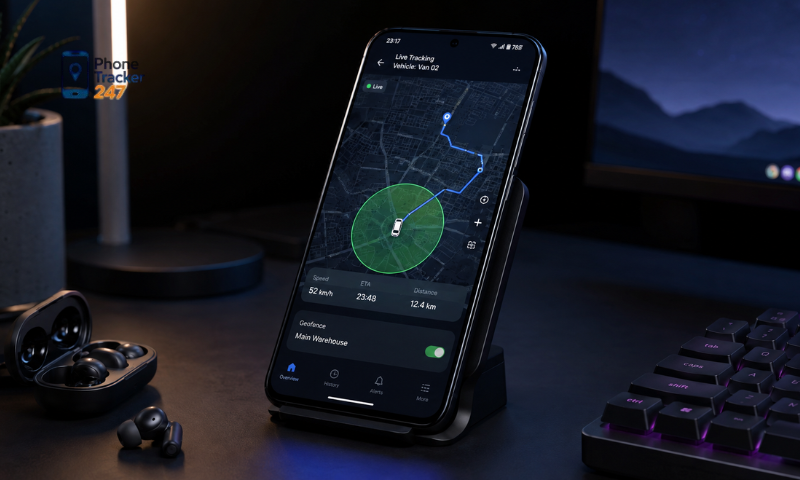
Check the Most Recent Update Time
The latest update time is one of the simplest indicators of whether the device is successfully syncing data with the system. If information remains unchanged for a long period even though the phone is connected to the Internet, the app may be restricted.
Users should check:
- When the data was last updated.
- Whether the device is connected to Wi-Fi or 4G/5G.
- Whether the app is allowed to run in the background.
- Whether battery-saving settings are limiting the app.
- Whether the account is still signed in.
If update times are frequently interrupted, check the network connection and background permissions for PhoneTracker247 one by one.
Check Location Accuracy
The location shown in the app should be compared with the device’s actual location to evaluate accuracy. Small differences may occur under certain conditions because of GPS signal quality or the surrounding environment.
Common causes include:
- The device is indoors or in an enclosed area.
- GPS signal strength is weak.
- Wi-Fi or mobile data is unstable.
- Battery Saver is enabled.
- Location permissions are not configured properly.
If the location remains significantly inaccurate across several checks, users should review Android location settings and the permissions granted to PhoneTracker247.
See more: Free Phone Tracker App for Android: Safe Use Checklist
Check the App While the Phone Screen Is Off
This is a useful way to determine whether the app continues to function in the background. Some Android devices automatically limit apps after the screen is turned off to conserve battery power.
You can test this by:
- Making sure the phone has an active Internet connection.
- Turning off the screen for a period of time.
- Not reopening the app on the managed device.
- Checking PhoneTracker247 data from the management device or account.
- Comparing the update time before and after the screen is turned off.
If data only updates after the app is reopened, review battery optimization and background activity permissions.
Check the App After Restarting the Phone
Restarting the device is another useful test because some apps may stop syncing, lose certain permissions, or require the user to sign in again after the system restarts.
After turning the phone back on, check:
- Whether PhoneTracker247 continues to operate.
- Whether the account remains signed in.
- Whether new data continues to sync.
- Whether location and background permissions remain unchanged.
- Whether the app shows any warnings or requests for additional setup.
If PhoneTracker247 repeatedly loses connection after every restart, review background activity permissions, battery settings, and account status to identify the cause.
Privacy and Security Considerations When Using a Tracking App
Tracking device location and status involves personal data, so privacy should be treated as equally important as technical functionality.
Users should:
- Only track devices they own or are legally authorized to manage.
- Obtain appropriate consent from the person being tracked when required by law or by the circumstances.
- Avoid using the app to secretly monitor another person.
- Use a strong password and do not share the management account.
- Enable additional authentication if PhoneTracker247 supports it.
- Regularly review devices that are signed in to the account.
- Revoke access when tracking is no longer necessary.
- Avoid sharing location data with unrelated third parties.
When managing phones used by children, employees, or family members, users should also review the laws and privacy requirements that apply in their location before enabling monitoring features.
In particular, users should not intentionally disable security warnings, bypass Android protections, or hide an app in order to track someone without their knowledge. Besides creating privacy risks, this type of use may also result in legal consequences.
Conclusion
Most problems with Android phone tracking app are caused by relatively small setup issues, such as missing location permissions, background activity restrictions, unstable Internet connections, or incorrect account settings. Checking each factor systematically can help users identify the cause more quickly and avoid unnecessary reinstallation. With PhoneTracker247, users should complete the setup process carefully, test synchronization after the screen is turned off, and regularly review app permissions to help maintain stable performance while respecting privacy.
If you are looking for a solution to help manage and track Android devices, explore PhoneTracker247, review the available features that match your needs, and configure the app according to the recommended setup instructions before you begin using it.