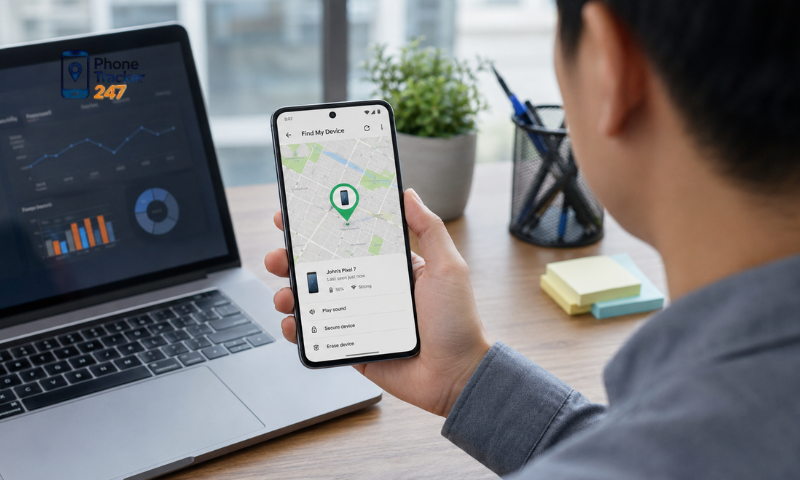
Using an Android phone tracker app can help parents or family members monitor a device’s location when needed, but its effectiveness largely depends on proper setup and permission management. From granting location access and enabling background operation to configuring features such as real-time location tracking, location history, and geofence alerts, users should understand each setting before using the app. In this article, PhoneTracker247 explains how to set up an Android phone tracker app, highlights the key permissions to review, and explores the most important features to prioritize for safe, transparent, and effective location tracking.
How to Set Up an Android Phone Tracker App
Setting up an Android phone tracker app correctly is essential because location accuracy depends on both the app configuration and the Android device settings. Before starting, make sure the app is installed only on a device you own, manage, or have permission to monitor.
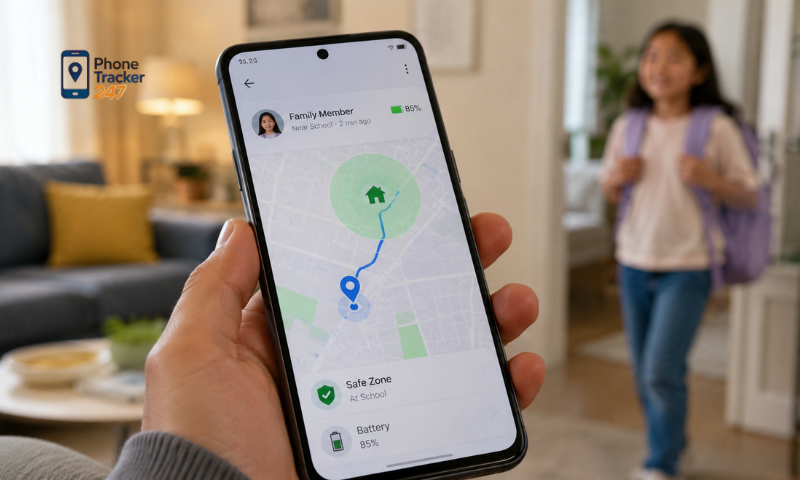
Download the App From a Trusted Source
The first step is to install the tracking app from a reliable source. Using an official or trusted download channel helps reduce security risks and ensures that you are using the correct version of the app.
Before installation, check:
- The app name and developer information.
- The permissions requested during setup.
- Whether the app is compatible with your Android version.
- Whether the download source is legitimate.
- Whether the app has been updated recently.
For PhoneTracker247, users should follow the official installation instructions and avoid downloading modified or unofficial versions.
Create or Sign In to Your Account
Most tracking apps require an account to connect devices and display location information. Make sure the account is secured and used only by authorized family members.
During this step:
- Create a new account if necessary.
- Use a strong and unique password.
- Sign in on the device being configured.
- Confirm the correct family or monitoring account.
- Review available account security settings.
A properly configured account helps ensure that location information is available only to authorized users.
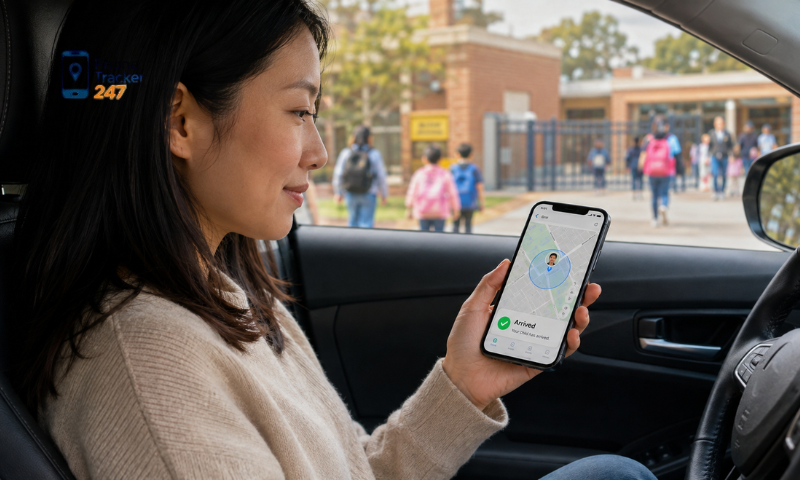
Connect the Android Device
After signing in, the Android device may need to be linked to the parent, family, or monitoring account.
The setup may involve:
- Selecting the device you want to connect.
- Confirming the device name.
- Linking it to the appropriate family account.
- Following the on-screen setup instructions.
- Checking that the device appears in the tracking dashboard.
Once connected, verify that the correct device is being monitored before proceeding with other settings.
Enable Location Services
Location services must usually be active for the app to determine the device’s position.
Users should check:
- Whether Android location services are turned on.
- Whether precise location is available.
- Whether GPS and network-based location are functioning.
- Whether the tracking app has permission to access location.
Without location services, PhoneTracker247 or another tracking app may only display an outdated or unavailable position.
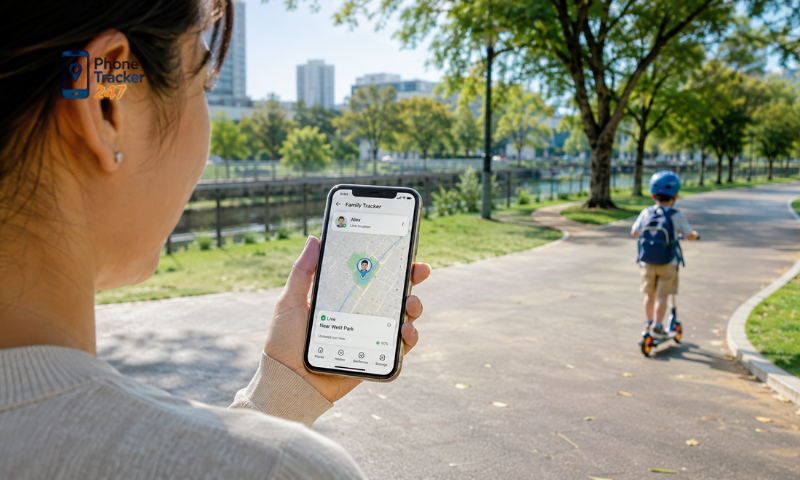
Grant the Necessary Permissions
Android requires users to approve specific permissions before an app can access location or operate in the background.
Depending on the features being used, permissions may include:
- Location access.
- Precise location.
- Background location access.
- Mobile data access.
- Background activity.
- Notifications for location alerts.
Only grant permissions that are necessary for the features you intend to use. Reviewing these settings also helps users understand exactly what the app can access.
Allow Background Activity When Needed
A tracking app may need to continue working even when it is not open on the screen. Android battery-saving settings can sometimes restrict this background activity.
Check whether:
- Battery optimization is limiting the app.
- Background activity is allowed.
- Data Saver is restricting background connections.
- Power-saving mode is affecting location updates.
Allowing the necessary background activity can help PhoneTracker247 provide more consistent location updates.
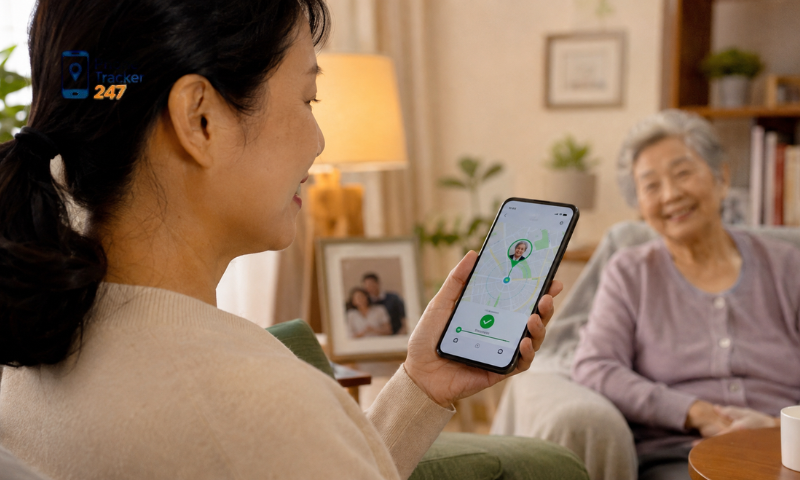
See more: How Phone Tracking Helps Protect Children Online and Offline
Test the Location After Setup
Once installation and permissions are complete, perform a quick test before relying on the app for everyday use.
You can:
- Open the tracking dashboard.
- Check the current location.
- Move the Android device to another nearby location.
- Wait for the position to update.
- Check the last update time.
- Confirm that any enabled location alerts work correctly.
Testing helps identify permission, internet, or battery-setting problems early. With PhoneTracker247, users should confirm that location sharing is updating correctly before using the app as part of a family safety routine.
Permissions Required When Installing a Tracking App
Android uses a permission system to control what information an app can access. For a tracking app to work reliably, users may need to enable several permissions related to location, background activity, and internet access.
Key permissions and settings include:
- Location permission: Allows the app to access the device’s location. Depending on the Android version, users may see options such as “Allow only while using the app,” “Allow all the time,” “Precise location,” or “Approximate location.”
- Background location access: Helps the app update the device’s location even when it is not actively open. This can be useful during travel, automatic location updates, or arrival and departure alerts.
- Battery and background activity settings: Android may restrict background activity to save battery, which can delay location updates. Users should review battery optimization, power-saving mode, and background activity settings.
- Mobile data and Wi-Fi access: A tracking app normally needs an internet connection to send updated location information. Users should allow mobile data or Wi-Fi access and check whether Data Saver is limiting background connections.
- Notification permission: If the app provides location alerts or status notifications, notification access may be required so users can receive updates when relevant.
For PhoneTracker247, enabling only the permissions needed for the features you use can help maintain reliable tracking while keeping unnecessary access to a minimum. If the device loses internet access or location permission is disabled, the app may show the last known location instead of the current position.
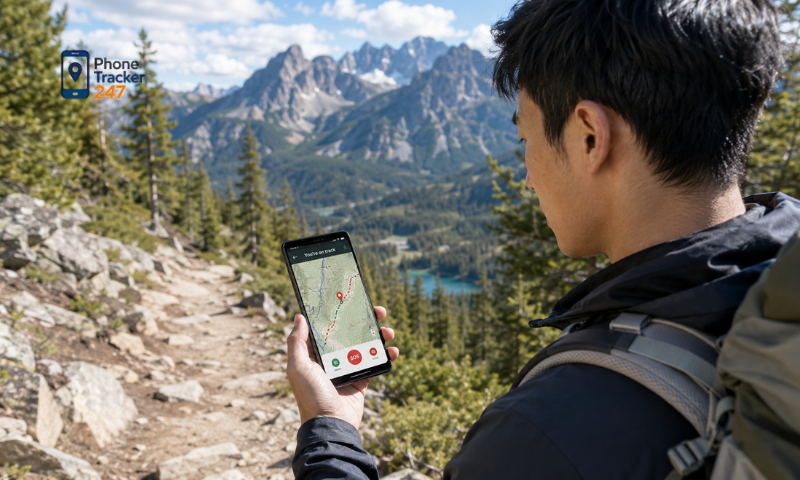
Key Features of an Android Phone Tracker App
A useful Android phone tracker app should focus on practical features that help users understand device location without making the system unnecessarily complicated.
Real-Time Location
Real-time location allows users to see the current or most recently reported position of the Android device.
This can be useful when:
- A child is traveling alone.
- A family member is late arriving.
- The phone cannot be reached.
- The device is in an unfamiliar area.
- There is a genuine safety concern.
With PhoneTracker247, real-time tracking should be used for specific situations rather than constant monitoring without a clear purpose.
Location History
Location history can provide context about where a device has recently been.
It may help users:
- Review a recent trip.
- Confirm arrival at a destination.
- Understand an unexpected delay.
- Check recent movement during a safety concern.
Location history should be used responsibly and only when relevant.

Arrival and Departure Alerts
Some tracking tools can notify users when a device enters or leaves an important location.
Useful alerts may include:
- Arriving at school.
- Leaving work or an activity center.
- Returning home.
- Reaching an agreed meeting point.
These alerts can reduce the need to repeatedly check a live map.
See more: Parental Control Text Messages: What Parents Can Monitor
Device Status Information
A good tracking app should also help users understand whether location data is current.
Useful information may include:
- Last location update.
- Whether the device is online.
- Whether location services are active.
- Whether an internet connection is available.
This information can help users determine why a location may appear outdated.
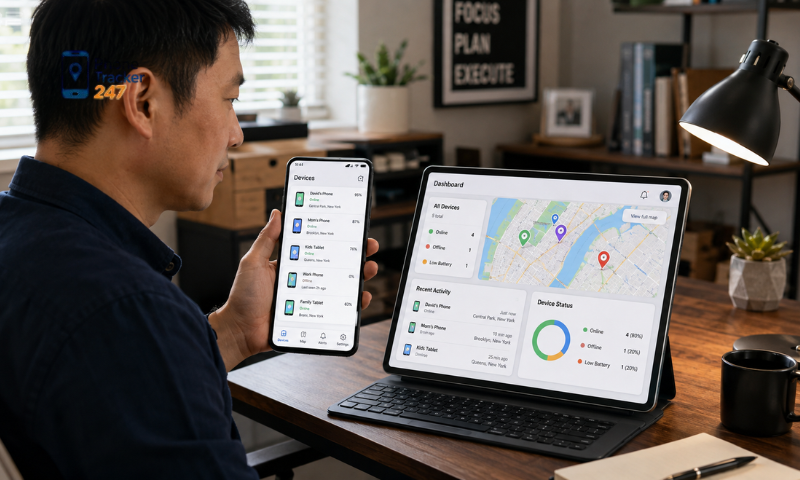
Simple Account and Device Management
The app should make it easy to manage connected devices and understand which features are enabled.
Parents may benefit from:
- Clear device names.
- Simple account controls.
- Easy-to-understand tracking settings.
- Transparent information about active permissions.
- Straightforward location access.
PhoneTracker247 should be used with clearly defined family rules so users understand why a device is being tracked and when location information may be checked.
What to Do When the App Does Not Update Location Correctly
Location tracking on Android depends on several systems working together, including GPS, internet connectivity, permissions, and background activity. If the app stops updating, the issue may come from the device settings rather than the tracking service itself.
Users should check:
- Location services: Make sure location is turned on, the app has location permission, and precise location is enabled where necessary.
- Internet connection: Confirm that mobile data or Wi-Fi is working, Airplane Mode is off, and background data is not restricted.
- Battery optimization: Check whether Battery Saver, app sleeping, or background restrictions are preventing the app from updating location.
- App permissions: Review location access, background location, mobile data, and notification permissions after Android or app updates.
- App and device status: Close and reopen the app, restart the phone, and check for available app or system updates.
- Last update time: If the displayed location looks outdated, check when the device last successfully sent location data.
- GPS limitations: Keep in mind that location may be less accurate indoors, underground, or in areas with weak GPS or mobile coverage.
When using PhoneTracker247, it is best to check the device connection, permissions, and last update time before assuming the displayed location is incorrect. A quick review of these settings can often restore normal tracking without changing unnecessary system options.
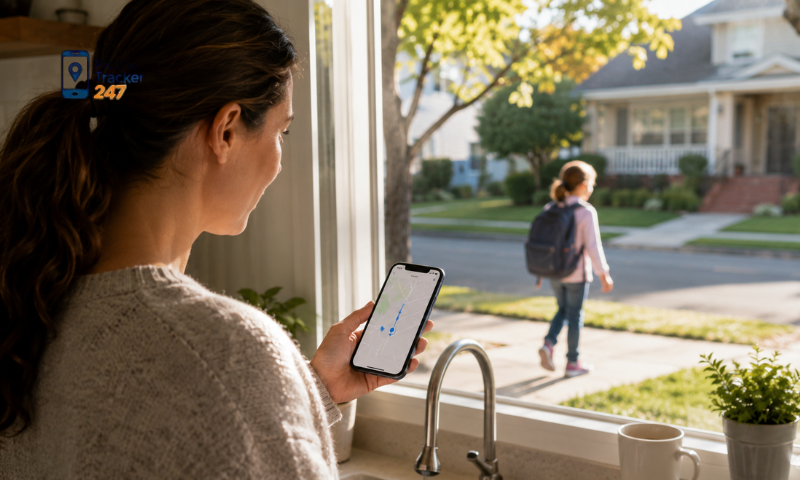
Conclusion
An Android phone tracker app works best when it is configured correctly, granted only the necessary permissions, and allowed to access location services and network connectivity when required. Features such as real-time location, location history, arrival alerts, and device status can make family tracking more practical, but users should always respect privacy and use monitoring only on devices they are authorized to track. PhoneTracker247 can support Android device tracking when setup, permissions, and background settings are configured correctly.
Use PhoneTracker247 responsibly to stay connected, understand device location when it matters, and keep privacy and transparency at the center of your tracking setup.
Frequently Asked Questions (FAQs)
1. What is an Android phone tracker app?
An Android phone tracker app helps monitor a device’s location and activity in real time.
2. How does an Android phone tracker work?
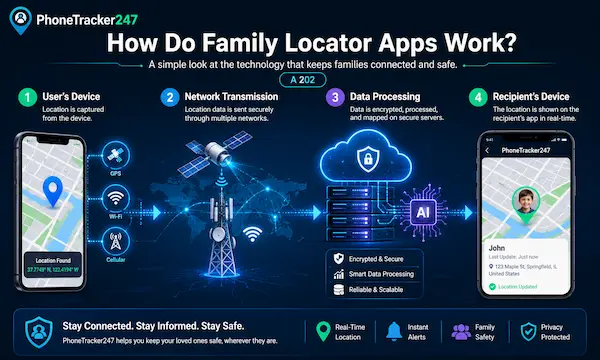
It uses GPS, Wi-Fi, and mobile networks to determine the phone’s location.
3. Can I track an Android phone live?
Yes. Most apps provide real-time GPS tracking.
4. Does it keep location history?
Yes. You can view previous locations and travel routes.
5. Can I track multiple Android devices?
Yes. One account can manage multiple devices.
6. Does the app require GPS and internet?
Yes. GPS and an internet connection are required for live tracking.
7. Is the Android phone tracker free?
Many apps offer a free version with optional premium features.
8. Is it legal to use a phone tracker app?
Yes, if you own the device or have the user’s consent.
9. Can I find a lost Android phone?
Yes. Phone tracker apps help locate lost or stolen devices.
10. Who should use an Android phone tracker app?
It’s ideal for families, businesses, and personal device management.

![Teens and Tech: Two-Thirds of Parents Think Their Teen Is Addicted to Their Phone [Study]](https://phonetracker247.com/wp-content/uploads/2026/04/teens-and-tech-two-thirds-of-parents-think-their-teen-is-addicted-to-their-phone-study-768x461.webp)