Are you looking for an Android app to track phone location that is convenient and easy to set up? With the right app, users can view a device’s current location, check location history, and receive updates when the device enters or leaves certain areas. In this guide, PhoneTracker247 will walk you through how to choose, install, and use a location tracking app on an Android phone, while also covering important considerations related to privacy and user consent.
Key Features an Android Phone Location Tracking App Should Have
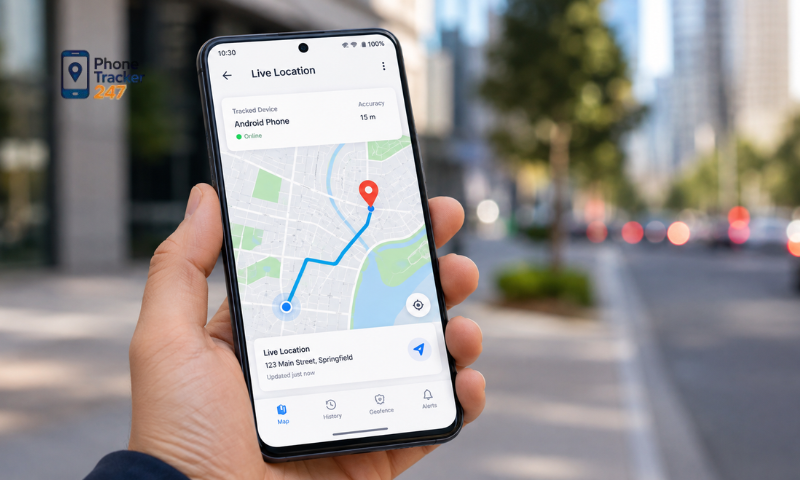
A reliable Android app to track phone location should provide more than a simple map pin. GPS signal, internet connection, Android permissions, and battery settings can all affect how accurately and frequently a device location is updated.
Key features to look for include:
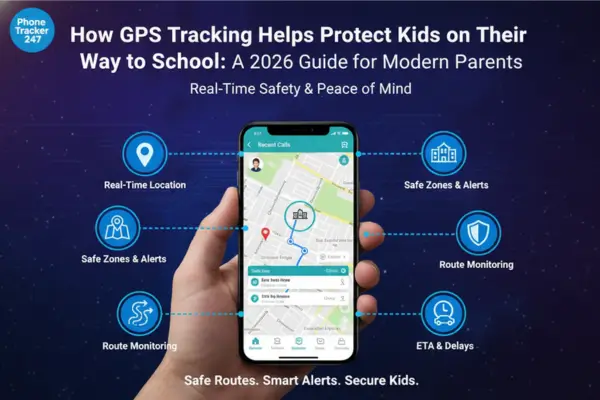
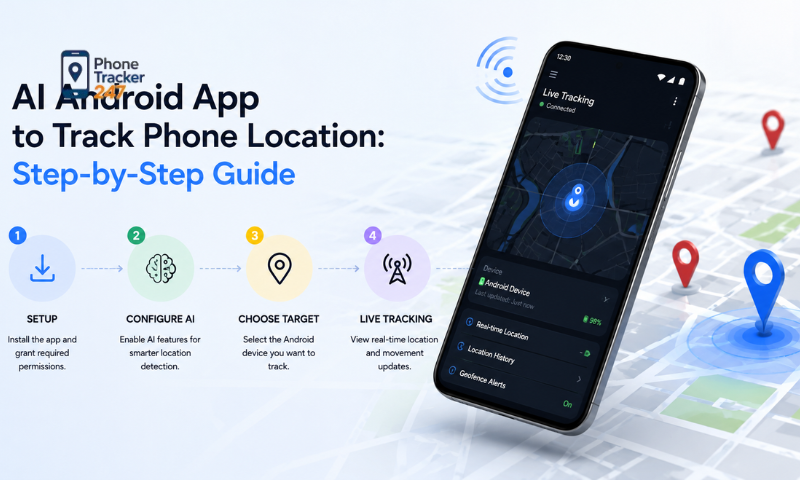
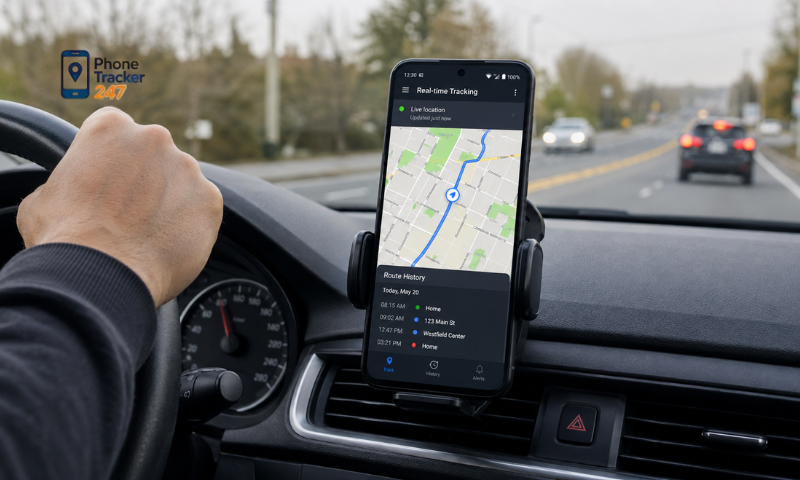
- Real-time location tracking: Shows the latest available device position, update time, and movement on the map.
- Location history: Helps users review visited places, routes, and approximate arrival or departure times.
- Background location support: Allows location updates to continue when the app is not actively open, provided the required Android permissions are enabled.
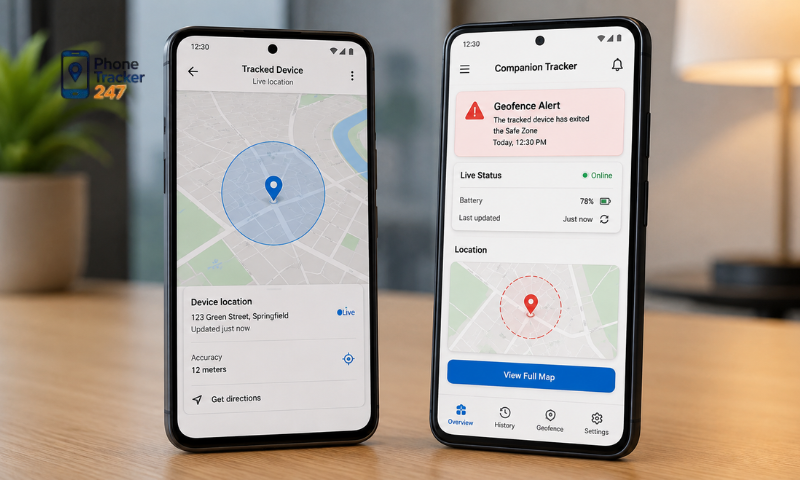
- Location alerts and geofencing: Sends notifications when the device enters or leaves predefined areas such as home, school, or work.
- Device status information: Displays details such as the last update time, connectivity, GPS availability, or battery status when supported.
PhoneTracker247 combines real-time GPS tracking and location history to give users more context about a device’s movements. However, tracking may be interrupted if the phone loses internet access, location services are disabled, or Android restricts background activity.
How to Choose the Right Android App to Track Phone Location
Not every tracking app is designed for the same purpose. Some are useful for finding a lost phone, while others focus on family location sharing or ongoing parental monitoring. Instead of comparing apps only by feature count, users should first consider how the tracking tool will actually be used.
Choose Based on the Purpose
The right app depends on whether you need one-time device finding or continuous location monitoring.
Consider whether you need:
- Real-time location tracking.
- Location history.
- Background updates.
- Movement or location alerts.
- A remote monitoring dashboard.
For a misplaced phone, Google’s built-in device-finding tools may be enough. PhoneTracker247 is more suitable when users need ongoing visibility into an authorized Android device.
Check Android Compatibility
Android regularly changes how apps handle permissions, battery usage, and background activity. A tracking app should therefore support current Android versions and explain its setup requirements clearly.
Check whether the app supports:
- Approximate location.
- Precise location.
- Foreground location access.
- Background location access.
Compatibility matters because an app may work during initial setup but later stop updating if Android restricts its background activity.
See more: Phone Tracking App for Android: Real-Time GPS and Reports
Look for Transparent Permission Requests
A reliable tracking app should explain why each permission is needed instead of simply asking users to enable everything.
Users should understand:
- Why location access is required.
- Whether precise location is necessary.
- Whether the app runs in the background.
- What happens when a permission is disabled.
Clear permission explanations make it easier to compare apps and understand how location data is being used.
Consider Battery Usage
Continuous GPS tracking can increase battery consumption, especially when location updates are frequent.
Battery usage may depend on:
- Update frequency.
- GPS activity.
- Mobile data and Wi-Fi usage.
- Device model.
- Android battery optimization.
A good tracking app should balance useful location updates with reasonable battery consumption rather than simply refreshing as often as possible.
Review Privacy and Intended Use
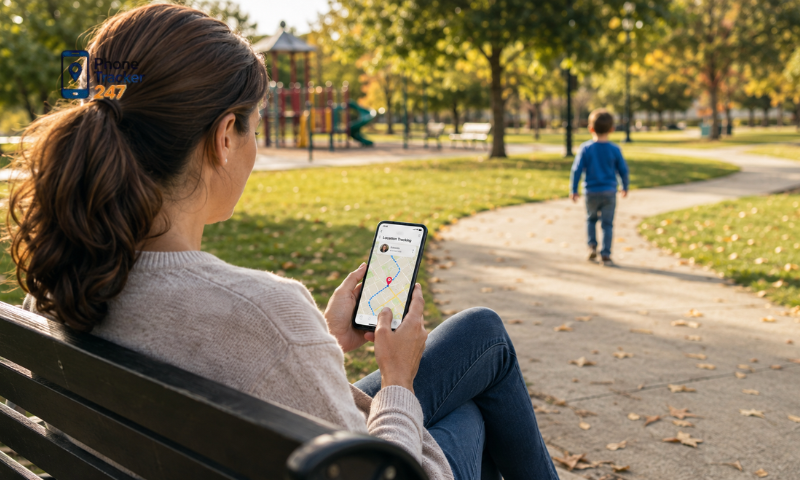
Location data can reveal sensitive information about a person’s daily routine, so tracking should only be used on devices you own, manage, or are authorized to monitor.
Before choosing an app, check:
- How location data is collected.
- How it is stored and protected.
- Who can access the tracking dashboard.
- Whether users are informed about monitoring.
For family use, transparent and authorized tracking is safer and more appropriate than hidden monitoring.
How to Install a Phone Location Tracking App on Android
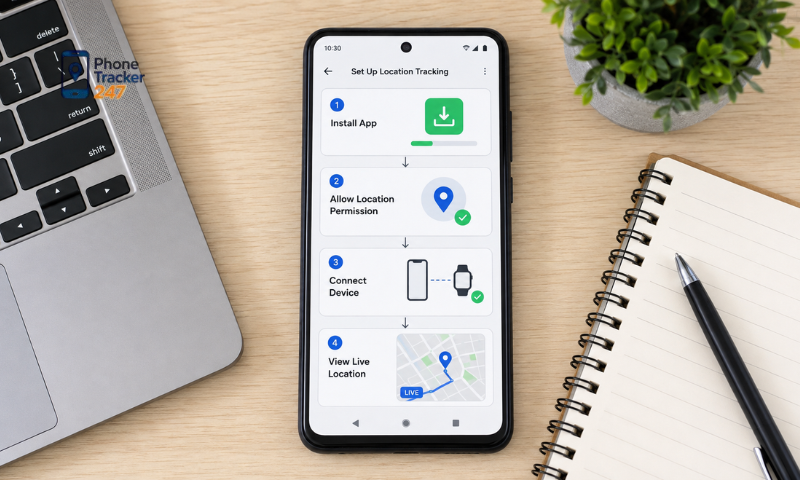
The exact setup process may vary between apps and Android devices, but most phone tracking solutions follow a similar workflow. The key is to complete the installation correctly, enable the necessary permissions, and make sure Android does not restrict the app from updating location in the background.
Step 1: Prepare the Android Device
Before installing the tracking app, check the basic device conditions first. This helps avoid setup errors caused by connectivity, battery, or system compatibility.
Make sure the Android phone:
- Has an active internet connection.
- Has Location services enabled.
- Has sufficient battery.
- Runs a supported Android version.
Location settings are usually found under Settings > Location, although Samsung, Xiaomi, Google Pixel, OPPO, vivo, and other brands may organize these options differently.
Step 2: Install the Tracking Application
The tracking app should be installed using the provider’s official setup method. This helps ensure that users are following the latest instructions for the current Android version.
During installation:
- Use the official installation source or setup guide.
- Follow the instructions provided by the tracking service.
- Avoid outdated third-party tutorials.
- Check whether the app supports the device’s Android version.
For PhoneTracker247, users should follow the latest setup instructions provided by the platform because Android permissions and background behavior may change over time.
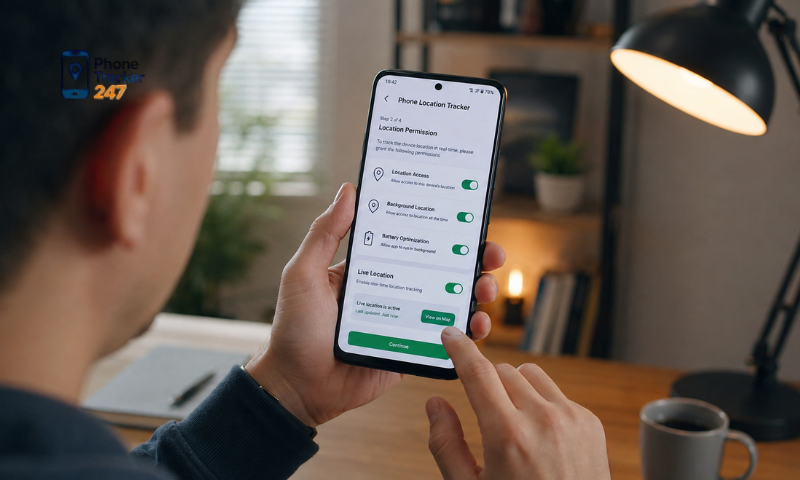
Step 3: Allow Location Permission
Location permission is required for the app to access the device’s position. Android may also allow users to choose between approximate and precise location.
During setup, review the following permissions:
- Location access.
- Precise location, when required.
- Foreground location access.
- Other permissions required for the tracking function.
If location permission is limited or disabled, the app may not be able to provide accurate or frequent location updates.
Step 4: Configure Background Location When Required
Some tracking apps need background location access so they can continue updating the device position even when the app is not open on the screen.
Users may need to:
- Allow background location access.
- Review Android location permission settings.
- Keep the required background access enabled.
- Check whether Android has changed the permission automatically.
Background access should only be enabled when it is necessary for the intended tracking function and when the user understands how the location data is being used.
See more: Phone Tracker App Android: What to Know Before Installing
Step 5: Check Battery Optimization
Battery optimization is a common reason why an Android tracking app stops updating regularly. Some manufacturers automatically limit apps that continue running in the background.
Check settings such as:
- Settings > Battery > Battery Optimization.
- Background activity permissions.
- Battery saver settings.
- Manufacturer-specific app restrictions.
If Android repeatedly suspends the tracking app, location updates may become slower or stop completely even when GPS is still enabled.
Step 6: Connect the Device and Test Tracking
Once installation and permissions are complete, connect the Android phone to the authorized monitoring account. With PhoneTracker247, users can then access the monitoring dashboard and check the available location information.
Before relying on the app, perform a simple test:
- Keep the phone connected to the internet.
- Move the device to another location.
- Wait for the location to refresh.
- Check whether the new position appears on the dashboard.
- Lock the phone and repeat the test.
Testing both active and background tracking helps confirm that the setup is working properly instead of assuming the installation alone is enough.
How to Track an Android Phone Location in Real Time
Once the tracking app is installed and permissions are configured, checking a device’s real-time location is usually straightforward. The main task is to open the monitoring dashboard, select the correct device, and confirm that the location data is recent.
Follow these steps:
- Open the tracking dashboard: Sign in to the tracking service from an authorized device. A browser-based dashboard can be convenient because you do not need physical access to the monitored phone each time.
- Select the Android device: If several devices are linked to the account, choose the one you want to monitor. The dashboard should load its latest available location.
- Check the update time: Always review the location timestamp, not just the map marker. A position updated one minute ago is more useful than one that has not refreshed for an hour.
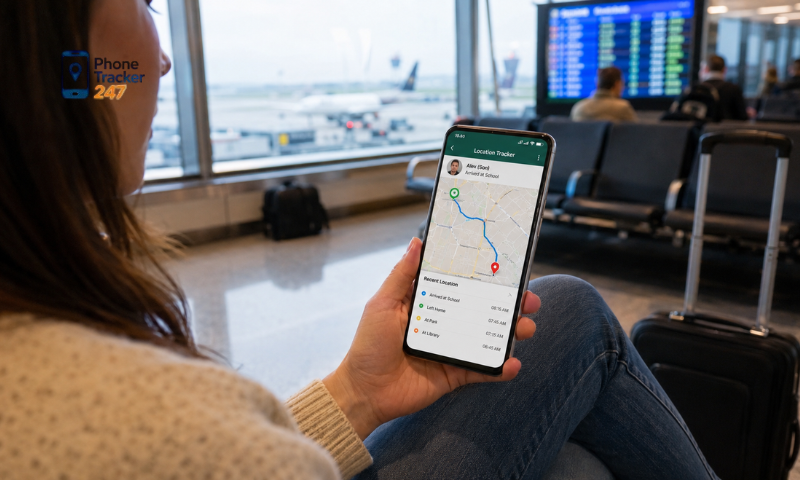
- Compare with location history: Use previous routes and recent movements to understand whether the device has just arrived, is still moving, or has remained in one place.
- Check settings if updates stop: Make sure the phone is online, Location is enabled, the app still has permission, background access is active, and Android is not restricting battery usage.
With PhoneTracker247, users can combine the current location with location history for better context. If a position appears outdated, check the device’s internet connection, permissions, and background settings before assuming the phone is still at the displayed location.
Conclusion
The best Android app to track phone location should offer reliable real-time updates, location history, clear timestamps, and stable background tracking without making setup unnecessarily complicated. Users should also pay attention to Android permissions and use location tracking only on devices they own, manage, or are authorized to monitor.
For families that need ongoing location monitoring rather than one-time device finding, PhoneTracker247 combines live GPS tracking, location history, and device-monitoring features in one platform. Explore PhoneTracker247 to review its Android tracking options and choose a setup that fits your family’s safety needs.
FAQs
1. What is Phone Tracker?
Phone Tracker is an app that tracks a phone’s GPS location in real time.
2. Is Phone Tracker free?
Yes. It offers both free and premium plans.
3. Can I track a phone live?
Yes. It provides real-time GPS location tracking.
4. Does it show location history?
Yes. You can view past locations and travel history.
5. Does it support geofencing?
Yes. It sends alerts when a device enters or leaves a set area.
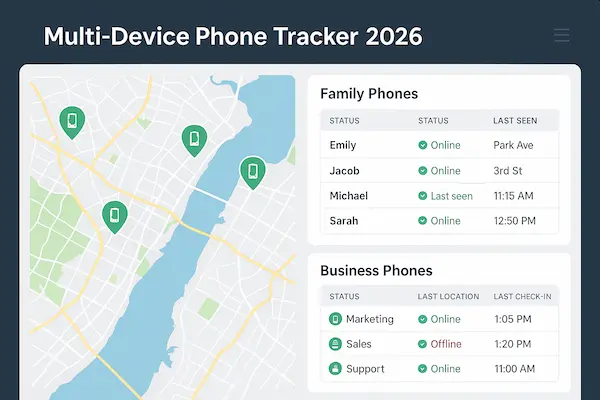
6. Can I track multiple devices?
Yes. One account can manage multiple devices.
7. Does it work on all Android phones?
It supports most modern Android devices.
8. Does Phone Tracker require an internet connection?
Yes. GPS and an internet connection are required.
9. Is it legal to track someone’s phone?
Only if you own the device or have the user’s consent.
10. Who should use Phone Tracker?
It is ideal for parents, businesses, and personal device management.