Setting up parental controls on a Nintendo Switch is a lot like putting guardrails on a winding road. You still let your child enjoy the ride, but you reduce the risk of wrong turns, late-night gaming, and unwanted online contact. The good news is that Nintendo gives parents two ways to manage this: directly on the console and through the Nintendo Switch Parental Controls app. The better news is that setup is not difficult once you know which settings matter most. In this guide, we walk through the full process, explain what each control actually does, and show how we at PhoneTracker247 think about console safety as one part of a bigger digital parenting plan. (Nintendo Co., Ltd.)
Contents
- 1 What you need before you start
- 2 The fastest way to set up Nintendo Switch parental controls
- 3 The key settings you should adjust first
- 4 Quick reference table for the most important settings
- 5 Important limitations parents should know
- 6 A smarter way to choose settings by age
- 7 How to adjust settings later
- 8 Where PhoneTracker247 fits into a broader parenting strategy
- 9 Final thoughts
- 10 FAQs – Nintendo Switch Parental Controls
What you need before you start
Before setup, prepare a few basics so the process moves smoothly from start to finish.
- A Nintendo Switch console
This can be a Nintendo Switch family console supported by Nintendo’s parental control system. Some features vary slightly by system generation, but the setup flow is broadly similar. (Nintendo Co., Ltd.) - A smartphone or tablet
Nintendo’s Parental Controls app is available through the App Store and Google Play. This app is where you get the strongest management options. (Nintendo Co., Ltd.) - A Nintendo Account for the parent or guardian
Nintendo says the parent or guardian must be 18 or older to use the app-based parental controls. (Nintendo Co., Ltd.) - Physical access to the console during setup
You will need the console to link it with the app and confirm the initial parental control connection. (Nintendo Co., Ltd.)
The fastest way to set up Nintendo Switch parental controls
If you want the best control from the start, we recommend using the Nintendo Switch Parental Controls app instead of only configuring settings on the console. Nintendo specifically notes that some parental control settings can be managed on the system, but the app is required for certain features and provides the best options. (Nintendo Co., Ltd.)
Step 1: Download the Nintendo Switch Parental Controls app
Go to the App Store on iPhone or the Google Play Store on Android, search for Switch Parental Controls, and install the official Nintendo app. Once the app is installed, sign in using the parent or guardian Nintendo Account. (Nintendo Co., Ltd.)
Step 2: Open parental controls on the Switch console
Turn on the Switch and open System Settings from the HOME Menu. Scroll to Parental Controls, then choose Set Up Parental Controls or Parental Controls Settings, depending on the setup stage and console state. (Nintendo Co., Ltd.)
Step 3: Link the console to the app
After opening the parental controls section, the Switch will guide you through linking the console with the mobile app. Follow the prompts in the app and on the console until the pairing is complete. Once connected, the phone becomes your main control center for managing restrictions. (Nintendo Co., Ltd.)
Step 4: Create or confirm your parental control PIN
Nintendo lets parents confirm or change the PIN tied to parental control settings. This matters because the PIN is what protects the settings from being changed directly on the device by a child. (Nintendo Co., Ltd.)
See more: Digital Citizenship Facts: What Every Parent, Student, and Teacher Should Know
The key settings you should adjust first
Once the app is connected, do not stop at the default setup. The real value comes from configuring the settings that match your child’s age, habits, and gaming routine.
Play-time limit
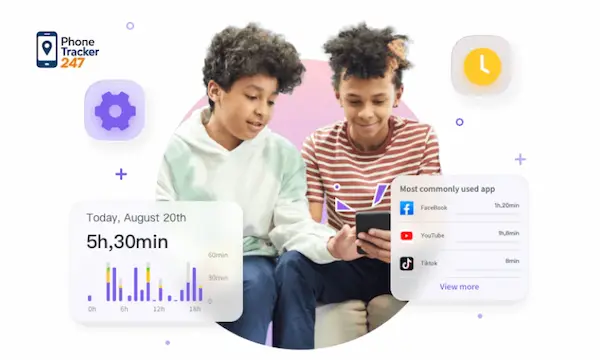
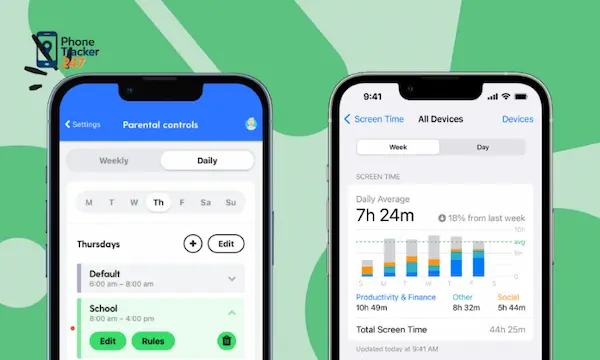
Nintendo’s app lets you set a daily play-time limit, and it can also notify you when the limit has been reached. Nintendo also says you can set different limits for different days of the week, which is useful for school nights versus weekends. In some cases, you can have gameplay interrupted automatically when time is up. (Nintendo Co., Ltd.)
Bedtime or late-night play control
Nintendo states that you can set how long or how late the system can be used each day. That makes bedtime controls especially useful for families trying to prevent late-night sessions from pushing into sleep hours. (Nintendo Co., Ltd.)
Age-based restriction level
Nintendo offers preset restriction levels such as Child, Pre-Teen, and Teen, and also allows custom settings. These levels help you quickly align game access and feature permissions with your child’s age. (Nintendo Co., Ltd.)
Restrict communication with other users
Nintendo allows parents to limit a child’s ability to exchange messages and images with other users. Importantly, this communication restriction can also be set for individual games, which gives parents better precision than a simple all-or-nothing block. (Nintendo Co., Ltd.)
Restrict posting screenshots to social media
Nintendo also supports restricting the ability to post screenshots captured on Nintendo Switch to social network services. This can help reduce accidental oversharing or unsafe interactions. Nintendo notes that direct social posting is not possible from Nintendo Switch 2, so this specific setting does not apply there. (Nintendo Co., Ltd.)
VR mode restriction
Nintendo includes a VR mode restriction option on supported Switch systems. Nintendo’s support guidance says this should be restricted if a child aged six or younger uses the console. (Nintendo Co., Ltd.)
Quick reference table for the most important settings
| Setting | What it does | Best place to manage it |
| Play-time limit | Caps daily play and can trigger alerts or interruption | Nintendo Switch Parental Controls app |
| Bedtime control | Limits how late the console can be used | Nintendo Switch Parental Controls app |
| Age restriction level | Filters games and features by age category | App or console |
| Communication restriction | Limits messages and image exchange with others | App |
| Screenshot posting restriction | Blocks posting screenshots to social platforms | App |
| VR mode restriction | Restricts VR play on supported systems | App or console |
| PIN management | Protects parental control settings from changes | App or console |
The exact control set can vary slightly by console model and account configuration, but this table covers the settings most parents should review during initial setup. (Nintendo Co., Ltd.)
Important limitations parents should know
Parental controls on Nintendo Switch are helpful, but they are not perfect. Knowing the limits upfront helps you avoid false confidence.
- Controls are set for the console, not for each player
Nintendo states that parental controls apply to the console as a whole, not individual users. If several children share one Switch, Nintendo recommends setting restrictions based on the youngest player. (Nintendo Co., Ltd.) - eShop purchase restrictions are handled separately
Nintendo says restrictions on viewing and purchasing content on Nintendo eShop are managed through Nintendo Account settings, usually within a parent or guardian family group. That means app-based console controls do not cover every spending rule by themselves. (Nintendo Co., Ltd.) - Some features depend on the app
Nintendo explicitly says that while some settings can be managed directly on the console, the app is required for certain features and offers the best control options. (Nintendo Co., Ltd.)
See more: Kids App Qustodio: How to Install and Set It Up on Your Child’s Device
A smarter way to choose settings by age
Many parents ask us what they should actually turn on, not just where to tap. Our advice is to keep the setup simple at first, then tighten or loosen controls based on maturity and behavior.
For younger children, start with a strict age category, short daily play limits, restricted communication, and a firm bedtime window. For pre-teens, you can begin using custom settings and allow selected games through Nintendo’s whitelist feature if one title is appropriate while the broader category is not. Nintendo confirms that whitelist lets you exclude specific software from the general restricted software setting. (Nintendo Co., Ltd.)
For teens, the better strategy is often visibility rather than maximum lockdown. Keep communication rules under review, watch for late-night usage, and pair console controls with open conversations about online behavior, spending, and screen balance. Controls work best when they are explained, not only enforced.
How to adjust settings later
Parental control setup is not a one-time task. As your child gets older, joins new games, or changes schedules, you will probably need to revisit the settings. Nintendo provides options to adjust settings through the smart device app and also to confirm or change your PIN when needed. If the console has already been linked to the smart device app, Nintendo indicates that adjustments should be made through the app. (Nintendo Hỗ Trợ)
That flexibility is important because parenting rules often need seasonal updates. Summer vacation limits should not always look the same as school-night limits. A good setup is not the strictest setup. It is the one you can maintain consistently.
Where PhoneTracker247 fits into a broader parenting strategy
Nintendo Switch parental controls are useful for managing one console, but family digital safety usually stretches beyond one gaming device. Children move between the Switch, phones, tablets, and laptops throughout the day. That is why we at PhoneTracker247 view parental control as a broader ecosystem, not a single setting screen. Our platform is built around lawful, consent-based device monitoring, centralized visibility, and family safety across supported devices you own or are authorized to manage.
In practice, that means Nintendo handles the console-level restrictions well, while a wider family safety plan may also include screen-time awareness, app activity oversight, location visibility, and clear household rules for mobile devices. The goal is not surveillance for its own sake. It is safer routines, earlier awareness, and fewer digital blind spots.

Final thoughts
If you want to know how to set up Nintendo Switch parental controls the right way, the best path is straightforward: install Nintendo’s Parental Controls app, link the Switch, set your PIN, apply age-based restrictions, then fine-tune play time, communication, and bedtime settings. Just remember that controls apply to the whole console, while eShop purchase limits are handled separately in Nintendo Account settings. (Nintendo Co., Ltd.)
At PhoneTracker247, we recommend treating Nintendo Switch parental controls as your first layer, not your only layer. Start with the console, build family rules around it, and extend that same safety mindset to the other connected devices your child uses every day. Explore a broader family monitoring workflow with PhoneTracker247 and turn scattered screen rules into one clear, manageable safety system.
For daily updates, subscribe to PhoneTracker’s blog!
We may also be found on Facebook!
FAQs – Nintendo Switch Parental Controls
1. How do I set up Nintendo Switch parental controls?
Use the Nintendo Switch Parental Controls app.
2. Is the parental controls app free?
Yes, the official app is free.
3. Can I set play-time limits?
Yes, you can set daily play-time limits.
4. Can I stop playtime automatically?
Yes, use the Suspend Software option.
5. Can I restrict mature games?
Yes, set age-based restriction levels.
6. Can I block online communication?
Yes, communication can be restricted.
7. Can I control Nintendo eShop spending?
Yes, manage purchases through Nintendo Account settings.
8. Can I see what games my child plays?
Yes, the app shows play activity.
9. Do I need a PIN?
Yes, a PIN protects parental settings.
10. What should parents set first?
Start with play-time limits and age restrictions.