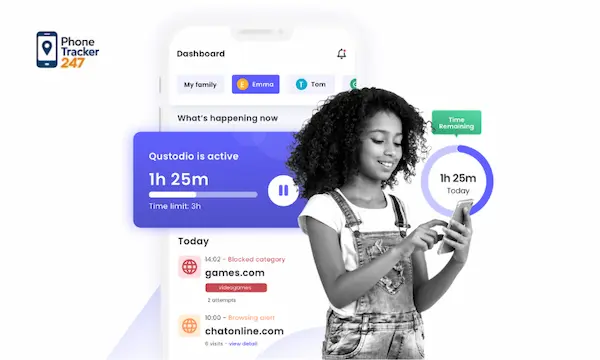
Setting up parental controls can feel like locking the front door while leaving the windows unchecked. Many parents download an app, assume protection is active, and only later realize key settings were never enabled. That is why understanding Kids App Qustodio matters before you start tapping through setup screens. This guide explains what the app does, how to install it on your child’s Android or iPhone, which permissions matter most, and how to fix common issues after setup. By the end, you will know how to turn a basic installation into a practical safety system for everyday family use. Let’s find out more in this article with PhoneTracker247.
Contents
What Is Kids App Qustodio and What Does It Do?
Before jumping into installation, it helps to understand the role of the app on your child’s device and how it connects to parental controls.
Kids App Qustodio vs Parent App: What’s the Difference?
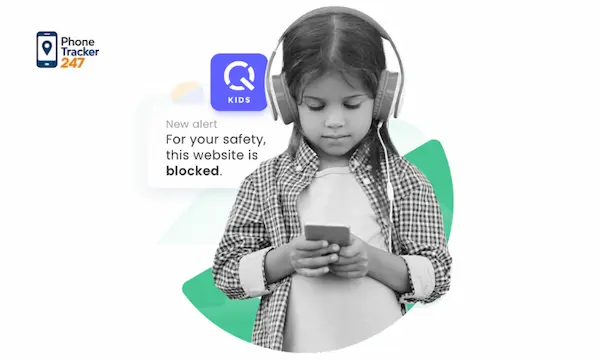
Many parents get confused because Qustodio is not a one-app setup. The system works through two connected apps, and each one has a different job. If you install the wrong app on the wrong device, the whole setup becomes harder than it should be.
To make the distinction simple, think of one app as the control panel and the other as the monitored device layer.
- Parent App: This is the dashboard parents use to review activity, apply rules, and manage limits from their own phone.
- Kids App Qustodio: This is the app installed on the child’s device so rules, tracking, and reports can function.
- Connection between both apps: The two apps work together through the same account, which allows parents to monitor and adjust settings remotely.
If you remember this split from the start, the setup process becomes much easier and you avoid installing the parent-facing app where the child-facing app should go.
Main Features Parents Can Access After Installation
Once Kids App Qustodio is installed correctly, parents can start using several core controls designed to support safer device habits. The value does not come from the download itself. It comes from how the installed app enables rules and reporting on the child’s phone.
The main benefits usually center around visibility and boundaries.
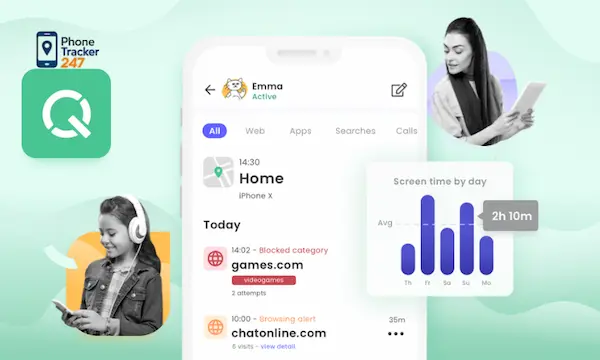
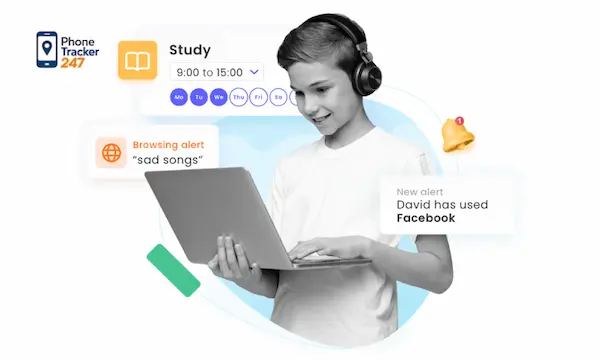
- Screen time management: Parents can limit how long a child uses the device or certain categories of apps.
- App control: Some apps can be restricted, blocked, or monitored based on family rules.
- Web filtering: Parents can reduce exposure to unsafe or age-inappropriate content.
- Activity reporting: Usage summaries help parents see digital patterns instead of guessing.
- Location and alerts: Depending on device and settings, location-related tools can add another layer of awareness.
For many families, these features are less about control and more about building structure around digital routines.
See more: Guide How to Change Parental Control Password on Phones and Computers
Who Should Use Kids App Qustodio?
Not every family needs the same level of oversight, but Kids App Qustodio can make sense for households where children already use their own smartphones or tablets regularly. It is especially useful when parents want a practical system instead of repeated arguments about time limits.
This setup tends to fit best in a few common situations.
- Younger children with first devices: Parents often need clear guardrails while kids learn healthy habits.
- Preteens and teens with rising screen time: Monitoring helps turn vague concerns into visible patterns.
- Families managing school and entertainment balance: Limits become easier to enforce when they are built into the device.
- Parents who want transparent monitoring: The setup works best when children understand the purpose behind the rules.
When used openly, the app can support conversations about safety rather than feeling like a hidden surveillance tool.
What You Need Before Installing Kids App Qustodio
A smooth setup starts before the app is downloaded. Preparing the account, device, and permissions in advance will save time and reduce frustration later.
Use this short checklist before installation begins.
- Create the parent account first: Set up the main account on the parent side before touching the child’s device.
- Choose the correct child device: Confirm which phone or tablet will be linked to the child profile.
- Check internet access: A weak connection can interrupt setup or delay syncing.
- Prepare login details: Keep email and password ready so you do not need to restart the process.
- Explain the setup to your child: A clear conversation builds trust and makes ongoing use more sustainable.
A parental control app works better when it is introduced as a family safety tool, not a secret test.
How to Install Kids App Qustodio on Android
Android setup is usually flexible, but that flexibility also means more permissions must be enabled correctly for the app to work as expected.
Download the Correct Qustodio Kids App from Google Play
The first step is simple, but it is where many setup mistakes begin. Parents sometimes download the wrong app, or they install it without confirming they are on the child’s device.
Follow the process carefully so the foundation is correct.
- Open Google Play on the child’s Android phone or tablet: Make sure you are physically using the device that will be monitored.
- Search for the Kids App Qustodio: Check the app name closely before downloading.
- Install and open the app: Let the installation complete fully before moving to sign-in.
- Log in using the parent account: This links the device to the family control system.
That final login matters because it tells the platform which parent dashboard should manage that Android device.
Connect the Android Device to Your Child Profile
After installation, the next goal is assigning the device to the correct child profile. This step determines where reports go and which rules apply after setup.
Treat this as the identity step inside the process.
- Choose the option to protect this device: This confirms the current phone is the one being managed.
- Select or create the child profile: Use the correct child name to avoid mixing siblings’ devices.
- Label the device clearly: Naming the device properly helps later when checking reports or managing multiple phones.
- Finish the linking steps inside the app: Do not exit early, even if the device looks connected.
If the wrong profile is selected here, time rules and activity reports may appear under the wrong child account.
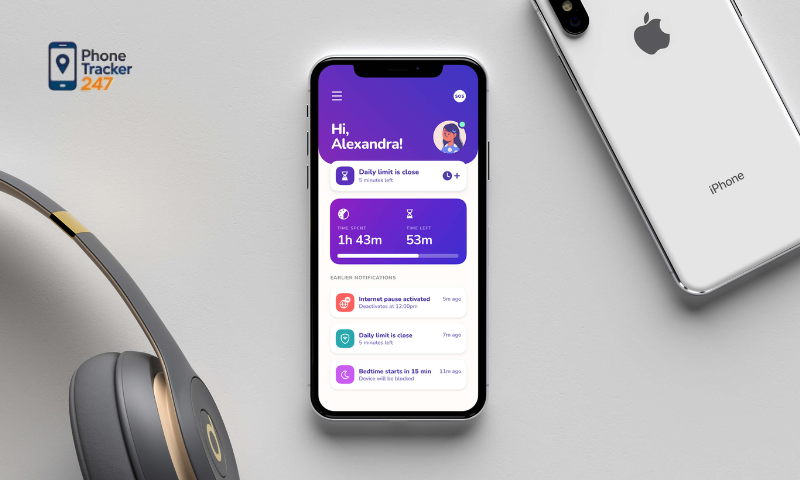
Enable Permissions So Monitoring Works Properly
Permissions are the engine behind Android monitoring. Without them, the app may look installed but fail to report activity or enforce limits in a reliable way.
This is the most important technical stage of the setup.
- Usage access: This allows the app to measure screen time and app activity.
- Accessibility or device permissions: These help support app control and restriction functions.
- Location access: This is necessary if parents want location-related features.
- Battery optimization exceptions: These reduce the chance of Android shutting the app down in the background.
Take time here. A rushed setup often leads to the common complaint that the app is installed but not really working.
How to Install Kids App Qustodio on iPhone or iPad
Installing Kids App Qustodio on iOS is usually more structured, but Apple’s system rules can affect how some parental control features behave.
Download Kids App Qustodio from the App Store
The iPhone or iPad setup begins in much the same way as Android, but parents should expect a more guided workflow.
Start with the correct device and the correct app.
- Open the App Store on the child’s iPhone or iPad: Do not install it on the parent device by mistake.
- Search for the Kids App Qustodio: Confirm the app listing before downloading.
- Install and launch the app: Wait until the app opens completely and requests setup steps.
- Sign in with the family account: This creates the connection to the parent dashboard.
Once the app is linked, the next task is making sure the child device is attached to the right profile.
Complete the Child Device Setup Step by Step
iOS users often make the mistake of skipping setup prompts too quickly. That can leave the app partially connected and reduce its effectiveness.
Move through the setup screens in order.
- Assign the device to the correct child: This keeps reports and rules organized.
- Follow each on-screen configuration prompt: These steps prepare the device for monitoring and management.
- Check that the device appears in the parent dashboard: This confirms the link was successful.
- Test one setting after setup: A simple rule check helps confirm the app is responding.
Do not assume the job is done just because the app icon appears on the home screen. Functional setup matters more than visible installation.
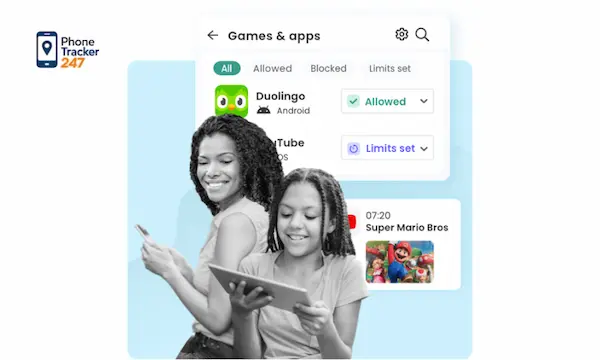
Understand iOS Limits Before You Start
Parents often expect iPhone monitoring to work exactly like Android. In practice, iOS can be more restrictive, so expectations should be set early.
This does not make the app useless. It just changes how families should evaluate results.
- Some controls may behave differently on iOS: Apple’s system design affects how certain restrictions are applied.
- Feature depth can vary by platform: Parents may notice differences between Android and iPhone reporting.
- Setup discipline matters more on iOS: Missing one required step can reduce visibility or consistency.
Knowing these limits early prevents disappointment and helps parents focus on the features that are most realistic for their child’s device.
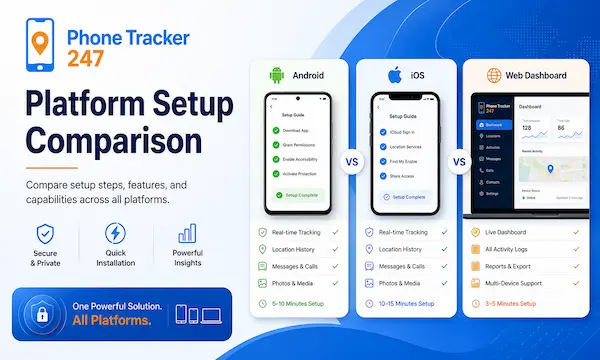
Platform Setup Comparison
Before moving on, this quick table helps clarify what parents should expect during setup on each platform.
| Setup Area | Android | iPhone/iPad |
| App installation | Usually straightforward | Usually straightforward |
| Permission depth | More permissions required | More guided but more system limits |
| App activity visibility | Often more flexible | Can be more restricted |
| Background reliability | May need battery optimization changes | Depends more on iOS system behavior |
| Best setup tip | Double-check all permissions | Follow every prompt without skipping |
Final Thoughts on Installing Kids App Qustodio
Installing Kids App Qustodio is not difficult, but effective setup requires more than downloading the app and logging in once. Parents need to understand the difference between the child app and the parent dashboard, link the right device to the right child, and enable the permissions that make monitoring work in practice.
When those steps are handled carefully, the app becomes much more useful for screen time management, app control, and digital safety. If your family needs a more flexible way to monitor device activity, location, and daily phone use, explore PhoneTracker247 and find a family safety solution built for clear oversight and responsible monitoring.
For daily updates, subscribe to PhoneTracker’s blog!
We may also be found on Facebook!
FAQs – Kids App Qustodio
1. What is Kids App Qustodio?
It is the child-device app used for Qustodio parental controls.
2. Is Kids App Qustodio the same as the Parent App?
No, the Parent App is the dashboard; Kids App runs on the child’s device.
3. Where should I install Kids App Qustodio?
Install it on your child’s phone or tablet.
4. Can Kids App Qustodio work on Android?
Yes, install it from Google Play and enable permissions.
5. Can Kids App Qustodio work on iPhone?
Yes, install it from the App Store and follow setup prompts.
6. What permissions does Qustodio need?
Usage, device, location, and background permissions may be needed.
7. Can Qustodio manage screen time?
Yes, it can help set limits and routines.
8. Can Qustodio block apps or websites?
Yes, it supports app control and web filtering.
9. Why is setup sometimes not working?
Missing permissions or wrong child profiles often cause problems.
10. Should parents explain Qustodio to kids?
Yes, transparent monitoring builds trust.