
Turning on Safe Search on an iPhone sounds simple, but the setting works more like a gate than a wall. One gate filters explicit results in Google Search. Another helps limit adult websites across the device through Screen Time. Many users switch on one feature, then assume the whole phone is protected, only to find that unwanted content can still appear elsewhere.
This guide explains how to enable Safe Search on iPhone the right way, how to make Safari safer, and how to add stronger web restrictions for children or shared devices. Google and Apple support pages confirm these tools work in different layers, so combining them matters. Let’s find out more in this article with PhoneTracker247.
How to Enable Google SafeSearch on iPhone
This section covers the exact steps most users expect when they search how to enable safe search on iPhone. If you use Google Search often, this is the first layer you should turn on.

Turn on SafeSearch in the Google app
If you use the Google app on iPhone, SafeSearch can be enabled directly inside the app settings. Google’s official instructions for iPhone and iPad show that you can open your profile, go to settings, then choose your SafeSearch preference.
- Open the Google app on your iPhone.
- Tap your profile picture in the top-right corner.
- Select Settings.
- Tap SafeSearch.
- Choose Filter for the strongest result filtering.
This is the best option for users who want fewer explicit results while searching inside Google. It is quick to enable and easy to check later if results start looking different.
Turn on SafeSearch in a browser for Google Search
If you search through Google in Safari or another browser, the setting still belongs to Google Search rather than Safari itself. You need to open Google Search settings and choose your SafeSearch preference there. The filtering will apply to your Google search experience, but not automatically to every other site or search tool on the phone.
- Open Google Search in Safari on your iPhone.
- Go to Search Settings if prompted from your Google account or settings page.
- Find the SafeSearch section.
- Choose Filter or Blur based on how strict you want the results to be.
- Save the setting while signed in, when possible, so it is more likely to stay applied.
This method is useful for users who do not want another app installed, but it still has the same limitation: it filters Google results, not the entire web.
Choose between Filter, Blur, and Off
The right choice depends on who uses the phone and how strict the settings need to be. Google explains the difference clearly, and most parents or family users should choose Filter rather than Blur because it blocks more explicit content from appearing in results.
- Filter: Best for children, family devices, and users who want the strongest result control.
- Blur: Better for adults who want softer filtering while still reducing explicit image visibility.
- Off: Usually not recommended on child-accessible devices unless another protection layer is already enforced.

See more: How to choose the best phone monitoring app for iPhone that suits your needs
How to Block Adult Content on iPhone With Screen Time
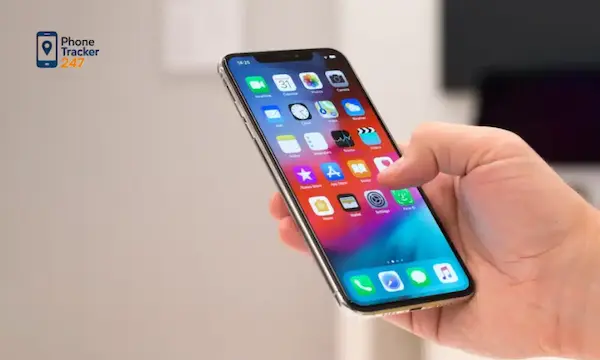
For stronger protection, you should combine Google SafeSearch with Apple’s built-in Screen Time controls. This is the part that helps limit adult websites across the phone rather than inside Google alone.
Open Screen Time and turn on Content & Privacy Restrictions
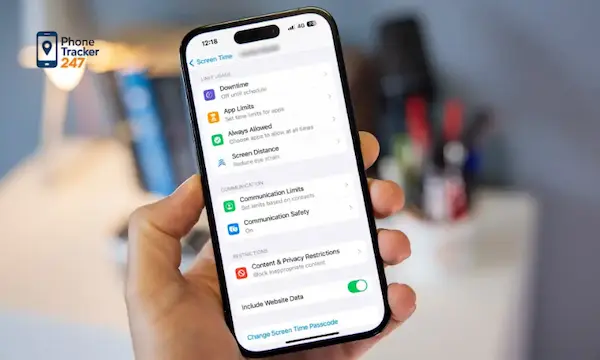
Apple places web restrictions inside Screen Time. Once this section is enabled, you can adjust content controls for websites and lock them with a passcode if needed. This is especially useful for parents setting up a child’s device or for shared family phones.
- Open Settings on your iPhone.
- Tap Screen Time.
- Select Content & Privacy Restrictions.
- Turn Content & Privacy Restrictions on.
- Enter or confirm a Screen Time passcode if prompted.
This first setup step matters because the web filtering options remain inactive until Content & Privacy Restrictions are enabled.
Use Web Content to limit adult websites
Apple’s support guidance shows that web restrictions are located under the content settings area, where you can choose the web content level for the device. The most useful option for this topic is Limit Adult Websites.
- Go to Settings.
- Tap Screen Time.
- Open Content & Privacy Restrictions.
- Select App Store, Media, Web, & Games.
- Tap Web Content.
- Choose Limit Adult Websites.
This option will not create a perfect closed internet, but it gives Safari and web access a much safer baseline. For many families, this step does more than SafeSearch alone.
Add specific websites to Never Allow or Always Allow
One of the strongest parts of Apple’s web restrictions is the ability to customize access. If a site keeps slipping through or if you only want a child to use a very short approved list, manual controls give you better precision. Apple confirms you can add sites to allowed and blocked lists inside Web Content settings.
- Use Never Allow to block a website by URL.
- Use Always Allow to keep access open to trusted learning or family sites.
- Review these lists regularly because browsing needs often change over time.
Custom website lists work well for families that want more control than general filtering can provide.
How to Set Up Safe Search on a Child’s iPhone
A child’s iPhone needs more than a single search filter. The strongest setup uses both Google SafeSearch and Apple web restrictions, then locks the controls so they are harder to change.
Use Family settings to manage your child’s Screen Time
Apple allows parents to manage a child’s Screen Time settings through family controls, which makes setup easier across multiple devices. This is useful when a parent wants to restrict web content without handing the child full control over the phone’s content settings.
- Open Screen Time for the child’s device through family management.
- Enable Content & Privacy Restrictions.
- Adjust Web Content to limit adult websites.
- Review other app, communication, and purchase restrictions if needed.
Managing settings through family controls creates a more stable setup because the child is less likely to disable it casually.
Combine Google SafeSearch with iPhone web restrictions
The safest setup for a child’s iPhone uses layered protection. Google SafeSearch filters what appears inside Google Search, while Screen Time helps reduce access to adult websites more broadly. Using only one layer leaves obvious gaps. Google and Apple describe these tools separately, which is a strong sign they should be used together rather than treated as interchangeable.
- Turn on Google SafeSearch and set it to Filter.
- Turn on Limit Adult Websites in Screen Time.
- Add known risky sites to Never Allow when necessary.
- Recheck settings after iOS updates, account changes, or device resets.
This layered setup is the most practical answer for parents who want child-safe browsing on iPhone without relying on guesswork.
Lock settings with a Screen Time passcode
Even the best content settings fail if they can be changed in seconds. A Screen Time passcode adds friction and helps keep the rules in place. Apple includes passcode protection as part of Screen Time management for families and content restrictions.
- Create a Screen Time passcode that the child does not know.
- Do not reuse the phone unlock code if you want stronger separation.
- Test the setup by reopening settings and confirming changes require the passcode.
This small step often makes the difference between a restriction that lasts and one that disappears the first time a child experiments with settings.
Quick Tips to Make iPhone Browsing Safer
A safer iPhone setup works best when you treat search filtering and website restrictions as two connected tools. These practical adjustments can make the setup more reliable.
- Use Filter instead of Blur when setting up SafeSearch for a child or shared family device.
- Turn on Limit Adult Websites in Screen Time for broader web protection.
- Create a Screen Time passcode so settings cannot be changed easily.
- Add risky domains to Never Allow if they continue appearing in browsing activity.
- Recheck settings after software updates, account changes, or device resets.
- Use a broader digital safety strategy if you need more visibility into device use, family protection, or online behavior, which aligns with PhoneTracker247’s safety-focused positioning.
Conclusion
If you want to know how to enable safe search on iPhone, the best answer is to stop thinking in terms of one switch. Turn on Google SafeSearch to filter explicit results in Google, then use Screen Time web restrictions to limit adult websites across the device. That combination creates a much safer browsing setup for personal use, family devices, and especially children’s iPhones. If your goal goes beyond filtering search results and into broader digital safety, PhoneTracker247 fits that need with a safety-first approach built around transparent, lawful device monitoring and protection.
Protect your family’s iPhone browsing with the right settings first, then strengthen device safety with a smarter monitoring solution from PhoneTracker247.
For daily updates, subscribe to PhoneTracker’s blog!
We may also be found on Facebook!
FAQs – How to Enable SafeSearch on iPhone
1. How do I enable SafeSearch on iPhone?
Open Google settings and set SafeSearch to Filter.
2. Does SafeSearch work in Safari?
Yes, but only for Google search results.
3. Is SafeSearch the same as website blocking?
No, SafeSearch filters search results only.
4. How do I block adult sites on iPhone?
Use Screen Time web content restrictions.
5. Which SafeSearch setting is best for kids?
Filter is the safest option for children.
6. Can I lock SafeSearch settings?
Yes, use account settings and Screen Time passcode.
7. Can I block specific websites?
Yes, add them to Never Allow.
8. Should I use Screen Time too?
Yes, it gives broader web protection.
9. Are iPhone filters perfect?
No, parents should review settings regularly.
10. What should parents set first?
Start with SafeSearch Filter and Limit Adult Websites.