When you want to improve digital habits, the first step is not guessing. It is seeing the pattern clearly. Many people feel like they spend too much time on certain apps, but without data, it is hard to know what is really happening. That is why learning how to see time spent on apps matters. Once we can view app usage by day, week, device, and category, we can make smarter choices. With built-in tools and, when needed, with PhoneTracker247, we can turn scattered screen habits into a clear, practical picture that is easier to manage.
How to see time spent on apps on iPhone and iPad
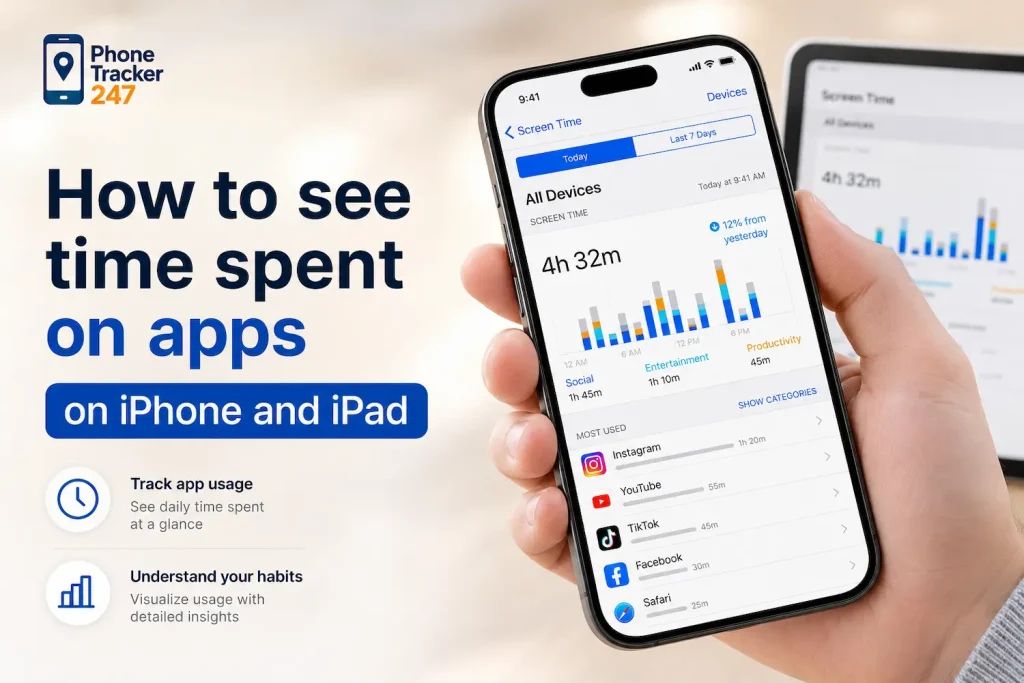
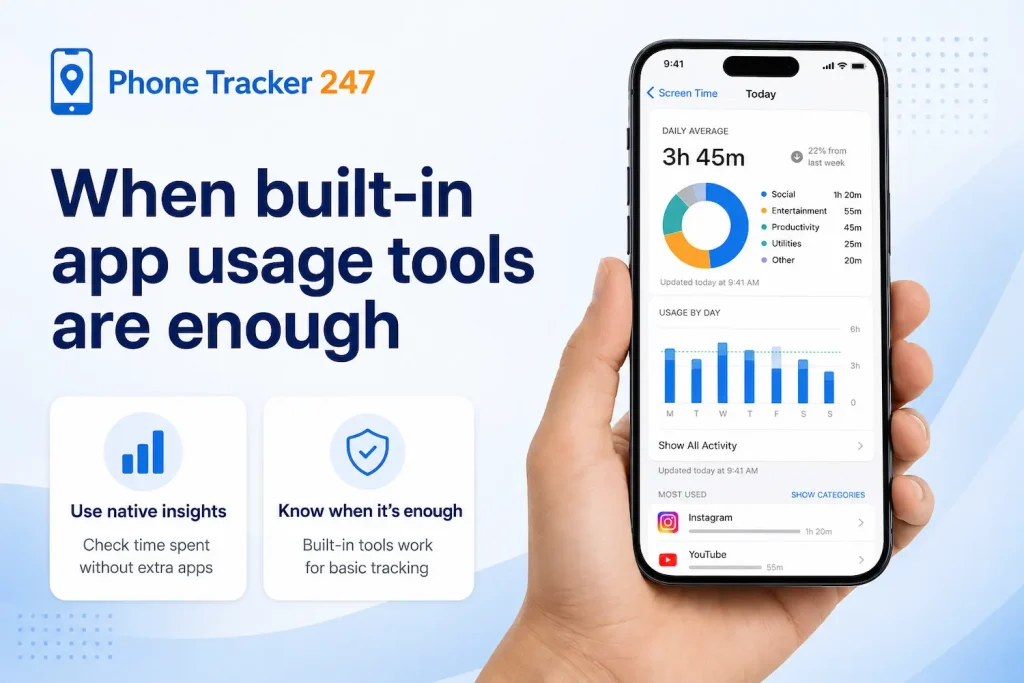
Apple includes Screen Time as the main built-in tool for reviewing app usage. It is the fastest way to check daily and weekly activity on iPhone or iPad without installing anything extra.
Open Screen Time and tap See All Activity
On iPhone or iPad, go to Settings > Screen Time. From there, tap See All Activity to open a full breakdown of app and category usage.
You can review time spent by app, compare usage by day or week, and see which categories take the most attention. Apple also shows pickups and notifications, which adds context. Sometimes the issue is not total app time but how often a device interrupts attention throughout the day.
Review daily and weekly reports for stronger patterns
A single day does not always tell the full story. That is why weekly reporting matters. It helps us separate one-off heavy use from a recurring habit.
When we compare days, we can see whether entertainment spikes after school, whether productivity apps dominate weekdays, or whether usage rises at night. This broader pattern gives a more accurate basis for setting boundaries or adjusting routines.
Use shared data across Apple devices when available
If Apple device sharing is enabled, Screen Time may show activity across devices linked to the same Apple account. That gives a more complete view of usage, especially for people who move between an iPhone and iPad.
This is helpful because app time can be spread across multiple screens. Without shared reporting, we may underestimate total use. With shared data, we can see whether the same category is drawing attention across the whole Apple ecosystem.
See more: Life360 Review: What It Does Well, Where It Stops, and When Families Need More
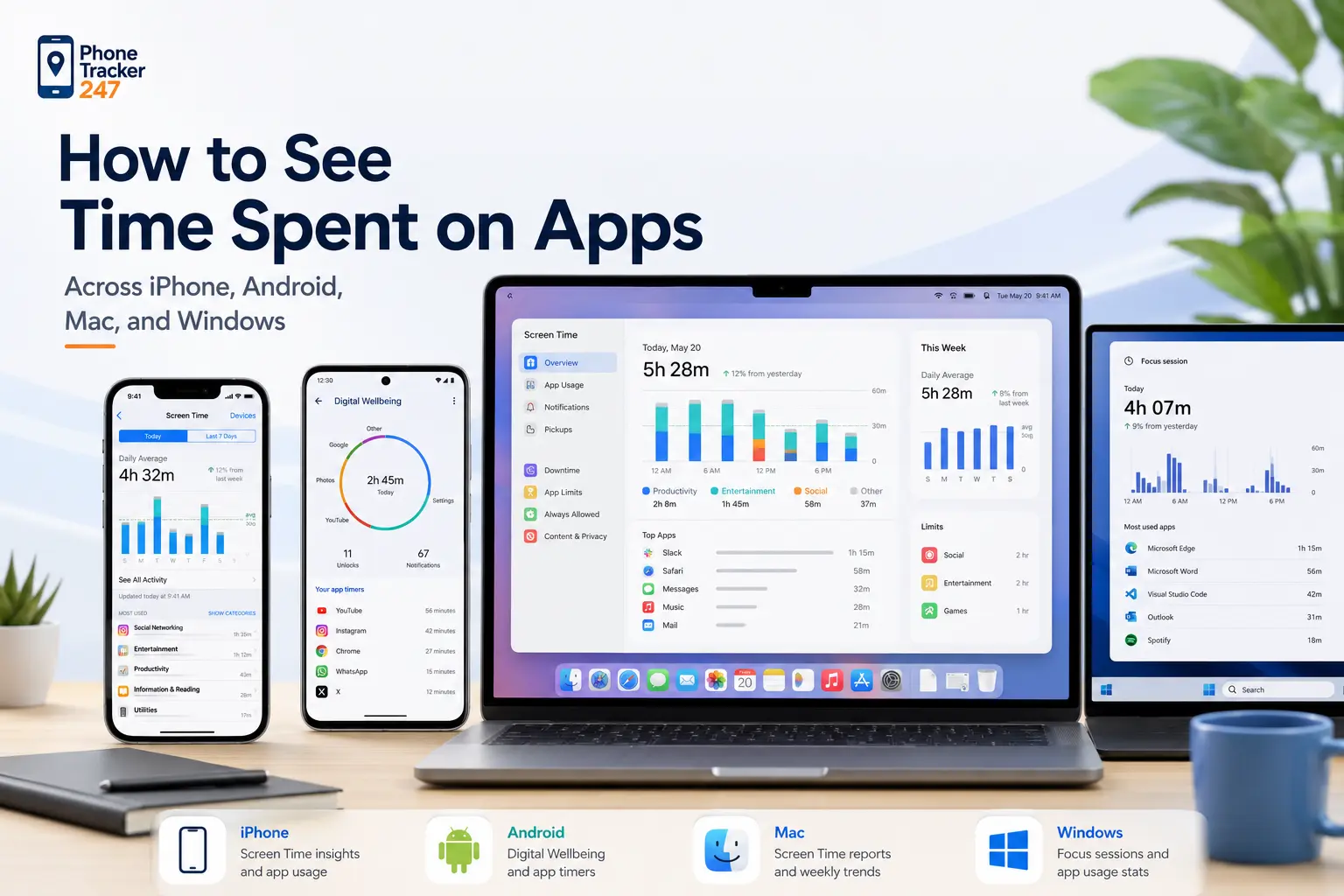
Table 1: Quick Ways to See Time Spent on Apps by Device
| Device | Where to Check App Time | What You Can See | Best For |
|---|---|---|---|
| iPhone / iPad | Settings → Screen Time → See All Activity | App usage, categories, pickups, notifications | Daily and weekly screen time review |
| Android | Settings → Digital Wellbeing & parental controls | Screen time, app usage, unlocks, notifications | Checking mobile app habits |
| Mac | System Settings → Screen Time → App & Website Activity | App time, website activity, category usage | Desktop productivity and focus tracking |
| Windows | Settings → System → Power & battery → Battery usage | Screen-on time and app battery use | Estimating app activity on laptops |
| Windows Task Manager | Ctrl + Shift + Esc → App history | CPU time, network use, app activity trends | Spotting active or resource-heavy apps |
How to see time spent on apps on Android
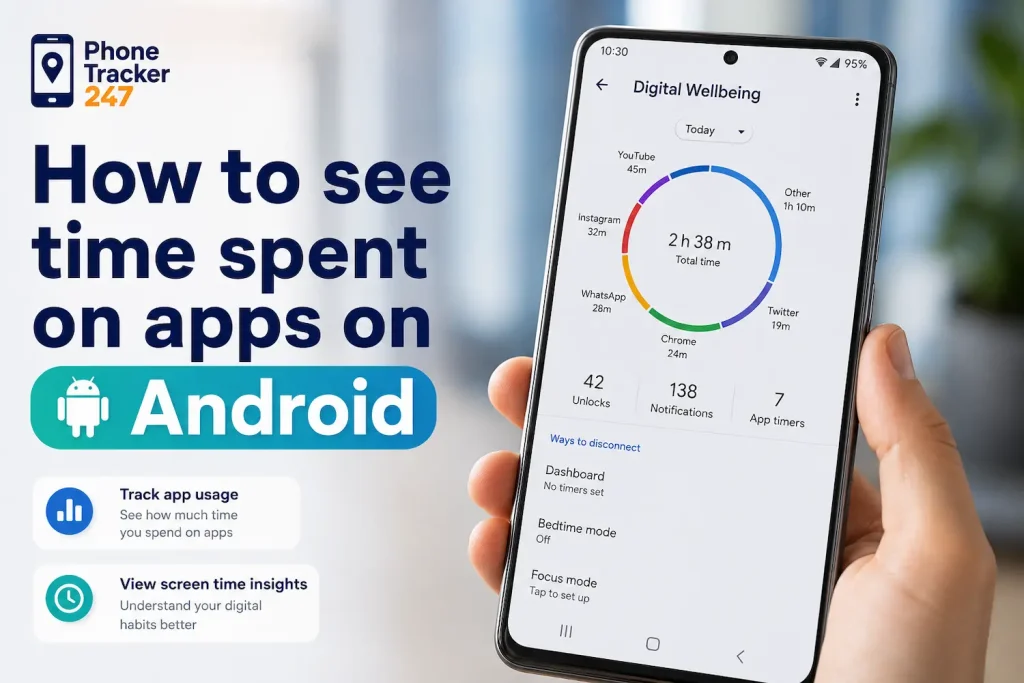
Android devices usually include Digital Wellbeing as the default place to review app usage. The exact menu may vary slightly by brand, but the core path is similar on most modern phones.
Open Digital Wellbeing and view the usage chart
Go to Settings > Digital Wellbeing & parental controls. Tap the chart or the option labeled Show your data to see app usage for the day.
This report usually shows total screen time, the most-used apps, and the number of unlocks. It gives a practical snapshot of how the device is being used right now. For many users, this built-in view is enough to identify the apps that consume the most time.
Tap each app for more detailed activity
Android often lets us tap a specific app to view deeper detail. That may include how long the app stayed active, how often it was opened, and how many notifications it generated.
This extra layer matters because some apps do not just consume time directly. They also create repeated interruptions. A messaging or social app may not show the longest total duration, but it can still break focus through constant unlocks and alerts.
Switch between days to identify recurring behavior
Do not stop with today’s number. Move across previous days to compare usage history and see whether the behavior is consistent.
This helps us answer practical questions. Is one app becoming a daily habit. Is weekend usage much higher than weekday usage. Are certain apps only active during school, work, or late-night hours. Once we know that, the next decision becomes much easier.
How to see time spent on apps on Mac
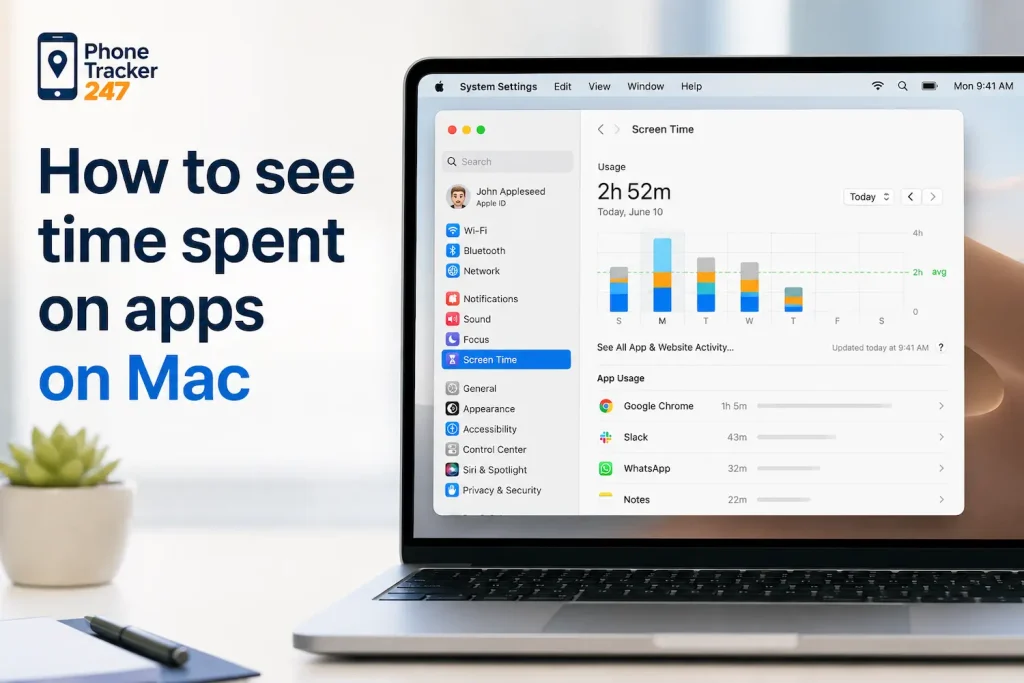
Mac also includes Screen Time, which works well for users who want app and website activity in one place. It is especially useful for people who spend large parts of the day on desktop workflows.
Open Screen Time in System Settings
On Mac, click the Apple menu > System Settings > Screen Time. Then open App & Website Activity to review usage summaries by app and category.
This view gives a structured breakdown of which tools, websites, and app categories are using the most time. It is useful for both personal awareness and productivity management, especially when work and entertainment happen on the same device.
Compare categories, not just individual apps
A category summary often tells a stronger story than one app alone. For example, browsing may appear split across multiple websites, while communication may be spread across several tools.
When we only look at one app, we may miss the bigger pattern. Category data helps us see whether time is going into work, study, entertainment, social connection, or distraction. That makes the report easier to act on.
Share data across Apple devices for a broader view
If Screen Time sharing is enabled, Mac usage can appear alongside activity from iPhone and iPad. That creates a fuller picture for users working across several Apple devices.
This is especially valuable for families and professionals who switch screens throughout the day. Instead of checking each device separately, we can understand total screen behavior as one connected flow.
How to see time spent on apps on Windows
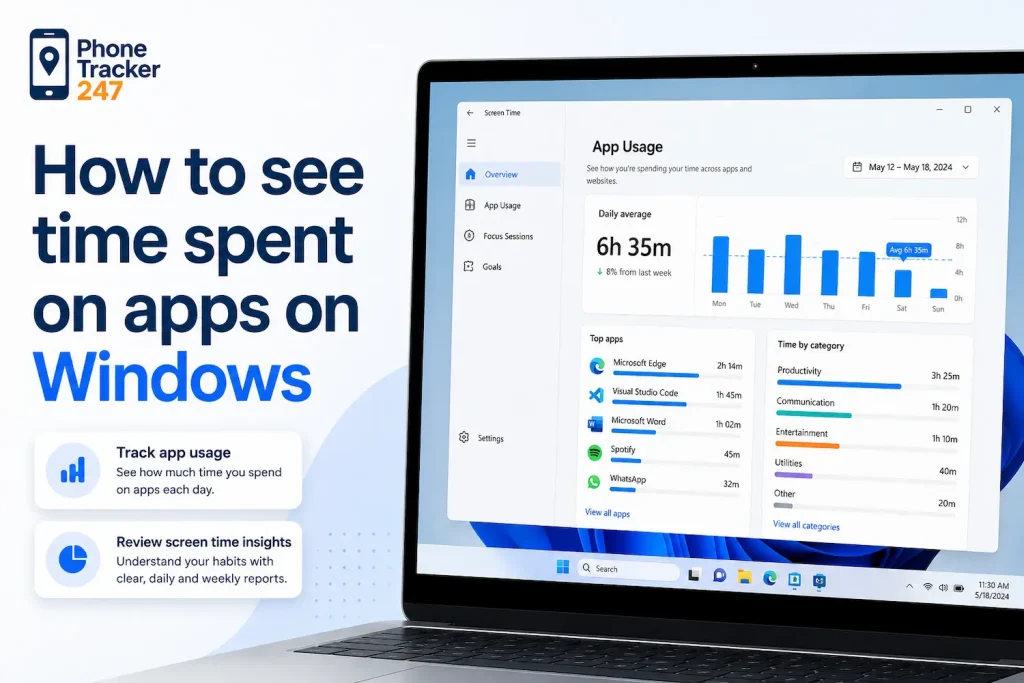
Windows does not always provide exact app screen time in the same way that iPhone, iPad, Android, or Mac do. Still, it offers a few built-in signals that help estimate device and app usage.
Check Battery usage for screen-on insights on laptops
On Windows laptops, go to Settings > System > Power & battery > Battery usage. This can show screen-on patterns and battery use by app, which gives a rough idea of activity.
It is not a perfect app time tracker, but it can still reveal which programs are using the most power and whether screen usage is rising over time. For general monitoring, this can be a useful starting point.
Use Task Manager App history for longer activity trends
Press Ctrl + Shift + Esc to open Task Manager, then go to the App history tab. This view tracks some usage data, such as CPU time and network activity, over a longer window.
It does not show exact screen time in the same format as mobile tools. Still, it can help identify which apps stay active often, consume system resources, or run more than expected over a 30-day period.
Know the limit of built-in Windows reporting
The key issue with Windows is that built-in reporting is more approximate. It is helpful for spotting broad patterns, but not always enough for precise app time analysis.
That is why users who need more centralized visibility across devices often look for an additional monitoring layer. With PhoneTracker247, app activity monitoring can support a more connected view where supported, especially when the goal is to understand device behavior alongside other activity signals.
When built-in app usage tools are enough
Built-in tools are often the best first step. They are fast, accessible, and usually accurate enough for everyday digital habit review.
- Personal awareness: If we only want to know which apps take the most time, Screen Time or Digital Wellbeing often gives enough detail for quick self-checks.
- Simple family discussions: For parents who want a starting point for talking about healthy device habits, native reports can provide clear daily and weekly summaries.
- Basic routine adjustments: When the goal is to reduce late-night scrolling, lower social app use, or track overall screen time, built-in dashboards usually cover the essentials.
When a broader monitoring view becomes more useful
Sometimes app time alone is not enough. We may need to understand device activity in a wider context, especially for families managing children’s safety or organizations managing company-owned devices.
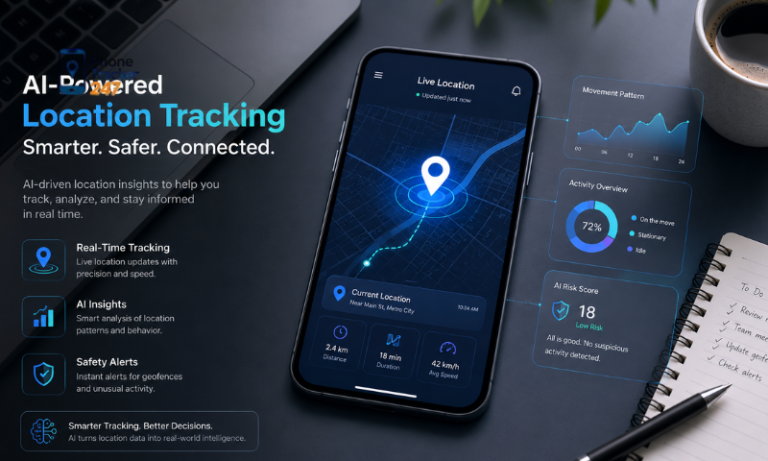
- You need more than one data point: App time is useful, but it becomes more actionable when combined with browsing activity, installed apps, location context, or other device logs.
- You want centralized visibility: Checking multiple devices one by one can become inefficient. A unified dashboard makes trends easier to review and discuss.
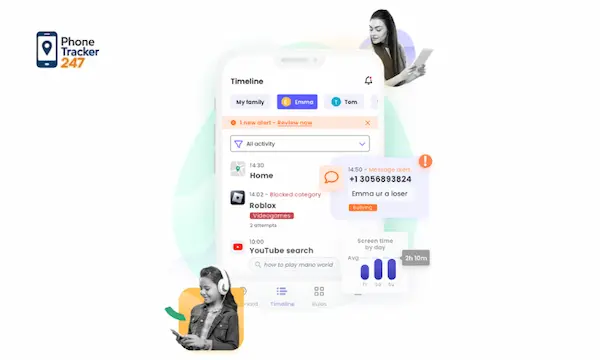
- You need lawful oversight with clear boundaries: PhoneTracker247 is positioned as a monitoring platform for families and business device management, with an emphasis on consent, privacy, and lawful use rather than hidden tracking.
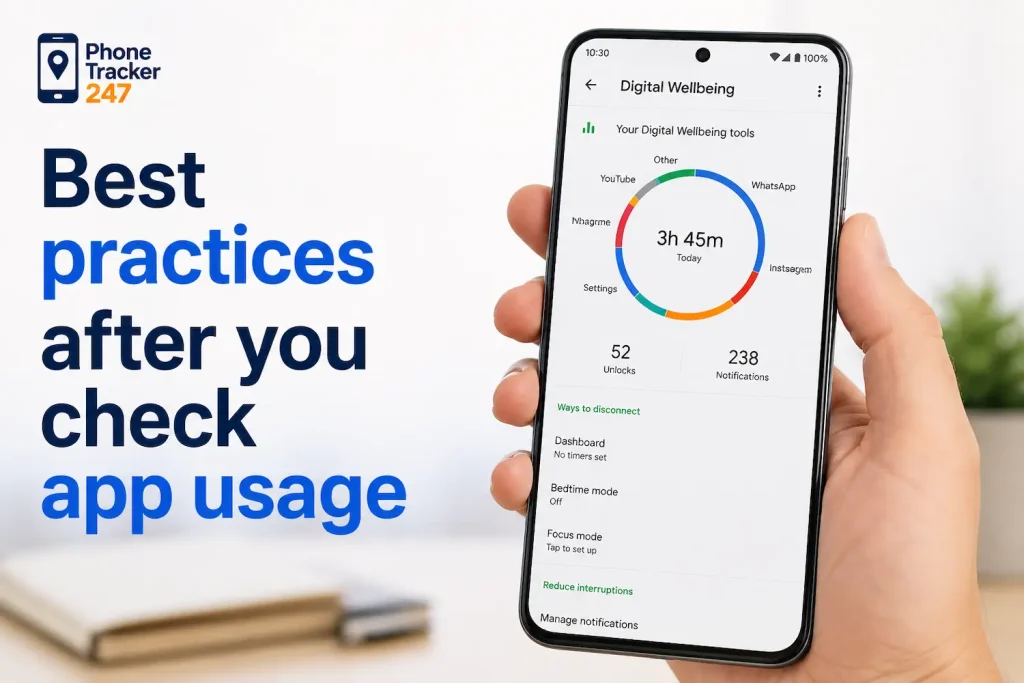
Best practices after you check app usage
Once we know how to see time spent on apps, the next step is using that information well. Data only helps when it leads to a practical decision.
- Start with one high-impact app: Choose the app with the highest usage or the most frequent pickups, then set one realistic rule around it.
- Compare weekly instead of reacting daily: One unusual day does not always mean a real problem. Weekly trends usually give a more stable basis for change.
- Talk about context, not only limits: Ask why the app is used so much. It may reflect boredom, habit, school needs, or social pressure rather than simple overuse.
- Combine visibility with consistency: A report is only useful if we review it regularly. Small, repeated check-ins work better than occasional dramatic resets.
Download PhoneTracker247 here to start building safer, healthier screen habits for your child today
FAQs – How to See Time Spent on Apps
1. How do I see time spent on apps?
Use built-in screen time or app usage tools.
2. How do I check app time on iPhone?
Go to Settings > Screen Time > See All Activity.
3. How do I check app time on Android?
Open Settings > Digital Wellbeing & parental controls.
4. Can I see app usage on Mac?
Yes, use Screen Time in System Settings.
5. Can Windows show app usage?
Yes, Battery usage and Task Manager show activity signals.
6. Why should I check weekly reports?
Weekly reports reveal stronger usage patterns.
7. Can app usage show distractions?
Yes, pickups and notifications reveal interruption habits.
8. Are built-in tools enough?
Yes, for basic personal usage checks.
9. When is a monitoring dashboard useful?
When families or teams need centralized visibility.
10. What should users do first?
Check top-used apps, set limits, and review weekly.
Final thoughts on how to see time spent on apps
Learning how to see time spent on apps is one of the simplest ways to take control of digital habits. Whether we use Screen Time on iPhone and Mac, Digital Wellbeing on Android, or Windows usage reports, the goal is the same: replace assumptions with real visibility. Once we can see the pattern, we can guide better choices for ourselves, our families, or our teams.
With PhoneTracker247, we can also move beyond isolated reports and manage app activity as part of a broader, consent-based device monitoring workflow built for clarity and control.
Ready to get clearer visibility into device activity with PhoneTracker247? Create your account, connect the device you manage legally, and start reviewing app usage from one practical dashboard.
For daily updates, subscribe to PhoneTracker’s blog!
We may also be found on Facebook!