
Parental Control is an important feature that helps parents manage device usage time and control the content their children can access on phones or computers. However, during use, many people need to change the password to improve security or because they have forgotten the old one. So, how to change parental control password on common devices today? In the article below, PhoneTracker247 will guide you on how to change the Parental Control password on phones and computers in a simple, quick, and easy way.
Why Should You Change the Parental Control Password Regularly?
The Parental Control password plays an important role in managing the content children can access and the amount of time they spend using devices. However, if the password is not changed for a long time, the risk of it being exposed or guessed becomes higher. Therefore, regularly updating the password is an effective way to strengthen the security of the parental control system.
One important reason is that children are increasingly familiar with technology and may accidentally discover the password if parents enter it repeatedly in front of them. In such cases, children might change settings or disable the control features without the parents realizing it.
In addition, changing the Parental Control password helps protect important settings such as screen time limits, app restrictions, and content filtering. When the password is updated regularly, the control system can operate more safely and effectively.
Regularly updating passwords is also a good habit for protecting personal information on phones and computers. It helps reduce the risk of unauthorized access and ensures that only parents have the authority to modify the child-safety settings.
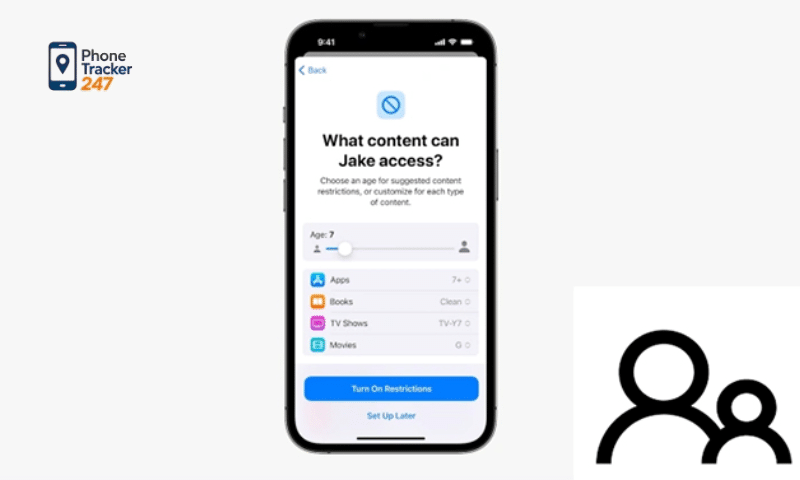
How to Change Parental Control Password on a Phone
Changing the Parental Control password on a phone is quite simple and can usually be done in just a few steps. Depending on the device’s operating system, the exact steps may vary slightly, but overall the process is easy to follow.
How to Change the Parental Control Password on Android
On Android phones, parents can change the control password through the device settings or a family management app.
Basic steps include:
- Open Settings on the phone.
- Find Parental Controls or Digital Wellbeing & Parental Controls.
- Select the section for account management or parental control settings.
- Enter the current password to verify access.
- Choose Change Password.
- Enter the new password and confirm it to complete the process.
After the change is completed, the system will update the new password to protect the parental control settings on the device.
See more: What Makes Child Protector App Special in Protecting Children Online?
How to Change the Parental Control Password on iPhone
On iPhone, the parental control feature is typically managed through Screen Time.
Follow these steps:
- Open Settings on the iPhone.
- Tap Screen Time.
- Select Change Screen Time Passcode.
- Enter the current Screen Time passcode.
- Enter a new passcode and confirm it.
Once completed, the new parental control password will take effect and continue protecting the device usage restrictions and content settings.
Table 1: How to Change Parental Control Password on Different Devices
| Device / Platform | Where to Go | Main Steps | What Parents Should Know |
|---|---|---|---|
| Android | Settings → Digital Wellbeing & parental controls or Google / Family Link | Open parental control settings, verify with the current password, parent account, or parent access code, then create and confirm a new password or passcode | Android steps vary by brand and setup. On many devices, parental controls are tied to Family Link or Google Play restrictions rather than one universal password |
| iPhone / iPad | Settings → Screen Time | Tap Change Screen Time Passcode, authenticate if required, then enter and confirm the new passcode | Apple uses the term Screen Time passcode. Parents managing a child account through Family Sharing may update it from the organizer’s device |
| Windows PC | Microsoft account / Family Safety / account security settings | Sign in to the parent or administrator account, update the account password or family safety settings, then confirm access to family controls | On Windows, parental controls are commonly linked to the parent Microsoft account, so changing the account password can be part of protecting parental control access |
| Mac / MacBook | System Settings → Screen Time | Open Screen Time, choose Change Passcode, verify identity or enter the old passcode, then set a new one | On Mac, Screen Time may be managed for yourself or for a child in Family Sharing, depending on setup |
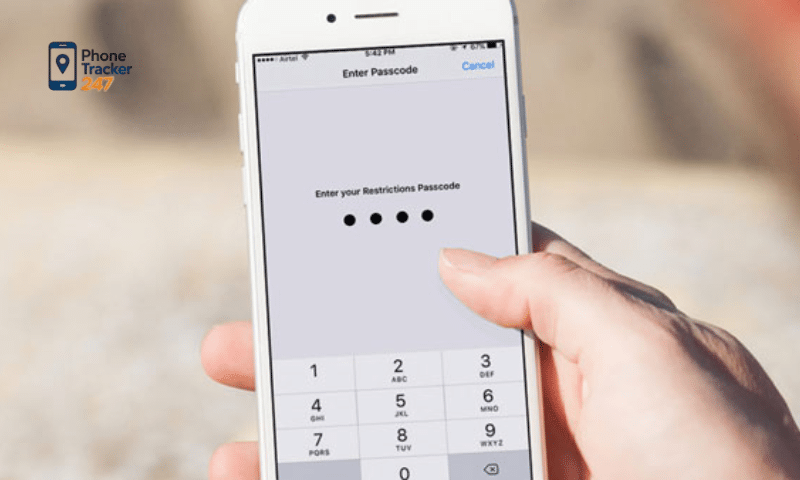
How to Change Parental Control Password on a Computer
Besides smartphones, many parents also use Parental Control on computers to manage children’s internet access, applications, and games. Changing the password on a computer is also quite simple and can usually be done through the system settings.
How to Change the Parental Control Password on Windows
On Windows computers, Parental Control is commonly managed through Microsoft Family accounts or family settings.
The basic steps include:
- Open Settings on the computer.
- Select Accounts.
- Go to Family & other users.
- Choose the child account that is being managed.
- Update the administrator password or adjust the parental control settings as needed.
Changing the administrator password helps ensure that children cannot modify Parental Control settings without permission.
How to Change the Parental Control Password on MacBook
On MacBook devices, Parental Control is typically managed through Screen Time or user account settings.
The basic steps include:
- Open System Settings or System Preferences.
- Select Screen Time.
- Click Options.
- Choose Change Passcode.
- Enter the current passcode and create a new one.
Once the process is completed, the system will apply the new password to all parental control settings on the device, helping parents maintain secure management of their child’s device usage.
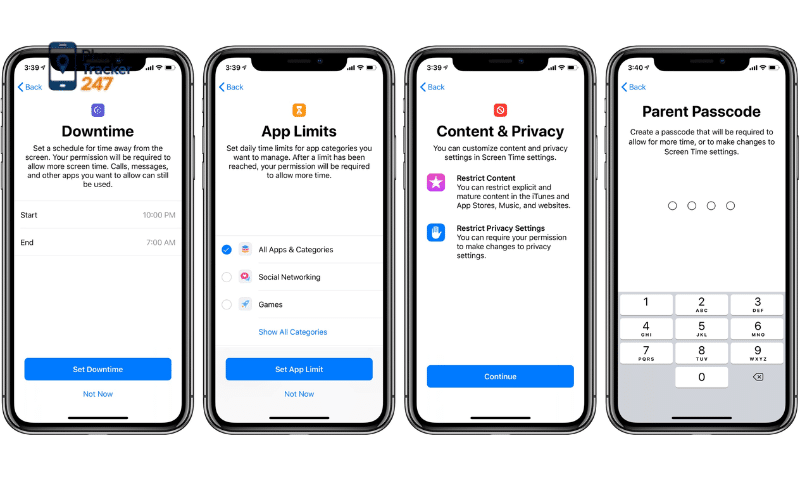
Important Notes When Changing the Parental Control Password
When performing how to change parental control password, parents should not only update the password but also ensure strong security and long-term manageability. A properly configured password helps the parental control system operate reliably and prevents unauthorized access or accidental changes.
To ensure the best results when changing the Parental Control password, parents should keep the following points in mind:
- Use a strong and secure password: Create a password that combines uppercase letters, lowercase letters, numbers, and special characters. A password with at least 8–12 characters will significantly improve security and reduce the risk of being guessed.
- Avoid easily guessed personal information: Do not use birthdays, phone numbers, children’s names, or simple number patterns such as 123456 or 111111, as these passwords are easy to guess or crack.
- Avoid entering the password repeatedly in front of children: Children may observe or remember the steps when parents type the password. Therefore, be careful when setting up or changing the Parental Control password on devices.
- Store the password in a safe place: Parents can save the password in a password manager, a secure note on their phone, or a personal notebook. This helps prevent situations where the password is forgotten when changes are needed.
- Update the password periodically: Changing the password every few months helps strengthen the security of the control system and minimizes the risk of unauthorized access.
- Synchronize passwords across multiple devices: If Parental Control is used on several devices such as smartphones, tablets, or computers, parents should ensure the password is updated consistently to avoid access issues or losing management control.
By paying attention to these factors, parents can use Parental Control more effectively and ensure that all child-safety settings remain protected across devices.
See more: Top Parental Control Apps That Help Parents Effectively Manage Their Children’s Devices
How to Recover When You Forget Your Parental Control Password
During the use of Parental Control, parents may sometimes forget the password they previously set. When this happens, recovering the password becomes necessary so they can continue managing the device and maintaining the control settings for their children.
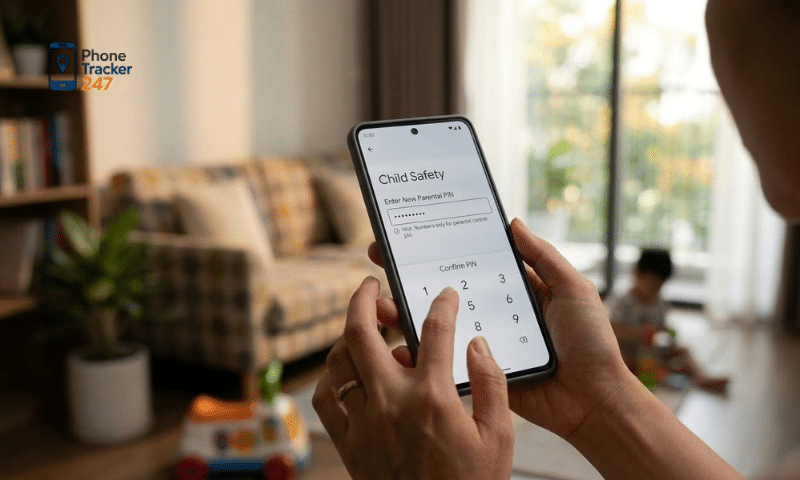
Below are several common ways to recover a Parental Control password:
- Recover through the administrator account: If Parental Control is linked to an administrator account or a family management account, parents can log in to that account and reset the password. This method is commonly used on operating systems or family management applications.
- Verify using email or a security code: Many Parental Control systems allow password recovery by sending a verification code to the registered email address. After entering the correct verification code, you can create a new password and continue using the system.
- Reset the password in device settings: On some phones or computers, parents can access the account management or security settings to reset the Parental Control password directly from the device settings.
- Restore device settings (if necessary): If the password cannot be recovered using the methods above, restoring the device to factory settings may be the final solution. However, users should back up important data beforehand to avoid losing information.
To reduce the chances of forgetting the password, parents should store it in a secure location or use a password manager. This helps make managing Parental Control easier and saves time when changing or recovering the password in the future.
Conclusion
Parental Control is a useful tool that helps parents manage children’s device usage in a safe and effective way. Changing the password regularly not only strengthens security but also ensures that parental control settings remain stable and protected.
If you are learning how to change parental control password, the instructions in this article should help you easily update or recover the password on both phones and computers. By following the correct steps and applying proper security practices, you can keep your parental control system working effectively.
If you need more detailed guidance on using parental control tools or want to explore effective child monitoring apps, follow PhoneTracker247 for more helpful articles and the latest technology tips.
FAQs – How to Change Parental Control Password
1. Why should parents change a parental control password?
Changing it regularly helps improve security and reduces the risk of unauthorized access.
2. How do you change a parental control password on Android?
Go to Settings, open Parental Controls or Digital Wellbeing & Parental Controls, verify access, then choose Change Password.
3. How do you change a parental control password on iPhone?
Open Settings → Screen Time → Change Screen Time Passcode, then enter the current passcode and set a new one.
4. How do you change a parental control password on Windows?
Open Settings → Accounts → Family & other users, select the child account, then update the administrator password or family settings.
5. How do you change a parental control password on MacBook?
Open System Settings or System Preferences, go to Screen Time, click Options, then choose Change Passcode.
6. What makes a strong parental control password?
A strong password should include uppercase letters, lowercase letters, numbers, and special characters, ideally with 8–12 characters or more.
7. What passwords should parents avoid?
Avoid birthdays, phone numbers, children’s names, and simple patterns like 123456 or 111111.
8. Where should parents store a parental control password?
Store it in a password manager, a secure note, or another safe place that is easy for parents to access later.
9. What can parents do if they forget the password?
They can recover it through the administrator account, email verification, or device settings, depending on the system.
10. What is the last option if password recovery does not work?
A factory reset may be the final solution, but important data should be backed up first