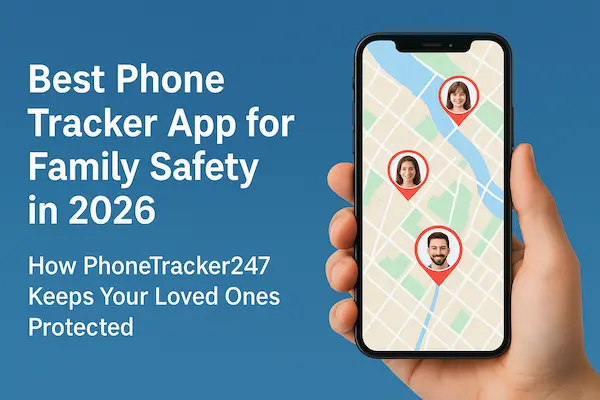
Modern digital parenting relies heavily on the “digital tether” provided by location tracking. When you open your phone only to see your child’s location is “offline” or hasn’t refreshed in three hours, the pulse starts to quicken. Usually, the software isn’t broken; rather, the smartphone’s operating system is doing its job too well by “killing” background processes to save battery.
Table of Contents
Why is my family locator app not updating?
Fixing Location Permissions: The ‘Always Allow’ Requirement
Defeating Battery Optimization and Power Savers
Background App Refresh: The Silent Tracker Killer
Network Connectivity and GPS Accuracy Issues
The Human Element: Consent and Device Maintenance
FAQ: Troubleshooting Persistent Tracking Issues
Why is my family locator app not updating? {https://www.google.com/search?q=%23why-not-updating}
Concise Answer: A family locator app usually stops updating because the mobile operating system (iOS or Android) has restricted its background activity to preserve battery life. Common culprits include disabled “Always” location permissions, aggressive battery optimization settings, lack of background app refresh, or a poor cellular data connection preventing real-time GPS synchronization.
When a location app goes offline, it creates a gap in your family’s digital safety net. This failure is rarely a single bug but rather a conflict between the app’s need for constant data and the phone’s desire to stay powered on. In the world of device monitoring, the smartphone views a high-frequency GPS tracker as a “resource hog.”
From a mobile security practices perspective, both Apple and Google have tightened the screws on how apps access sensors. If you haven’t interacted with an app in a few days, Android might “hibernate” it, revoking permissions automatically. Similarly, if an iPhone user ignores those “This app has been using your location in the background” pop-ups, iOS may revert the permission to “While Using,” effectively breaking the tracker the moment the app is swiped away.
The anxiety of a location tracking stuck on a previous address often stems from “Location Drifting” or “Ghosting.” This happens when the device loses a clear line of sight to GPS satellites and attempts to triangulate via weak Wi-Fi signals, resulting in a static or inaccurate pin.
Fixing Location Permissions: The ‘Always Allow’ Requirement {https://www.google.com/search?q=%23permissions-fix}
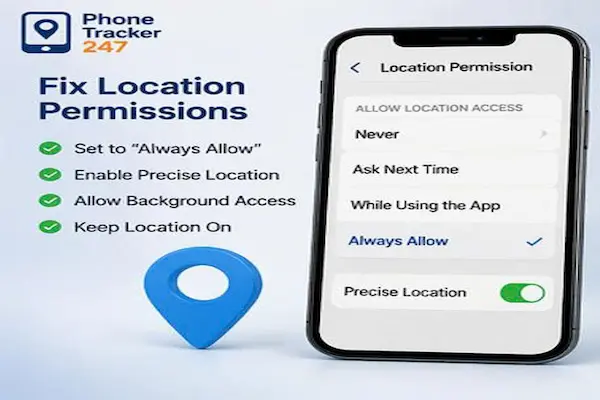
Concise Answer: To fix location sharing, you must ensure the app is set to “Always Allow” rather than “While Using the App.” On iOS, go to Settings > [App Name] > Location > Always. On Android, navigate to Settings > Apps > [App Name] > Permissions > Location > Allow all the time.
In the realm of online safety tools, permissions are the foundation. If you set a tracker to “While Using,” the app only updates when it is actively open on the screen. The moment your teen puts their phone in their pocket and locks the screen, the tracking stops.
The Android “Permissions Reset” Trap
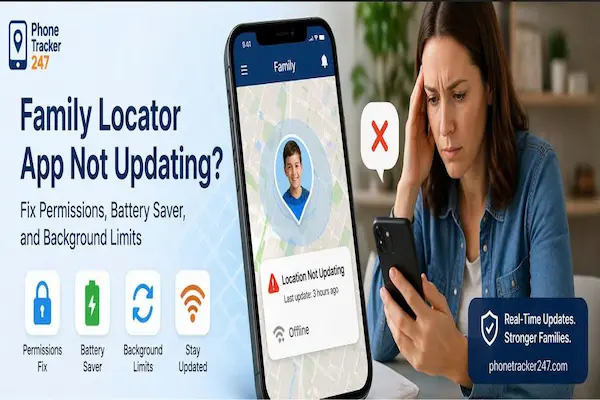
Android 12 and newer versions introduced a feature that removes permissions from “unused apps.” If your child doesn’t open the tracker app for a week, Android might silently revoke its ability to see the GPS.
Expert Tip: Search for “Unused app settings” in the Android search bar and toggle off “Remove permissions if app is unused” for your specific locator tool.
iOS Precision Location
Apple users often forget the “Precise Location” toggle. If this is off, the app only receives a general “neighborhood” view (roughly a few miles radius). For location tracking accuracy, this toggle must be green. Without it, the map might show your child at the school across the street rather than the one they are actually in.
Understanding privacy and consent policies is also vital here. In 2026, many operating systems will periodically prompt the user to confirm they still want to be tracked. If a child or elderly parent clicks “No” on these system-level pop-ups, the app’s functionality is severed immediately, often without notifying the parent.
Defeating Battery Optimization and Power Savers {https://www.google.com/search?q=%23battery-optimization}
Concise Answer: Battery savers are the primary reason a gps tracker is not refreshing. These modes throttle background data and pause GPS sensors to extend battery life. To fix this, exclude the locator app from “Battery Optimization” in the device settings and ensure “Low Power Mode” is disabled.
Modern smartphones are designed to last 24 hours, but high-accuracy tracking can cut that significantly. Consequently, manufacturers like Samsung, Xiaomi, and Apple employ “Aggressive Doze” or “App Standby” modes.
Android’s “Don’t Kill My App” Problem
Android brands are notorious for closing background apps to boast about battery life. To ensure your parental monitoring apps stay active:
Go to Settings > Apps > [Your App].
Select Battery.
Choose Unrestricted. (This is the most critical step for Android users).
If you are using a Samsung device, look for “Sleeping Apps” and ensure the locator is not on that list. On a Pixel, the “Adaptive Battery” feature can sometimes delay location pings if it perceives the app isn’t “important” to the user’s current activity.
The Low Power Mode Ripple Effect
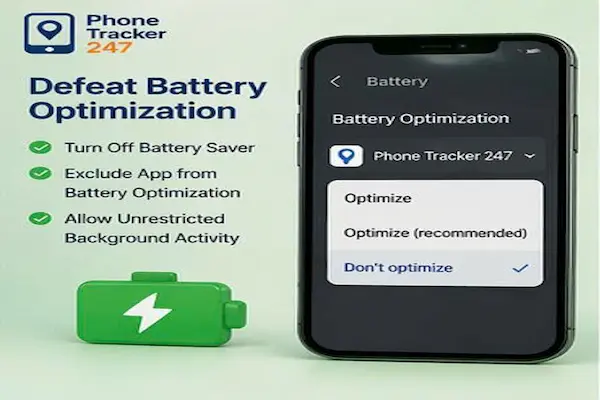
On iOS, turning on the yellow “Low Power Mode” icon instantly halts most background data transfers. If your child’s phone hits 20% and they toggle this on, your family locator app will stop updating. Educating your family on digital wellbeing means teaching them that a dead phone is better than a phone that is “on” but unable to send a distress signal or location update.
Background App Refresh: The Silent Tracker Killer {https://www.google.com/search?q=%23background-refresh}
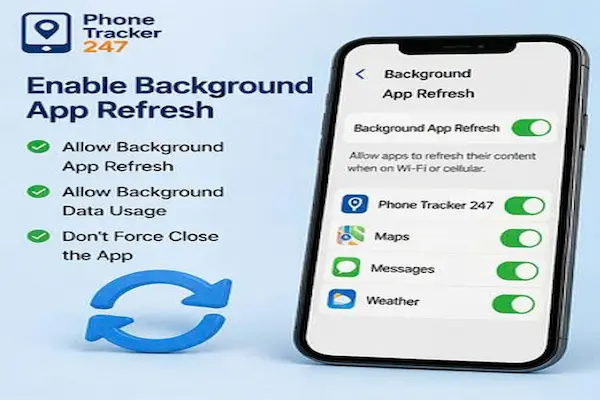
Concise Answer: Background App Refresh allows apps to check for new data even when they aren’t the primary focus. If this is disabled, a tracker cannot “wake up” to send a location ping. Enable this in Settings > General > Background App Refresh on iOS, or “Background Data” under Data Usage on Android.
Think of “Background App Refresh” as the heartbeat of the application. Even if the GPS is active, the app needs a way to “upload” that data to the server. If background data is restricted, the phone knows where it is, but it can’t tell the rest of the family.
The “Swipe Away” Habit
Many users have a habit of swiping up on apps to “close” them. On modern devices, this is actually counterproductive. When you force-close a tracking app, you are essentially killing the process until the user manually re-opens it. For online safety tools to work, the app should remain in the app switcher (multitasking) list.
Data Saving Modes
Much like battery savers, “Data Savers” prevent apps from using cellular data in the background. If your child is on a limited data plan, the phone might be blocking the tracker from sending updates unless they are on Wi-Fi. You must whitelist the app in the “Data Usage” settings to allow “Unrestricted Data Usage.”
For more in-depth guides on maintaining your digital safety ecosystem, check out the PhoneTracker247.com blog. Keeping your mobile security practices up to date is a marathon, not a sprint.
Network Connectivity and GPS Accuracy Issues {https://www.google.com/search?q=%23network-gps}
Concise Answer: If the location tracking is stuck, it might be due to “GPS Dead Zones” or poor network handovers. GPS requires a clear line of sight to satellites. High-rise buildings, underground parking, or dense forests can cause the app to report “Location not found” or “Offline.”
We often assume GPS is magic, but it’s actually a very weak radio signal coming from 12,000 miles above Earth.
Wi-Fi: The Secret Accuracy Booster
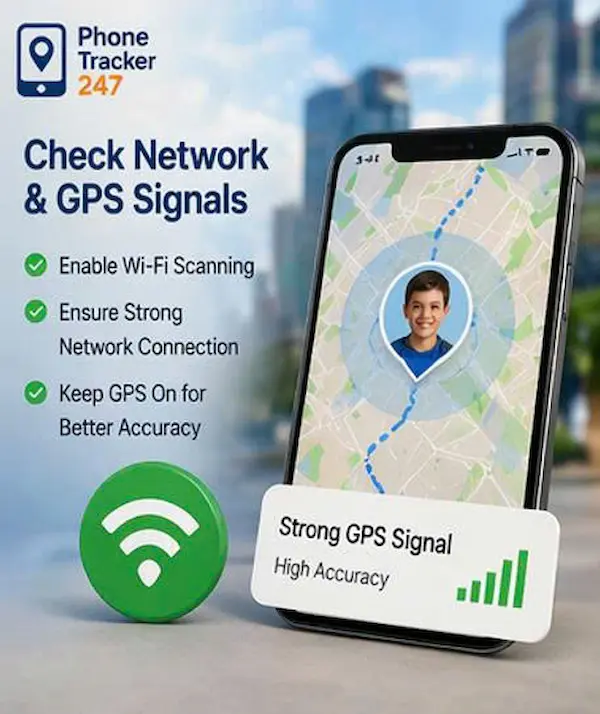
Most people turn off Wi-Fi when they leave the house to save battery. However, modern location services use “Wi-Fi Scanning” to improve accuracy. Even if the phone isn’t connected to a network, it listens for the “SSID” (names) of nearby routers. By cross-referencing these names with a global database, the phone can find its location faster and with less battery drain than using GPS alone.
Pro-tip: Encourage your family to leave Wi-Fi “On” even when traveling. It significantly reduces the gps tracker not refreshing issues in urban environments.
The “Offline” Status vs. “Not Updating”
Offline: The phone has no internet (Airplane mode, no signal).
Not Updating: The phone has internet, but the app is being blocked from running or the GPS is disabled.
If the app says “Offline,” the issue is likely cellular coverage or a dead battery. If it shows a location from 3 hours ago but the phone is clearly “online” (e.g., they are responding to texts), the issue is permissions or battery optimization.
The Human Element: Consent and Device Maintenance {https://www.google.com/search?q=%23human-element}
Concise Answer: Technical fixes only go so far. Digital parenting involves regular “device check-ups” and open communication about why tracking is used. If a device is frequently “stuck,” it may be a deliberate attempt by a user to bypass monitoring through “Mock Location” apps or by disabling GPS in the quick-settings menu.
Effective cyber-risk prevention isn’t just about software; it’s about the hardware’s health. Over time, cached data in a locator app can become corrupted. A simple “Clear Cache” (on Android) or a “Delete and Reinstall” (on iOS) can often resolve persistent glitches.
Privacy and Trust
Using parental monitoring apps should always be a transparent conversation. In the context of child online behavior, kids are incredibly tech-savvy. If they feel a tracking app is an invasion of privacy rather than a safety tool, they may find workarounds like “Location Spoofing.”
Building a culture of digital wellbeing means explaining that these tools are for emergencies-finding a lost phone, coordinating pickups after practice, or ensuring safety during a late-night commute. When the “why” is understood, the “how” (keeping the settings correct) becomes a shared responsibility.
For those looking for the best-in-class tools to monitor and protect their loved ones, visit PhoneTracker247.com to compare top-rated solutions that prioritize both accuracy and user privacy.
FAQ: Troubleshooting Persistent Tracking Issues {http://phonetracker247.com}
Why does the map show my child is in the middle of the ocean or a different city?
This is usually a “proxy” or “VPN” issue. If your child is using a VPN to bypass school Wi-Fi restrictions or access regional content, the locator app may see the IP address of the VPN server (e.g., in London or New York) instead of the actual GPS coordinates. Disable the VPN to restore location tracking accuracy.
Does “Airplane Mode” stop location tracking?
Yes. Airplane mode disables all outgoing signals, including cellular data and Wi-Fi, which are required to send the location to the server. While the GPS receiver might still work internally, the app remains “Offline” to the rest of the family until the mode is disabled.
Why does the app update only when my teen opens it?
This is a classic symptom of “Background App Refresh” being turned off or the app being set to “While Using” instead of “Always.” The phone is effectively putting the app to sleep the moment it’s not the primary focus on the screen.
Can a phone’s age affect how often the location refreshes?
Older devices (4+ years) have slower processors and degraded batteries. To keep the phone functional, the OS may more aggressively kill background apps. If you are using an older device for device monitoring, you may need to check the settings more frequently.
My app says “GPS signal lost” even though we are outside. Why?
Physical interference is the usual suspect. Thick metallic cases, being near high-voltage power lines, or even solar flares can occasionally disrupt the low-power GPS signal. Also, ensure the “Google Location Accuracy” (on Android) is toggled on, as it uses multiple sensors to “lock” a position.
Does “Low Power Mode” automatically turn off when the phone is charged?
On iOS, Low Power Mode automatically toggles off once the battery reaches 80%. However, if the user manually turned it on at a high percentage, it may stay on. Always verify the battery icon color (yellow means it’s still restricted).
Is it possible for a child to “fake” their location?
Yes, especially on Android, through “Developer Options” and “Mock Location” apps. If the location is stuck at a very specific, unlikely place for a long time, check if the “Developer Options” menu is enabled in their phone settings. Modern high-end locator apps often have “Tamper Alerts” to notify parents if such tools are being used