Family locator app Android settings are the backbone of modern digital safety, yet they are often the most misunderstood aspect of smartphone ownership. Have you ever checked your tracking app only to find your child’s location hasn’t updated in three hours, even though you know they are on the move? This frustrating “location lag” is rarely a fault of the app itself; rather, it is usually a result of Android’s aggressive power-saving protocols.
In 2026, Android operating systems have become more sophisticated in how they manage resources. While this is great for your battery life, it can be a nightmare for real-time safety tools. To ensure your family remains connected, you must dive deep into the specific configurations of your device.
This comprehensive guide will walk you through the essential family locator app Android settings required to bypass system restrictions and achieve 100% reliability.
Table of Contents
- The Conflict Between Battery Life and Real-Time Tracking
- Step 1: Disabling Battery Optimization (The “Doze Mode” Fix)
- Step 2: Granting “Allow All The Time” Location Access
- Step 3: Enabling Precise Location and Google Location Accuracy
- Step 4: Removing Permissions if App is Unused (The Silent Killer)
- Step 5: Background Data and Data Saver Exemptions
- Step 6: Manufacturer-Specific Settings (Samsung vs. Pixel)
- Step 7: Physical Maintenance – Wi-Fi and GPS Radios
- The Evolution of AI in Android Tracking Reliability
- Troubleshooting: My Location Still Isn’t Updating!
- Conclusion
The Conflict Between Battery Life and Real-Time Tracking
Android’s primary goal is to make your phone last as long as possible. To do this, it uses a feature called “Doze Mode,” which puts background apps to sleep when the screen is off. Unfortunately, a tracking app needs to work when the screen is off. If you don’t adjust your family locator app Android settings, the system will essentially “blindfold” your app the moment you put the phone in your pocket.
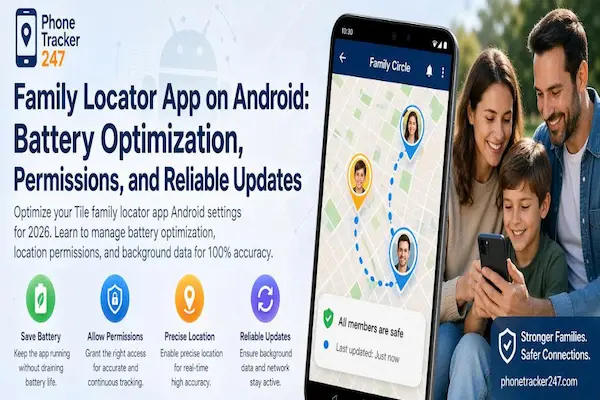
Optimizing family locator app Android settings for battery and location accuracy in 2026
This conflict is the number one reason for inaccurate data. As users, we want the best of both worlds: a phone that lasts all day and a safety tool that never misses a step. Achieving this balance requires a manual touch in the system settings.
Step 1: Disabling Battery Optimization (The “Doze Mode” Fix)
The most critical of all family locator app Android settings is the “Battery Optimization” toggle. By default, Android includes almost every app in its optimization list. When an app is optimized, its background activities—like sending GPS pings—are throttled.
How to fix it:
- Open Settings and go to Apps.
- Find your family locator app.
- Tap on Battery.
- Select Unrestricted (or “Don’t Optimize”).
By selecting “Unrestricted,” you are telling the Android system that this app’s background work is a priority. This prevents the OS from “killing” the app to save a few milliamps of power.
Step 2: Granting “Allow All The Time” Location Access
Privacy is a cornerstone of the Android experience, but it can be a hurdle for safety. When you first install a tracking tool, Android asks for location permission. Many users reflexively choose “While using the app.”
For a family safety tool, this is insufficient. You must update your family locator app Android settings to “Allow all the time.” If you only allow access “while using,” the app will stop tracking the moment your child switches to TikTok or locks their screen.
Pro Tip: In Android 14 and beyond, the system may periodically ask if you want to keep giving the app “All the time” access. Always confirm “Yes” to maintain the link.
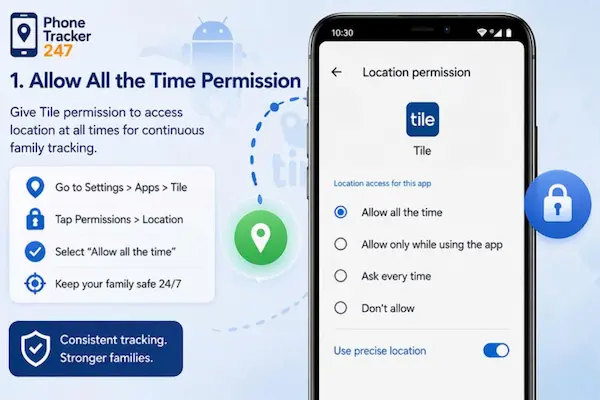
How to set allow all the time permission in family locator app Android settings
Step 3: Enabling Precise Location and Google Location Accuracy
Accuracy is not just about having the GPS turned on. Modern Android phones use a suite of sensors to determine location. Within the family locator app Android settings, you must ensure that Precise Location is toggled on.
Additionally, you should enable Google Location Accuracy (formerly known as Google Location Services). This feature uses Wi-Fi signals and Bluetooth devices near the phone to triangulate position even when GPS signals are weak (like inside a mall or school).
Navigation: Settings > Location > Location Services > Google Location Accuracy > On.
Step 4: Removing Permissions if App is Unused (The Silent Killer)
Android has a safety feature called “Remove permissions if app is unused.” While well-intentioned, this feature can accidentally disable your tracking app if it hasn’t been opened manually in a few weeks.
To ensure long-term reliability, go into your family locator app Android settings and ensure the toggle for “Remove permissions if app is unused” is turned OFF. This ensures the app maintains its “Always” location access even during school holidays when the app might not be opened daily.
Step 5: Background Data and Data Saver Exemptions
A tracking app is useless if it can’t “talk” to the server. If your child has “Data Saver” mode turned on, Android may block the app from sending location updates over cellular networks.
To bypass this, navigate to the app’s info page in Settings, tap on Mobile Data, and toggle on “Allow data usage while Data saver is on.” This is a small but vital part of the family locator app Android settings checklist that prevents data gaps during travel.
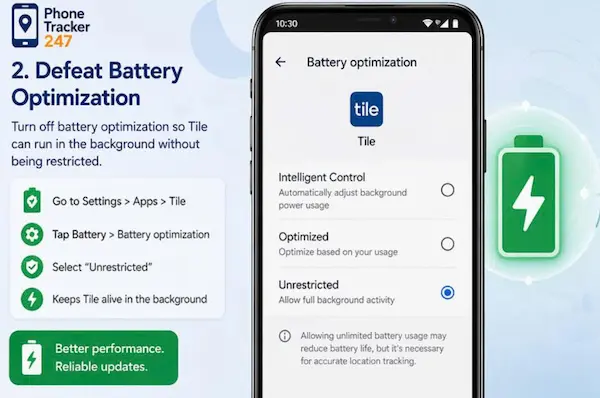
Selecting unrestricted battery usage in family locator app Android settings for reliable tracking
Step 6: Manufacturer-Specific Settings (Samsung vs. Pixel)
Not all Androids are created equal. Samsung devices, for example, have an extra layer of “protection” called Device Care.
- Samsung Users: Go to Device Care > Battery > Background Usage Limits. Ensure your tracking app is added to the “Never Sleeping Apps” list.
- Pixel Users: Pixels are generally more “pure,” but you should still check the “Adaptive Battery” settings to ensure the app isn’t being suppressed by Google’s AI.
Understanding these manufacturer-specific family locator app Android settings is what separates a functioning app from a frustrating one. For more information on the technical evolution of Android, check out the Android Operating System Wikipedia page.
Step 7: Physical Maintenance – Wi-Fi and GPS Radios
Settings are software, but they rely on hardware. One of the best family locator app Android settings isn’t a toggle in a menu—it’s keeping Wi-Fi and Bluetooth Scanning turned on.
Even if you aren’t connected to a Wi-Fi network, leaving the Wi-Fi radio “On” allows the phone to scan for nearby routers, which drastically improves location accuracy in urban environments. This is often referred to as “Wi-Fi Positioning.”
The Evolution of AI in Android Tracking Reliability
As we navigate the tech landscape of 2026, AI has become a major player in how our devices operate. Modern tracking apps now use machine learning to understand a user’s “routine.”
According to Phonetracker, the integration of AI allows apps to be smarter about when they consume power. For instance, an AI-powered app might notice that a child is at school (stationary) and reduce GPS pings to save battery, then ramp up frequency the moment it detects a “Departure” event. This intelligent branding of “smart safety” is the future of the industry.
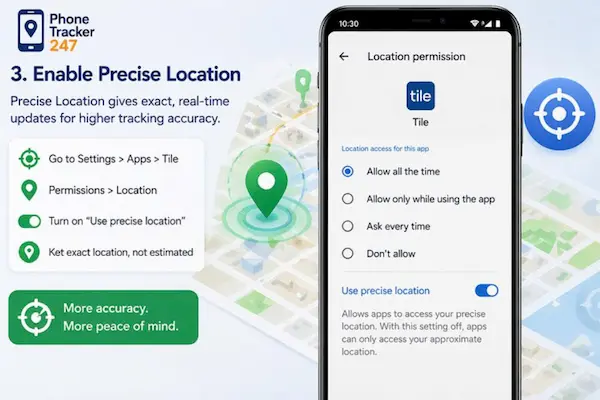
Enabling use precise location toggle in family locator app Android settings
Troubleshooting: My Location Still Isn’t Updating!
If you have audited all the family locator app Android settings and are still seeing issues, try these “nuclear” options:
- Clear App Cache: Sometimes corrupted temporary files prevent updates.
- Reset Google Play Services: This is the “brain” of Android location. Clearing its cache can often jumpstart a stalled GPS.
- Check for System Updates: Google frequently releases “Security Patches” that include fixes for the location API.
- Disable “Mock Locations”: Ensure “Developer Options” are either off or that “Select mock location app” is set to “None.”
Key Vocabulary for Android Safety
To master your family locator app Android settings, you should be familiar with these terms:
- Geofencing: Setting a virtual perimeter that alerts you when crossed.
- Latency: The delay between a movement occurring and it appearing on your map.
- Triangulation: Using multiple signal points (Cell, Wi-Fi, GPS) to find a location.
- API: The “bridge” that allows the app to talk to the Android system.
- APK: The file format used to install apps on Android.
Summary Checklist for Parents
Before you close this guide, perform this 60-second audit on your family’s Android devices:
- [ ] Location: Set to “Allow all the time.”
- [ ] Battery: Set to “Unrestricted.”
- [ ] Precise Location: Toggled ON.
- [ ] Data Saver: App exempted from restrictions.
- [ ] Permissions: “Remove if unused” turned OFF.
- [ ] Wi-Fi Scanning: Enabled in Location Services.
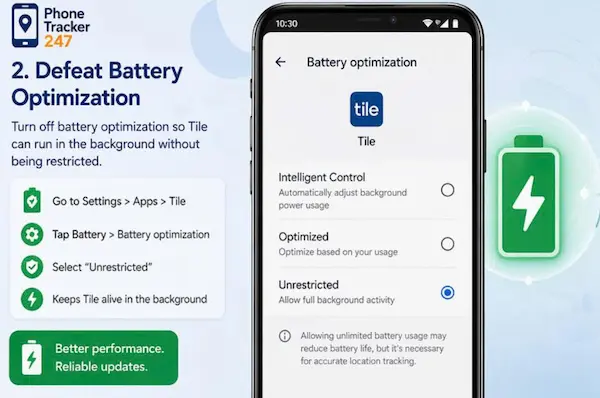
Enabling use precise location toggle in family locator app Android settings
Conclusion
Mastering the family locator app Android settings is the most effective way to ensure your family’s safety in 2026. While Android’s system-level battery optimizations are powerful, they are not a “one size fits all” solution. By taking ten minutes to manually configure permissions, battery exemptions, and data limits, you transform your smartphone from a simple gadget into a reliable lifeline.
Safety in the digital age requires a proactive approach. Don’t wait for an emergency to find out your settings are wrong. Audit your devices today, stay updated on the latest Android versions, and enjoy the true peace of mind that comes with a perfectly configured family tracking system.
This expert guide was crafted to help you navigate the complexities of mobile technology. For more insights on digital safety and tech branding, follow our latest industry updates.
Keywords included: family locator app Android settings, location permissions, battery optimization, background activity, battery drain, GPS accuracy, Android tracking, Android 16, Samsung background settings, Pixel battery saver, real-time updates, geofencing reliability, digital safety, location sharing, app permissions, Android Doze mode, location history, parental control apps, child safety tech, mobile tracking software, Android system settings, Google Play Services, precision location, background activity, smartphone security, tracking latency.