Table of Contents
- Introduction: The Parental Battery Dilemma
- Do Family Locator Apps Really Drain Battery?
- What Influences Battery Usage in Tracking Apps?
- How Much Battery Do These Apps Actually Consume?
- Settings That Cut Power Use Fast
- Advanced Ways to Reduce Battery Drain
- Balancing Safety and Battery in Digital Parenting
- Signs Your Battery Drain Isn’t Normal
- Expert Setup for Efficient Tracking
- FAQ: Common Concerns About Location Power Use
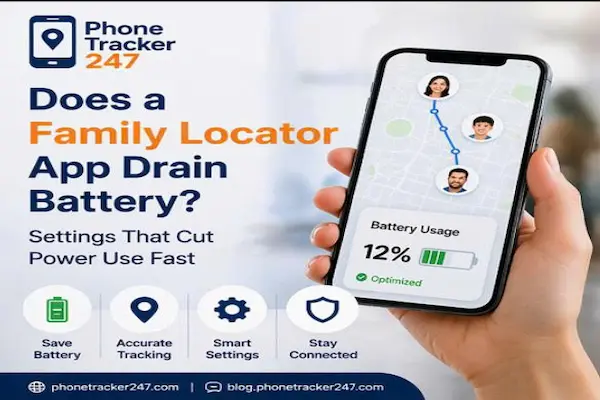
Does a family locator app drain battery optimization settings screen
Introduction
In the modern landscape of digital parenting, the smartphone has transitioned from a simple communication tool into a digital tether. We use PhoneTracker247 and similar online safety tools to ensure our children reached soccer practice or to coordinate commutes. However, a recurring ghost haunts these conveniences: the rapidly depleting battery icon.
It’s a frustrating paradox. You install a safety app to stay connected, but if that app kills the phone’s battery by mid-afternoon, the safety net vanishes exactly when you might need it most. This article explores the technical reality of location tracking accuracy versus energy efficiency and provides a blueprint for a “set it and forget it” configuration that won’t leave you stranded.
Do Family Locator Apps Really Drain Battery?
Yes, a family locator app does use battery, but under normal conditions, the impact is relatively small. Most modern tracking apps are built to manage GPS tracker power usage efficiently, so noticeable drain usually comes from aggressive settings or poor network conditions rather than the app’s core code itself.
To understand this, we have to look at how a phone “sleeps.” Normally, when your screen is off, your phone enters a low-power state. A family locator app acts as a “wake-up call.” It periodically asks the processor to wake up, check the coordinates, and send them to a server. While this uses energy, the “drain” often blamed on these apps is frequently a result of the phone’s hardware working too hard to overcome a weak signal or trying to achieve unnecessary GPS precision in an area where Wi-Fi signals would suffice.
Historically, older apps were poorly optimized, “polling” the GPS every few seconds. In 2025 and 2026, smarter algorithms use accelerometers to detect motion. If the phone isn’t moving, the app stays quiet. This shift has turned what used to be a 30% battery hit into a minor 5% to 10% daily ripple.
What Influences Battery Usage in Tracking Apps?
Battery consumption in location apps is shaped by multiple layers of technology working together, from satellite handshakes to cellular data bursts. Factors like the age of the device, the frequency of location “pings,” and even the physical environment—such as being inside a concrete building—determine how hard the battery must work.
GPS vs. Wi-Fi vs. Cellular Tracking
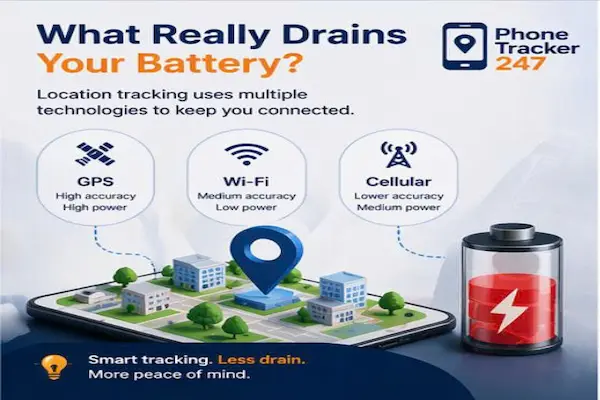
Your phone uses a cocktail of sensors to find you. GPS tracker power usage is highest because the phone must literally listen to low-power radio signals from satellites orbiting 12,000 miles above Earth.
- GPS: High precision, high power.
- Wi-Fi Positioning: Medium precision, very low power (it just looks for known router IDs).
- Cellular Triangulation: Low precision, medium power.
Graphic showing how does a family locator app drain battery using different technologies
Background Activity and App Behavior
Even when your phone is in your pocket, background app refresh is the engine running under the hood. If the app is set to “Always” track with high frequency, the CPU never gets a chance to cool down. Furthermore, if the app is poorly designed, it might keep the “wake lock” active longer than necessary, preventing the phone from entering its energy-saving deep sleep mode.
How Much Battery Do These Apps Actually Consume?
In real-world usage, most family tracking apps account for around 5% to 15% of total daily battery consumption. This varies based on how often the user moves, the health of the hardware, and the specific refresh intervals set within the application’s permissions and internal settings menus.
If you look at your battery settings and see a family locator using 12%, that doesn’t necessarily mean it’s “draining” the battery. It means that of the power you used, 12% went to safety. However, if that number jumps to 25% or 30%, you likely have a configuration issue.
Factors that spike consumption:
- High-Speed Travel: Moving at 60 mph forces the phone to switch cell towers and update GPS rapidly.
- Poor Signal Areas: If the phone is constantly “searching” for a 5G signal to upload location data, the modem will get hot and drain power.
- App Age: Older, unoptimized apps don’t take advantage of the energy-efficient “cores” found in modern processors.
Settings That Cut Power Use Fast
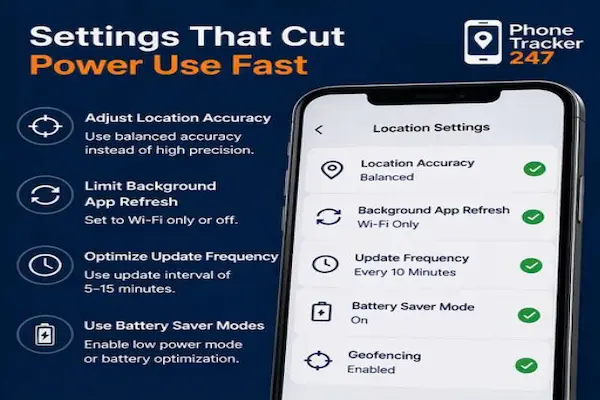
If your phone battery drops quickly, adjusting a few key settings can make an immediate difference. By switching to balanced accuracy modes and restricting unnecessary background updates, you can maintain reliable location sharing while extending your device’s runtime by several hours every single day.
Adjust Location Accuracy
On Android and iOS, you often have a choice: “Precise” or “Approximate.” For a family locator, you usually want precise, but you can turn off “Increased Accuracy” for Google/Apple services that use extra scanning in the background.
Limit Background App Refresh
You don’t need every app on your phone refreshing in the background. By going into your system settings and disabling background refresh for non-essential apps (like social media or shopping apps), you leave more “room” for your family tracker to operate without the battery taking a cumulative hit.
Optimize Update Frequency
Check the app’s own settings. Does it need to update every 60 seconds? For most parents, a 5-minute or 10-minute interval is plenty for device monitoring. Reducing the frequency of updates is the single most effective way to prevent battery drain location sharing.
Advanced Ways to Reduce Battery Drain
Beyond basic toggles, advanced optimization involves using geofencing to trigger updates only when a user leaves a specific zone. Additionally, keeping the app updated ensures you benefit from the latest performance patches and energy-efficient protocols designed for the newest mobile operating systems and hardware.
- Geofencing: Instead of tracking every step, set up “Places” (Home, School, Work). The app uses low-power sensors to wait until the child leaves the “Home” circle before it fires up the high-power GPS.
- Keep Apps Updated: Developers are in a constant arms race with battery drain. A PhoneTracker247 blog update might include a fix that reduces CPU usage by 20%.
- Disable Notifications: Every time a phone vibrates or lights up the screen for a notification, it uses power. Turn off “non-essential” alerts within the tracking app.
Balancing Safety and Battery in Digital Parenting
Effective digital parenting requires finding the “Goldilocks zone” of tracking—enough data to ensure safety, but not so much that the device becomes unreliable. Education is key; teaching children to keep their Wi-Fi on can actually save their battery while improving location accuracy simultaneously.
We often think of online safety tools as a one-way street, but it’s a conversation. If your child’s phone is always dead, the tool is useless. Explain to them that keeping Wi-Fi enabled—even if they aren’t using the internet—helps the phone find its location using low-energy router “beacons” instead of reaching for the stars with GPS. This collaborative approach turns device monitoring into a lesson in tech literacy.
7 settings to manage when does a family locator app drain battery life
Signs Your Battery Drain Isn’t Normal
While some usage is expected, abnormal battery drain is characterized by the device becoming physically hot to the touch or losing more than 10% of its charge in an hour while idle. These symptoms often point to a “stuck” process or a hardware conflict rather than standard tracking.
If you notice your phone is a pocket-warmer, try these steps:
- Restart the Device: This clears out “zombie” processes that might be clinging to the GPS chip.
- Check Battery Health: If your battery’s maximum capacity is below 80%, any app will seem like it’s draining it too fast.
- Reinstall the App: Sometimes a corrupt cache can cause an app to loop its requests, leading to massive power spikes.
Expert Setup for Efficient Tracking
For the best results, set your family locator to “Always” allow location but disable “Precise Location” for non-essential sub-features. Combine this with a 10-minute refresh interval and ensure that “Low Power Mode” is only used during emergencies to maintain a consistent safety link.
The “Expert” configuration:
- Location Permissions: “Always Allow” (to ensure it works in the background).
- Motion & Fitness: Enabled (allows the app to sleep when you aren’t moving).
- Wi-Fi: Always ON (essential for low-power positioning).
- Update Frequency: Balanced (5–10 minutes).
By following this setup, you maximize location tracking accuracy while respecting the physical limits of your smartphone’s battery.
FAQ
1. Does a family locator app drain battery faster than Google Maps? Actually, no. Navigation apps like Google Maps keep the screen on and refresh the location every second. Family locators run in the background and refresh much less frequently, making them far more efficient.
2. What causes the biggest battery drain in tracking apps? The “Triple Threat”: Poor cellular signal, high-frequency “Live” tracking, and keeping the GPS chip active in areas where satellites are hard to reach (like indoors).
3. How can I save battery with location apps on an older phone? The best way is to rely on Wi-Fi. Older GPS chips are less efficient. By keeping the phone connected to Wi-Fi, the app can use the internet to find the location without taxing the old GPS hardware.
4. Is real-time tracking required all the time? Rarely. Unless you are actively watching someone travel through a dangerous area, “Significant Change” tracking (which updates every few minutes or when they move a certain distance) is much better for battery life.
5. Do all tracking apps consume the same battery level? No. Professional tools like PhoneTracker247 are optimized for background use. Free or “clone” apps often lack the sophisticated power-management code of established platforms.
6. Does using multiple tracking apps increase battery usage? Yes. Each app sends its own requests. If you have three different apps tracking location, your battery will drain three times as fast. Stick to one reliable solution.
7. Will disabling background refresh improve battery life? Yes, but it will break the tracking app. Family locators need background refresh to function. Instead of disabling it, optimize the other apps on your phone to give the locator more “breathing room.”
Final Thoughts
So, does a family locator app drain battery? Only if you let it. By understanding the dance between hardware and software, you can turn your smartphone into a long-lasting safety beacon. Don’t let “battery anxiety” stop you from protecting your family; just use the settings wisely.
For more deep dives into mobile security and performance, check out our latest articles on the PhoneTracker247 blog.