The digital landscape is more vast and complex than ever before. Whether you are a parent trying to shield your child from inappropriate content or a professional seeking to eliminate digital distractions, knowing how to ban websites on iPhone is an essential digital literacy skill.
In this exhaustive guide, we will explore every method available – from built-in iOS features to advanced third-party monitoring solutions – to give you total control over your device’s browsing capabilities.
Contents
- 1 Why Web Filtering Matters Today
- 2 Method 1: Using Screen Time (The Native iOS Solution)
- 3 Method 2: Using Monitoring Apps to Record Visited Website History
- 4 Method 3: Advanced Network-Level Blocking (DNS)
- 5 Method 4: Tracking and Social Safety
- 6 Troubleshooting: Why the Website Isn’t Blocked
- 7 FAQs
- 8 Summary and Final Thoughts
- 9 Quick Summary Table
Why Web Filtering Matters Today
In an era where a single click can lead to malicious software or harmful content, “set it and forget it” is no longer a viable strategy for device safety. Learning how to ban websites on iPhone is the first line of defense in a broader strategy of digital wellness.
For many families, simply blocking a URL isn’t enough. Often, parents find that they need a more robust suite of tools, such as apps to monitor kids phone, to ensure that the restrictions they set are actually being followed and to understand the context of their child’s online behavior. This guide will show you how to layer these defenses effectively.
Table 1: Ways to Block Websites on iPhone
| Method | Blocks in Safari | Blocks in other browsers (Chrome, Firefox) | Blocks inside apps (links, in-app webviews) | Setup difficulty | Best use case |
|---|---|---|---|---|---|
| Screen Time: Limit Adult Websites + Add Specific Sites | Yes | Often yes (via system content filters) | Sometimes (varies by app) | Easy | Most parents who want reliable, built-in blocking |
| Screen Time: Allowed Websites Only (Allowlist) | Yes | Often yes | Sometimes | Medium | Younger kids, “only safe sites” approach |
| Router-level block (home Wi-Fi) | Yes (on Wi-Fi) | Yes (on Wi-Fi) | Yes (on Wi-Fi) | Medium | Whole-home protection for all devices |
| DNS / filtering profile (family-safe DNS) | Yes | Yes | Yes | Medium | Families who want broad category filtering |
| Third-party parental control tools | Yes (depends on method) | Yes (depends) | Sometimes | Medium | When you want reporting, schedules, and filtering in one place |
| MDM (school or company iPhones) | Yes | Yes | Yes | Hard | Managed devices with strict, enforceable policy |
Method 1: Using Screen Time (The Native iOS Solution)
Apple’s built-in “Screen Time” is the most accessible tool for anyone wondering how to ban websites on iPhone without downloading additional software. It provides a system-level filter that affects Safari and other installed browsers.
Step 1: Accessing Content & Privacy Restrictions
To begin, navigate to your Settings app and scroll down to Screen Time. If you haven’t turned it on yet, tap “Turn On Screen Time.”
Once inside the Screen Time menu, look for Content & Privacy Restrictions. This is the “master switch” for all filters on the device. Toggle this to ON.
Step 2: Configuring Web Content Filters
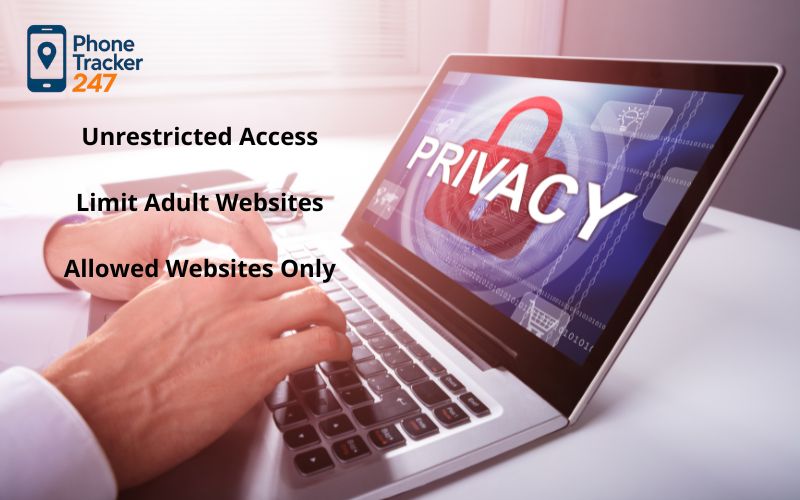
After enabling restrictions, tap on Content Restrictions and then select Web Content. Here, you will see three primary levels of control:
- Unrestricted Access: The default setting.
- Limit Adult Websites: This uses Apple’s internal database to automatically filter out thousands of known adult-oriented sites.
- Allowed Websites Only: This is a “Whitelist” mode. The iPhone will block all websites except for the specific ones you manually add to the list. This is the strictest way of how to ban websites on iPhone.
Step 3: Manually Adding Sites to the “Never Allow” List
If you choose “Limit Adult Websites,” you will see a section at the bottom titled Never Allow. Tap Add Website and type in the URL of the specific site you want to block.This ensures that even if a site isn’t in Apple’s automatic “adult” filter, it remains inaccessible.
Securing Your Restrictions with a Passcode
The biggest mistake users make when learning how to ban websites on iPhone is failing to secure the settings. Without a dedicated Screen Time Passcode, any user can simply go back into settings and toggle the restrictions off.
Why You Need a Screen Time Passcode
A Screen Time Passcode is different from your lock-screen passcode. It acts as a secondary layer of authentication. If you are setting this up for a child or an employee, this passcode is what prevents them from bypassing your filters.
How to Set and Change Your Passcode
Back in the main Screen Time menu, tap Use Screen Time Passcode. You will be prompted to enter a four-digit code. Apple also requires you to provide an Apple ID for recovery, which is highly recommended so you don’t get locked out of your own settings.

Method 2: Using Monitoring Apps to Record Visited Website History
While blocking is effective, “visibility” is often more important for long-term safety. Some advanced users prefer to use specialized software that doesn’t just block, but actually keeps a log of every site visited.
How Recording Apps Enhance Web Safety
Beyond knowing how to ban websites on iPhone, you may want to see which sites are being attempted. Certain monitoring applications allow you to record visited website history, providing a detailed log of URLs, timestamps, and even the duration of the visit. This is a key feature of parental control social media strategies, as it helps you see if a child is accessing social media platforms through a browser instead of the app.
Top Apps for Recording and Blocking
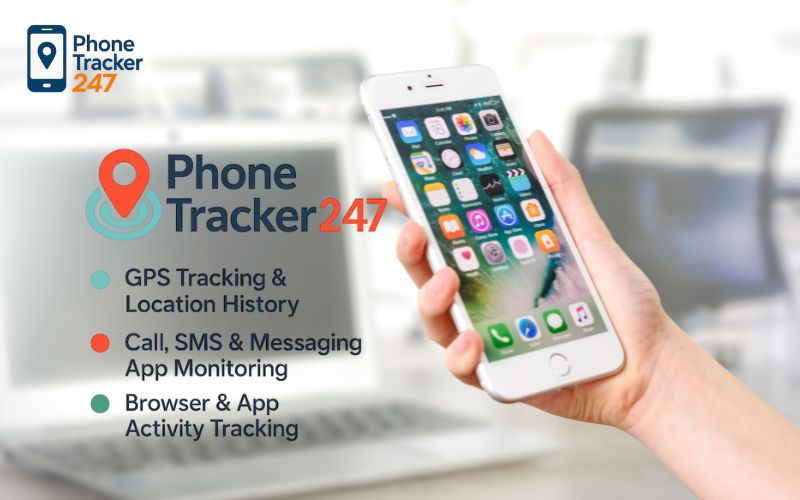
While blocking is effective, “visibility” is often more important for long-term safety. Some advanced users prefer to use specialized software that doesn’t just block, but actually keeps a log of every site visited. Phone Tracker 247 elevates website management from a manual chore into a streamlined, remote experience through its centralized dashboard. Instead of needing physical access to the device to enter URLs, you can view a real-time log of every site visited directly from your own phone or computer. The standout feature is the “one-click” block button integrated into the history log; if you spot a suspicious or inappropriate site, tapping this button instantly pushes a command to the iPhone to ban that domain across all browsers.
Beyond simple URL filtering, the app provides a deep layer of security with features like ambient recording and social media monitoring. It allows you to remotely activate the device’s microphone to listen to the surrounding environment and uses a sophisticated keylogger to capture every keystroke, revealing messages even if they are deleted in apps like WhatsApp or Telegram. Operating in total stealth mode, Phone Tracker 247 remains invisible to the user, ensuring these comprehensive safety measures stay active and untampered with for 24/7 protection. This provides an alternative, more powerful method for how to ban websites on iPhone while ensuring you have the data needed to keep your family or business safe.
Method 3: Advanced Network-Level Blocking (DNS)
If you want to know how to ban websites on iPhone at a deeper level, you should look into DNS (Domain Name System) filtering. This works by changing the way the phone “looks up” website addresses.
Setting Up Family-Safe DNS
Services like Cloudflare (1.1.1.3) or NextDNS offer free filters that block malware and adult content before the data even reaches the phone.
- Go to Settings > Wi-Fi.
- Tap the (i) icon next to your network.
- Tap Configure DNS and change it to Manual.
- Add the specific server addresses provided by your chosen DNS service.
Pros and Cons of DNS Filtering
The benefit is that it is very difficult to bypass. The downside is that it usually only works on that specific Wi-Fi network unless you install a “Global DNS” profile on the iPhone.

Method 4: Tracking and Social Safety
When you search for how to ban websites on iPhone, you are likely concerned about broader safety. Web filtering is just one piece of the puzzle.
Monitoring Messages and Social Media
If you are blocking websites to prevent your child from chatting with strangers, you should also learn how to monitor child text message logs. Many monitoring apps sync SMS and iMessage data to a secure cloud, allowing you to ensure that the conversations happening outside of the web browser are also safe
Why We Block: The Fight Against Cyberbullying
A primary driver for learning how to ban websites on iPhone is the rise of cyberbullying on social media. By blocking anonymous message boards or toxic social sites, you significantly reduce the surface area for digital harassment. Filtering the web is a proactive step in protecting a user’s mental health from online predators and bullies.
Troubleshooting: Why the Website Isn’t Blocked
Even after learning how to ban websites on iPhone, you might find that a site still loads. Here is how to fix it.
Clearing Safari Cache and History
Sometimes the website is “cached” in the phone’s memory. Even if it is blocked, the phone shows a saved version.
- Go to Settings > Safari.
- Tap Clear History and Website Data.
- Restart the browser.
Dealing with VPN Bypasses
Many tech-savvy users use a VPN (Virtual Private Network) to bypass Screen Time. To prevent this, go to Content & Privacy Restrictions > Allowed Apps and toggle OFF the ability to install or change VPN configurations.
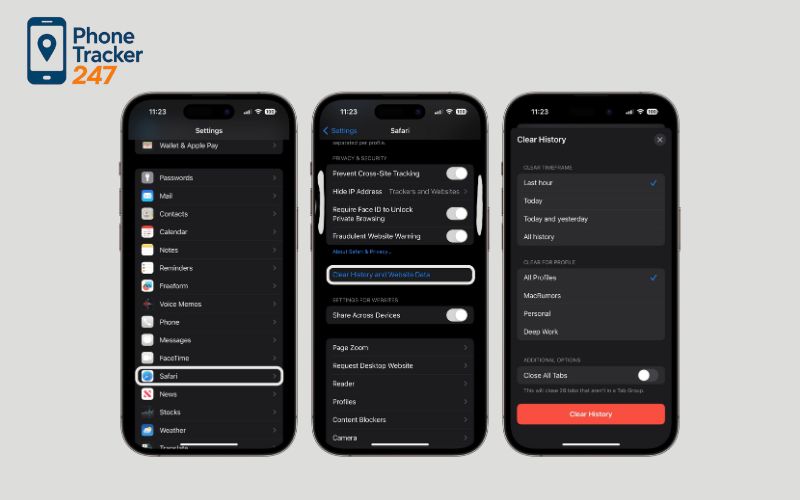
Table 2: Choose the Right Blocking Style
| Scenario | Recommended approach | Why it works | Common mistake to avoid |
|---|---|---|---|
| Child (under 13) needs strict web safety | Allowed Websites Only (allowlist) | Removes temptation and “accidental” clicks | Using only a blocklist (kids will find new sites) |
| Teen needs focus (not full lockdown) | Block a short list + downtime schedule | Targets distractions without over-restricting | Blocking too much and triggering constant conflicts |
| You only want to block 1–5 sites (fast fix) | Limit Adult Websites + add specific domains | Quick and easy, minimal maintenance | Forgetting to lock Screen Time with a passcode |
| Problem happens mostly at night | Downtime + app limits + web blocks | Removes late-night browsing loops | Only blocking sites but leaving unlimited screen time |
| You need blocking for the whole household | Router-level block + iPhone Screen Time | Strong baseline on Wi-Fi plus per-device rules | Relying on router only (mobile data bypasses it) |
| School iPhones (policy enforcement) | MDM restrictions + allowlist | Most enforceable and consistent | Trying to manage many devices manually one by one |
FAQs
1. How do I ban a website on iPhone without installing an app?
Use iPhone Screen Time, turn on Content & Privacy Restrictions, then add the site under Web Content restrictions.
2. What is the fastest way to block one specific website on iPhone?
Choose “Limit Adult Websites” and add the domain to the “Never Allow” list.
3. How do I allow only a few safe websites for my child?
Select “Allowed Websites Only” and build an allowlist of approved sites.
4. Will website blocks work in Chrome or other browsers on iPhone?
Often yes if Screen Time web restrictions are enabled, but results can vary by app and iOS version.
5. Why can my child still open blocked sites sometimes?
The most common causes are missing Screen Time passcode, iOS updates resetting options, or using different links/subdomains.
6. How do I stop kids from changing Screen Time settings?
Set a Screen Time passcode and keep it private, then review Screen Time settings monthly.
7. Can I block websites only at night on iPhone?
Yes, use Downtime schedules and App Limits, then combine with web restrictions for stronger results.
8. What should I do if Screen Time website restrictions are not working?
Restart the phone, confirm restrictions are enabled, re-check Web Content settings, and update iOS. If the issue continues, rebuild the restrictions and set a fresh passcode.
Summary and Final Thoughts
Understanding how to ban websites on iPhone is a multi-step process. While Apple provides excellent free tools through Screen Time, they are most effective when combined with a strong passcode and occasional audits of the browsing history.
For those requiring professional-grade security, third-party apps that record visited website history offer a level of detail that native settings simply cannot match. By combining web filters with an awareness of parental control on social media risks and knowing how to monitor child text message logs, you create a 360-degree safety net.
Quick Summary Table
| Goal | Best iPhone method | How to set it up (short) | Best for |
|---|---|---|---|
| Block a few specific sites fast | Screen Time: Limit Adult Websites + add sites | Add domains to “Never Allow” | Teens, quick fixes |
| Create “safe web only” browsing | Screen Time: Allowed Websites Only | Build an allowlist | Kids under 13 |
| Stop late-night browsing | Downtime + App Limits + web blocks | Schedule bedtime cutoff | Sleep and focus |
| Cover the whole home on Wi-Fi | Router-level blocking | Block domains at router | Multiple devices |
| Reduce bypass attempts | Screen Time passcode + consistent rules | Lock settings + review monthly | Most families |
Stay proactive, update your “Never Allow” lists regularly, and remember that technology works best when paired with open communication about digital safety.
For daily updates, subscribe to PhoneTracker’s blog!
We may also be found on Phone Tracker App on Facebook!