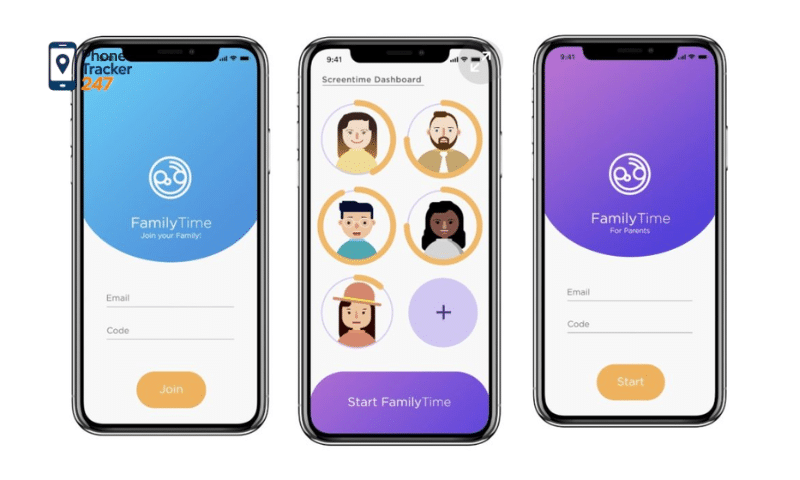
In the digital age, children can easily access the internet through smartphones, tablets, or personal computers. However, this also comes with many risks when kids accidentally access inappropriate content. Therefore, using a free parental blocker has become a popular solution for parents to monitor and protect their children while they are online. In this article, PhoneTracker247 will introduce the top 7 best free parental blockers that help parents block harmful content, manage screen time, and create a safer online environment for children.
Contents
Why Parents Should Use Free Parental Blockers
In an era of rapid technological development, children are gaining access to the internet at an increasingly early age through smartphones, tablets, and personal computers. While the internet offers many benefits for learning and entertainment, it also presents various risks such as violent content, inappropriate websites, and other online dangers.
Using a free parental blocker helps parents better control their children’s online activities. This tool allows parents to block harmful websites, limit device usage time, and monitor internet activity.
In addition, a free parental blocker helps build healthy internet usage habits for children. As a result, kids can access a safer online environment, and parents can feel more secure when their children use technology every day.
Important Features of Free Parental Blockers
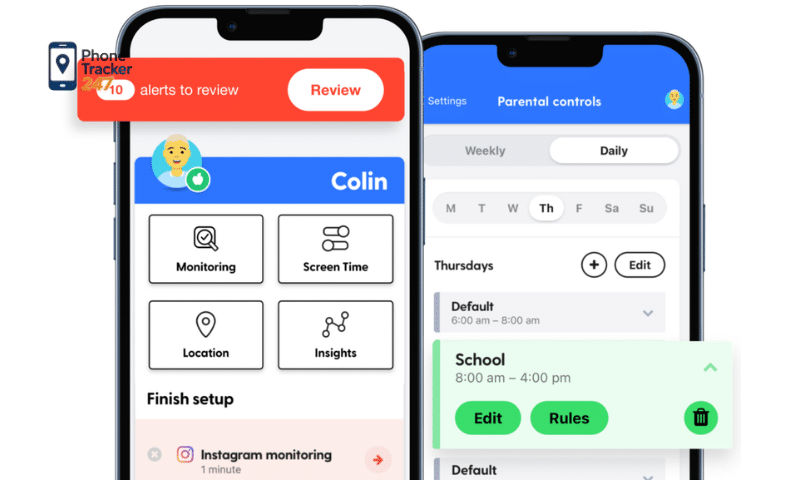
An effective free parental blocker is often equipped with multiple features that help parents manage their children’s internet usage more comprehensively.
Some common features include:
- Blocking inappropriate websites: The software can automatically block websites containing violent, adult, or other content that is not suitable for children.
- Managing screen time: Parents can set daily time limits for their children to use phones, computers, or the internet. Once the limit is exceeded, the device can be automatically locked.
- Monitoring online activity: Many free parental blocker tools allow parents to track browsing history, the apps being used, and the amount of time spent on devices.
- Blocking inappropriate applications: Parents can restrict children from using certain apps such as games or social media.
- Remote management: Some software allows parents to manage their children’s devices remotely through a smartphone or computer.
See more: Best Family Locator App for Android in 2026: Top 6 Picks
Top 7 Best Free Parental Blockers Today
Today, the need to control children’s internet usage is increasing as smart devices become common in every household. To help parents manage their children’s online activities more effectively, many free parental blocker tools have been developed with features such as blocking inappropriate content, limiting device usage time, and monitoring internet activity.
Below are seven popular free parental blockers trusted by many parents around the world thanks to their useful features and ease of use.
Google Family Link
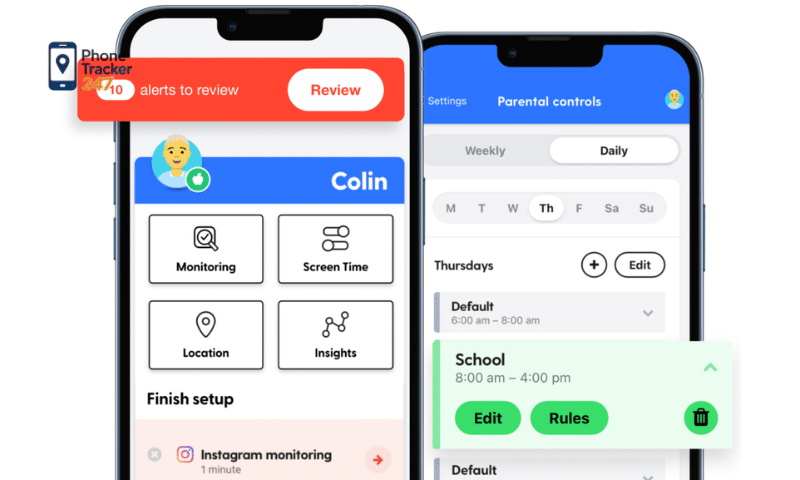
Google Family Link is one of the most popular free parental control tools available today. The software is developed by Google and works very well on Android devices.
Some key features of Google Family Link include:
- Monitoring the apps children are using
- Setting daily screen time limits
- Approving or blocking apps before children download them
- Viewing the location of the child’s device
Thanks to its simple interface and easy setup, Google Family Link has become a suitable choice for many families who want to use a free parental blocker to manage their children’s devices.
Qustodio Free
Qustodio is a well-known parental control software with many powerful online management features. The free version of Qustodio still provides several useful tools that help parents monitor their children’s internet usage.
Key features include:
- Monitoring children’s online activity
- Tracking device usage time
- Blocking certain inappropriate websites
- Providing basic internet activity reports
Qustodio is particularly suitable for families who want a free parental blocker that is simple yet effective.
Kaspersky Safe Kids
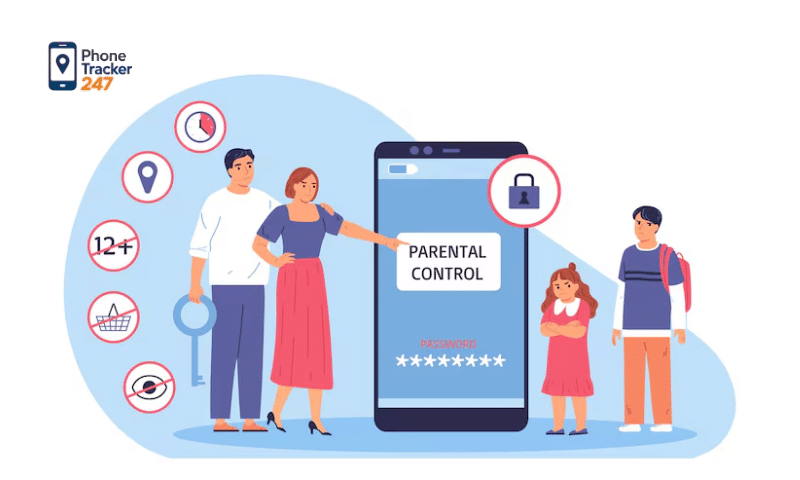
Kaspersky Safe Kids is a parental control solution developed by the well-known cybersecurity company Kaspersky. This tool offers many features that help parents protect children while they access the internet.
Key highlights of Kaspersky Safe Kids include:
- Blocking dangerous or inappropriate websites
- Tracking the child’s device location
- Monitoring internet activity
- Managing device screen time
Thanks to its strong security capabilities, Kaspersky Safe Kids is chosen by many parents as a free parental blocker for their families.
Norton Family
Norton Family is another popular parental control software, especially for families that use multiple computers.
The software provides features such as:
- Tracking web browsing history
- Monitoring online activity
- Managing internet usage time
- Blocking content that is inappropriate for children
With a detailed reporting system, Norton Family helps parents better understand how their children use the internet each day.
OpenDNS Family Shield
OpenDNS Family Shield is a content-filtering solution that works at the network level rather than being installed directly on devices. This means all devices connected to the family WiFi network are protected.
Advantages of OpenDNS Family Shield include:
- Automatically blocking harmful websites
- Protecting all devices on the same internet network
- No need to install software on each device
- Stable performance and easy configuration
This is a great option for families who want to use a free parental blocker to protect multiple devices at the same time.
Microsoft Family Safety
Microsoft Family Safety is a family management tool integrated into the Microsoft ecosystem. The software is especially suitable for families using Windows computers or Xbox.
Some notable features include:
- Managing device screen time
- Monitoring activity on Windows computers
- Blocking inappropriate content on the internet
- Supervising children’s gaming activity
Thanks to its strong integration with the Windows operating system, Microsoft Family Safety is a useful free parental blocker for families using personal computers.
Net Nanny (Free Trial Version)
Net Nanny is a well-known internet content filtering software recognized for its powerful web filtering capabilities. Although the full version is paid, users can still try a free trial to control their children’s online activities.
Notable features of Net Nanny include:
- Real-time web content filtering
- Blocking harmful websites
- Managing device screen time
- Monitoring children’s internet activity
Net Nanny is highly rated thanks to its intelligent content filtering technology, which helps protect children from many online risks.
Overall, the free parental blocker tools mentioned above provide useful features that help parents effectively manage their children’s internet usage. Depending on the devices and the needs of each family, parents can choose the most suitable solution to ensure a safer online environment for their children.
Table 1: Best Free Parental Blockers Compared 2026
| Free Parental Blocker | Best For | Core Monitoring Features | Blocking & Control Features | Key Advantage |
|---|---|---|---|---|
| Google Family Link | Families using Android devices | App activity monitoring, device location viewing | Daily screen time limits, app approval or blocking before download | Simple setup and strong Android integration |
| Qustodio Free | Parents who want a simple all-round tool | Online activity monitoring, device usage tracking, basic internet reports | Blocks certain inappropriate websites | Easy to use while still covering core parental control needs |
| Kaspersky Safe Kids | Families focused on online safety and security | Internet activity monitoring, device location tracking | Dangerous website blocking, screen time management | Strong security-oriented protection from a trusted cybersecurity brand |
| Norton Family | Families using multiple computers | Web browsing history tracking, online activity monitoring, detailed reporting | Inappropriate content blocking, internet time management | Detailed reports that help parents understand daily online behavior |
| OpenDNS Family Shield | Homes that want network-wide protection | Works across all devices connected to the same WiFi network | Automatically blocks harmful websites at the network level | No need to install software on every device |
| Microsoft Family Safety | Families using Windows PCs or Xbox | Windows activity monitoring, gaming supervision | Screen time controls, inappropriate content blocking | Deep integration with the Microsoft ecosystem |
| Net Nanny (Free Trial) | Parents who want to test advanced filtering before paying | Internet activity monitoring | Real-time web filtering, harmful website blocking, screen time controls | Intelligent web filtering with strong real-time content control |
See more: Guide How to Change Parental Control Password on Phones and Computers
Guide to Installing and Using a Free Parental Blocker
Installing a free parental blocker today is quite simple and usually takes only a few minutes to complete. Most parental control software is designed with a user-friendly interface, making it easy for parents to set up and manage their children’s devices. Below are the basic steps to install and use a free parental blocker effectively.
- Step 1: Choose the right software: Parents should select software that is compatible with their child’s device, such as Android, iPhone, or a computer.
- Step 2: Download and install the application: Visit the app store or the official website of the software to download and install it.
- Step 3: Create a management account: After installation, parents need to create an account to manage their child’s device.
- Step 4: Set usage rules: Parents can configure rules such as blocking websites, limiting screen time, or restricting certain applications.
- Step 5: Monitor and adjust settings: After setup, parents should regularly check and adjust the settings to match their child’s usage needs.
In addition, parents should also talk with their children about why parental control software is being used. This helps children understand the purpose and cooperate better when using technology devices.
Important Notes When Using a Free Parental Blocker
Using a free parental blocker helps parents control children’s internet access and limit exposure to inappropriate content. However, for this tool to be most effective, parents should keep several important points in mind during use.
Some key considerations include:
- Software is only a supporting tool: A free parental blocker can block content and manage devices, but it cannot fully replace parental guidance. Parents should regularly talk with their children about safe internet usage.
- Choose reliable software: It is best to use software from trusted developers and download it from official sources such as Google Play or the App Store to ensure data security.
- Understand the limitations of free versions: Some free parental blockers only provide basic features. If more advanced features are needed, parents may consider upgrading to a paid version.
- Set reasonable internet usage rules: Parents should establish clear rules such as limiting screen time, avoiding unknown websites, and prioritizing internet use for learning purposes.
Overall, when a free parental blocker is combined with family guidance and supervision, children can enjoy a safer and healthier online environment.
Table 2: How to Choose the Right Free Parental Blocker for Your Family
| Family Need | What to Prioritize | Recommended Option from the Article | Why It Fits |
|---|---|---|---|
| You want a free blocker for an Android child’s phone | App supervision, screen time, app approval, location tracking | Google Family Link | It is designed to work especially well on Android and gives parents direct control over apps and usage time |
| You want basic monitoring without a complex setup | Easy dashboard, activity tracking, simple website blocking | Qustodio Free | It offers core parental control functions in a straightforward package for beginners |
| You want stronger protection against risky online content | Website filtering, activity monitoring, security-focused controls | Kaspersky Safe Kids | It combines child safety tools with a security-first approach |
| You need better visibility into daily browsing behavior | Browsing history, activity logs, detailed reports | Norton Family | Its reporting system helps parents review how children use the internet each day |
| You want to protect multiple devices on the same home network | Network-level filtering, broad device coverage, easy deployment | OpenDNS Family Shield | It protects all devices connected to the family WiFi without installing separate apps |
| Your family mainly uses Windows PCs or Xbox | Microsoft ecosystem compatibility, screen time, gaming controls | Microsoft Family Safety | It works especially well for households already using Microsoft devices and services |
| You want to try premium-level filtering before upgrading | Real-time filtering, advanced content blocking, trial access | Net Nanny (Free Trial) | It is useful for parents who want to test stronger filtering features before choosing a paid plan |
Conclusion
Using a free parental blocker is an effective solution for parents to protect children while they access the internet. With features such as blocking inappropriate content, managing device screen time, and monitoring online activities, these tools help create a safer online environment for kids.
If you are looking for a solution to control your children’s internet usage, try exploring the free parental blockers introduced by PhoneTracker247 to find the most suitable tool for your family.
FAQs – Best Free Parental Blockers Apps
1. What is a free parental blocker?
A free parental blocker is a tool that helps parents block harmful content, manage screen time, and monitor children’s online activity.
2. Why should parents use a free parental blocker?
It helps reduce children’s exposure to inappropriate websites and supports safer internet use at home.
3. What features should a free parental blocker have?
Useful features include website blocking, screen time limits, activity monitoring, app blocking, and remote management.
4. Is Google Family Link completely free?
The article presents Google Family Link as a popular free parental control tool, especially for Android devices.
5. Which free parental blocker is best for Android?
Google Family Link is highlighted as a strong choice for Android because it works very well on Android devices.
6. Can a free parental blocker track screen time?
Yes. Many tools in the article include screen time management and daily usage limits.
7. Can parental blockers block apps and websites?
Yes. The article notes that many tools can block inappropriate websites and restrict certain apps.
8. Are free parental blockers enough for complete protection?
Not always. The article says free versions may only offer basic features, so some families may need paid upgrades.
9. How do you install a free parental blocker?
Usually, you choose compatible software, install it, create an account, set rules, and adjust settings over time.
10. Can parental control software replace parental guidance?
No. The article says these tools support parents, but they should not replace regular guidance and conversations with children.