Your phone’s basically your whole life, including messages, passwords, photos, your location, so if something feels off, don’t just brush it aside. Spyware in 2026 is sneakier than ever. It hides in the background, quietly watching everything you do, and most of the time, you won’t see any obvious signs. That’s why knowing how to spot it is so important.
Maybe you clicked a sketchy link, your phone’s acting weird, or you just want peace of mind. Either way, this guide walks you through how to detect spyware on phone and keep your privacy locked down, fast.
Contents
Top 5 Warning Signs of Spyware in 2026
Spyware today is built to stay invisible. It does not announce itself or leave obvious clues. But no matter how advanced it is, it still has to use your phone’s battery, data, and processor to work. And that is where you can catch it.
If you want to detect spyware on phone devices, start by paying attention to small changes in how your phone behaves day to day.
Unusual Data Spikes and Background Activity
Spyware cannot just sit there. It has to send your information somewhere.
If you notice sudden spikes in mobile data, especially uploads, that is a warning sign. Check your Data Usage or Network Activity settings. If an unfamiliar app is consuming data in the background, you should investigate.
Another red flag is a phone that seems active when you are not using it. If the screen lights up randomly or you see network activity while the phone is idle, it could mean a hidden app is running in the background and sending information out.
Overheating and Fast Battery Drain
Your phone should not feel hot when it is doing nothing.
Spyware often runs continuously, which keeps the processor working even when your screen is off. If your phone feels warm in your pocket or while sitting untouched on a table, something may be operating behind the scenes.
Battery drain is another clear signal. While all batteries weaken over time, a sudden drop, like losing 20 percent in an hour without active use, is not normal. That kind of rapid drain often points to constant background activity, which is common when spyware is present.
Table 1. Spyware Warning Signs and What to Verify First
| Signal you notice | Why it might happen (not always spyware) | Fast checks you can do in 2–5 minutes | What to do next (safe order) |
|---|---|---|---|
| Battery drains unusually fast | Aging battery, heavy apps, background sync | Check Battery usage by app; look for an app you don’t recognize using high power | Uninstall suspicious apps → restart → update OS/apps |
| Phone gets hot when idle | Poor network, rogue background activity | Check running apps / background activity and battery stats | Remove suspicious app → run a trusted mobile security scan |
| Data usage spikes | Auto-updates, cloud backups, streaming | Check Data usage by app; compare to your normal baseline | Restrict background data → remove unknown apps → change passwords |
| Pop-ups, redirects, “security alerts” | Adware, malicious web notifications | Check browser site permissions + notification settings | Remove weird browser extensions/profiles → reset browser settings |
| New apps you didn’t install | Bundled installs, shared account, compromise | Review full installed apps list; check app install history | Uninstall → review account security + sign out of unknown devices |
| Accessibility / Device Admin enabled for unknown app | Some spyware abuses these permissions | Review Accessibility, Device admin apps (Android) | Disable permission → uninstall app → reboot |
| Microphone/camera indicators at odd times | Legit app usage or covert recording | Review App permissions and “recently used” indicators | Revoke mic/cam permission → delete the app if unnecessary |
| Random reboots, crashes, lag | Low storage, buggy OS/app | Check storage + recent installs/updates | Free space → update OS → remove newest/suspicious apps |
| SMS/Calls sent from your number | Account takeover, SIM swap, malware | Check carrier account, call/SMS logs, unknown forwarding settings | Contact carrier → reset account PIN → change passwords + enable 2FA |
| Friends get weird messages from you | Compromised messaging account | Check “linked devices” in messaging apps | Log out other sessions → change password → enable 2FA |

How to Detect Spyware on Phone (Android Devices)
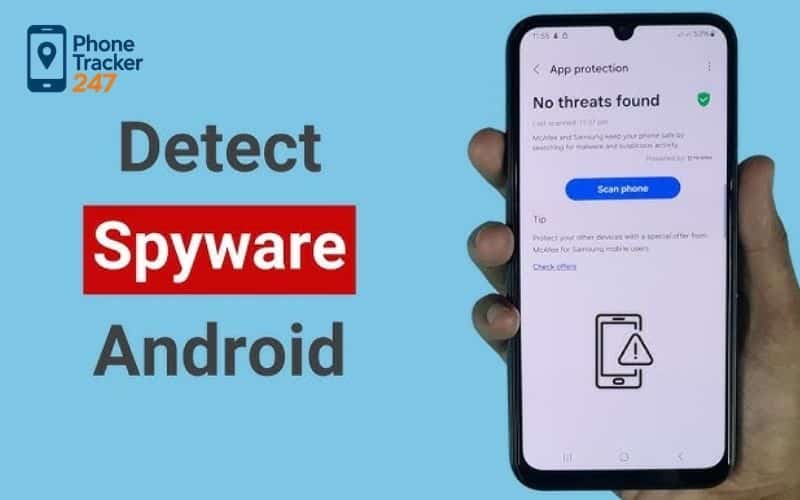
Android gives you flexibility and control, but that also means spyware can sometimes hide more easily. If you want to detect spyware on phone models running Android, you need to check a few key areas inside your settings.
Check Device Admin and Accessibility Permissions
Start with the sections that give apps deep control over your phone.
- Device Admin Apps
- Go to Settings > Security > Device Admin Apps.
- Only trusted apps like Find My Device should have admin access.
- If you see an unfamiliar or vague app with full control, that is a major red flag. Spyware often uses admin rights to prevent deletion.
- Accessibility Settings
- Open Settings > Accessibility.
- Look for services you do not remember enabling.
Spyware can use Accessibility to read your screen, capture keystrokes, and monitor messaging apps.
If you did not turn it on yourself, turn it off.
Check for Unknown Sources and Suspicious Apps
Spyware is often installed outside the Play Store.
- Install Unknown Apps
- Check if Chrome, Telegram, or another app is allowed to install unknown apps.
- If this setting was enabled without your knowledge, someone may have sideloaded a malicious APK file onto your device.
- Review Your Full App List
- Go to Settings > Apps and scroll carefully.
- Watch for generic names like “System Service,” “WiFi Config,” or “Battery Optimizer.”
- Tap suspicious apps to check permissions and install dates.
If an app looks unfamiliar, has excessive permissions, or was installed at a strange time, investigate further. Small details often reveal hidden spyware.
How to Detect Spyware on Phone (iOS)
iPhones are generally more secure, but that does not mean they are untouchable. In 2026, attackers are using smarter tactics like hidden configuration profiles and iCloud-based monitoring. If you want to detect spyware on phone devices running iOS, you need to check more than just the apps on your home screen.
Check for Unknown Configuration Profiles
Start by looking at the system management settings.
- Go to Settings > General > VPN & Device Management
- If you are not using a company-issued phone, this section should usually be empty.
- If you see a management profile you do not recognize, that is a serious warning sign.
- A malicious profile can control your camera, microphone, and even monitor data activity.
- Watch for MDM (Mobile Device Management)
- Cybercriminals sometimes use MDM tools to gain deep control over a device.
- If you find an unfamiliar profile installed, remove it immediately to cut off access.
If you did not install it yourself, question it.
Use Safety Check and Lockdown Mode
Apple includes built-in security tools that many users overlook.
- Safety Check
- Review which people and apps have access to your location, photos, and microphone.
- You can instantly stop all sharing if you feel your privacy is at risk.
- Lockdown Mode
- Designed for users who believe they may be targeted by advanced spyware.
- It limits web features and blocks most message attachments to reduce security risks.
If you suspect serious monitoring, enabling these features can quickly reduce exposure and help you regain control of your device and detect spyware on phone.
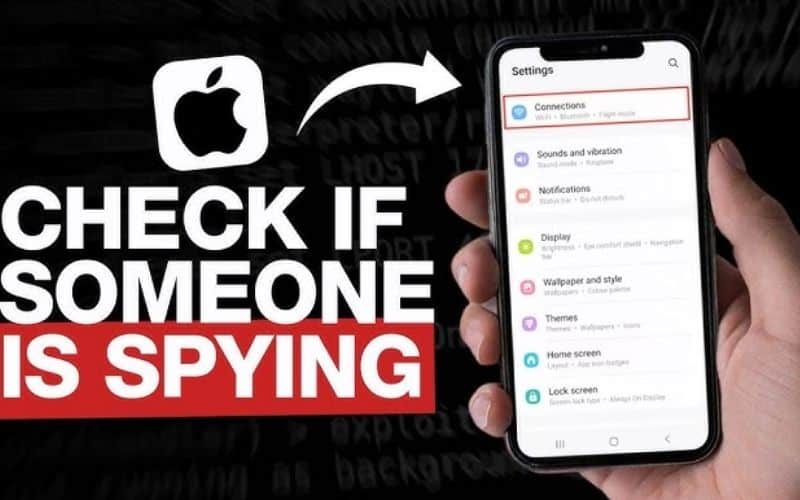
Advanced Detection: MMI Codes and Network Checks
Sometimes spyware is too well hidden to spot inside your settings. When that happens, you can try a different angle and check how your phone line itself is behaving. Certain dialer codes let you see whether your calls or messages are being redirected without your knowledge.
These codes do not install anything. They simply ask your carrier for information.
Use MMI Codes to Check Call Forwarding
Open your phone dialer and enter the following:
- *Dial #21#
- This shows whether your calls or SMS are set to forward to another number.
- If you see a number you do not recognize, especially one you never set up, that is a serious warning sign.
- *Dial #62#
- This reveals where calls are sent when your phone is unreachable or turned off.
- It should normally point to your carrier’s voicemail.
- If you see a random or international number, your calls may be redirected at the network level.
These quick checks can help you detect spyware on phone lines that might otherwise go unnoticed.
Table 2. Where Spyware Hides and How to Check (Android vs iPhone)
| Area to check | Android: what to look at | iPhone: what to look at | What “normal” looks like | Red flags that warrant action |
|---|---|---|---|---|
| Installed apps | Settings → Apps → “See all apps” | Settings → General → iPhone Storage | You recognize nearly all apps | Apps with generic names/icons, no publisher, installed recently without intent |
| App permissions | Settings → Privacy/Permission Manager | Settings → Privacy & Security → permissions | A few trusted apps have mic/location access | Unknown app has Accessibility, Notification access, mic/cam/location “Always” |
| Accessibility / special access | Settings → Accessibility; Special app access | (Less common) Profiles & Device Management (if present) | Only needed tools enabled (e.g., password manager autofill) | Unknown app enabled in Accessibility or granted Device Admin (Android) |
| Device admin / management | Settings → Security → Device admin apps | Settings → General → VPN & Device Management | Typically none for personal devices | Unknown “management profile,” “MDM,” or admin app you didn’t install |
| VPN / proxy | Settings → Network & Internet → VPN | Settings → VPN | Either off, or one known VPN provider | Unknown VPN toggled on (may route traffic to attacker) |
| Browser changes | Chrome settings: notifications, site permissions | Safari: website settings, notifications | Few trusted sites have permissions | Many sites allowed to notify; redirects; homepage/search changed |
| Unknown “paired devices” | Google account → Security → Your devices | Apple ID → Devices; messaging apps linked devices | Only your own devices | Device you don’t recognize signed in |
| Forwarding / message rules | Carrier settings + messaging app settings | Carrier settings + Apple ID security | No forwarding rules unless you set them | Call/SMS forwarding, unknown “linked numbers,” suspicious rules |
| Background activity | Battery usage + data usage per app | Battery usage; cellular data per app | Top apps match your usage habits | High usage by an app you don’t use or don’t recognize |

Step by Step: Removing the Spyware
Once you detect spyware on phone systems, the next step is removing it completely. Finding the threat is only half the job. You need to make sure it cannot come back through backups or hidden settings.
1. Restart in Safe Mode
Boot your phone into Safe Mode.
- This temporarily disables third party apps.
- If strange behavior stops in Safe Mode, the issue is likely caused by a downloaded app.
- Delete any suspicious apps while Safe Mode is active.
This prevents the spyware from running while you remove it.
2. Factory Reset if Necessary
If you suspect deeper spyware, such as rooted or jailbroken modifications, a factory reset may be the safest option.
- Do not restore from a backup made after the suspicious activity began.
- Change all major passwords before logging back into accounts.
- Enable two factor authentication for extra protection.
A reset wipes most consumer level spyware completely.
3. Update Your Operating System
After cleaning your phone, update it immediately.
- Install the latest security patch.
- Many spyware tools rely on outdated software vulnerabilities.
- Keeping your system updated is one of the strongest long term defenses.
Regular updates and basic security habits can prevent the same issue from happening again and detect spyware on phone.
FAQs – How to Detect Spyware on Phone
1. What is spyware on a phone?
Spyware is hidden software that secretly monitors your phone activity—such as calls, messages, location, photos, browsing, and app usage—without clear permission.
2. What are the fastest signs of spyware?
Common early signs include sudden battery drain, overheating while idle, unexplained data usage spikes, pop-ups/redirects, and unknown apps or permissions you don’t remember enabling.
3. Can spyware work without an app icon?
Yes. Some spyware hides its icon, uses a generic system-like name, or runs as a background service so you won’t notice it in the app drawer.
4. Does airplane mode stop spyware?
Airplane mode can block spyware from sending data out in real time, but it may still collect information offline and upload it later when the phone reconnects.
5. Can iPhones get spyware too?
Yes, but it’s less common. iPhone risks usually involve compromised Apple ID, suspicious profiles/MDM, malicious configuration, or rare high-end exploits.
6. Is antivirus enough to remove spyware?
Not always. Security apps can help detect threats, but you still need to remove suspicious apps, revoke risky permissions, update the OS, and secure your accounts.
7. What permissions are most abused by spyware (Android)?
The most abused are Accessibility, Device Admin, Notification Access, and “Always allow” Location/Microphone/Camera permissions.
8. What should I do first if I suspect spyware?
Start by checking battery and data usage by app, review installed apps, then audit permissions (especially Accessibility/Device Admin). If something looks wrong, uninstall the app and restart.
9. Will a factory reset remove spyware?
In most cases, yes—especially app-based spyware. But you must avoid restoring the same suspicious apps/settings afterward and change key passwords immediately.
10. How can I prevent spyware from coming back?
Keep your OS updated, install apps only from official stores, avoid “free” APKs/cracked apps, enable 2FA on key accounts, review permissions monthly, and remove unknown profiles/VPNs.
Final Thoughts: Trust Your Instincts
Learning how to detect spyware on phone devices isn’t about fear, it’s about awareness.
Your phone will usually tell you when something’s wrong:
- It heats up.
- The battery drains.
- Data usage spikes.
- Settings change unexpectedly.
Pay attention to those signals.
In 2026, digital privacy isn’t automatic. It’s something you actively protect. Run occasional security checkups. Keep your software updated. Be skeptical of random links.
And most importantly, if your intuition says something feels off, don’t ignore it.
See more: How to Detect a Keystroke Logger: The Ultimate 2026 Guide