There comes a point in most homes when screens stop feeling like simple toys and start feeling like something bigger. Homework, friendships, games and family chats all flow through the same devices, while news headlines keep warning parents about what might be hiding one swipe away. In that blur, a calm, well chosen setup can feel like a digital lifeline. The right best parental control app will not lock everything down, but will give you enough visibility and control for your kids to explore, learn and relax without turning every online moment into a fight.
Contents
- 1 1. Why Parental Control Feels Like A Digital Lifeline For Families
- 2 2. What The Best Parental Control App Should Really Do
- 3 3. Mapping Your Real World Needs Before Installing Any App
- 4 4. Core Use Cases For A Parental Control App In Daily Family Life
- 5 5. How Parental Control Apps Actually Work Behind The Scenes
- 6 6. Technical Criteria That Define A Trustworthy Best Parental Control App
- 7 7. Privacy, Consent And Respect: Using Parental Controls Without Breaking Trust
- 8 8. Device And Platform Strategy Across Phones, Tablets, Laptops And Consoles
- 9 9. Pricing Models And Hidden Costs Of Parental Control Solutions
- 10 10. Comparison Framework: How To Review Shortlisted Apps Without Overwhelm
- 11 11. Red Flags And Marketing Traps In The Parental Control Market
- 12 12. Where A Platform Like PhoneTracker247 Fits In Your Family Safety Plan
- 13 13. Implementation Checklist: Rolling Out A New Parental Control App At Home
- 14 14. Case Studies: How Real Families Turned Apps Into Digital Lifelines
- 15 FAQs About Choosing The Best Parental Control App
- 16 Conclusion: One Page Checklist To Choose Your Best Parental Control App
1. Why Parental Control Feels Like A Digital Lifeline For Families
Screens are now where school, friendships and fun all happen, often on the same device. When worries about content, strangers and late night scrolling pile up, a best parental control app can feel less like a gadget and more like a safety line for the whole family.
1. How Everyday Family Life Moved Onto Connected Screens
School messages, group chats, videos and games now run all day on phones, tablets and laptops. Arguments, crushes and drama often start in apps long before parents see any sign of trouble in the living room.
2. Why Simple Blocking No Longer Works For Modern Kids
Blocking a few websites on one computer cannot keep up with apps, games, private servers and shared devices. If rules only say “no”, kids quickly find other paths and adults still stay in the dark about what is really happening.
3. Common Myths About Parental Control Apps That Hold Parents Back
Some parents fear any app means spying on every message. Others expect one download to fix all screen time and homework fights. In reality, good tools act more like guard rails: they reduce obvious risks and give you clearer facts to talk about, while you still adjust rules and habits around them. Over time, that is how a realistic choice becomes your best parental control app in practice, not just on a comparison chart.
2. What The Best Parental Control App Should Really Do
Before you drown in feature lists, remember this: the best parental control app is the one that fits your family’s values and routines, not the one with the longest comparison chart.
1. One Sentence Definition Of A Best Parental Control App
A best parental control app is a tool that helps parents shape what children can see and do on their devices, while still leaving enough freedom for them to learn, play and grow in age appropriate ways.
2. The Three Pillars: Safety, Balance And Trust At Home
- Safety – Block clearly harmful content, risky contacts and out of control screen time.
- Balance – Support healthy routines so school, sleep and play can all fit.
- Trust – Use the app openly, with explanations and reviews that change as children grow.
3. What A Healthy Mix Of Rules And Freedom Looks Like For Kids
Kids know which apps and times are allowed and what happens if rules are broken. Parents see enough to spot real problems early, without reading every message. There is space for small mistakes and learning, while bigger risks are kept within clear guard rails.
What the best parental control app should do
- Show key risks, not endless tiny alerts
- Block obvious dangers and suspicious contacts
- Support simple, realistic screen time limits
- Adjust for young kids, preteens and teens
- Be used in the open, not as a secret trap
Family Scenarios And What The Best Parental Control App Should Deliver
| Family scenario | Main goals | Key features that matter most | Parent role | Child role |
|---|---|---|---|---|
| Young kids on shared tablets | Avoid shocking content and random installs | Strong content filters, app store control, basic timers | Set clear rules, check apps and reports | Ask before installing and follow time limits |
| Preteen with first personal phone | Guide chats, early social media and screen habits | App and web limits, simple reports, bedtime controls | Talk through rules, review reports together | Share worries, accept gentle limits and reviews |
| Teen with busy school and social life | Keep trust while spotting serious problems early | Light monitoring, flexible schedules, location options | Focus on big risks, respect agreed boundaries | Raise issues early instead of hiding everything |
3. Mapping Your Real World Needs Before Installing Any App
A tool only helps if it fits your real life. A short, honest look at your kids and their screens will narrow the field fast.
1. Understanding Ages, Temperaments And Sibling Dynamics
Think about each child, not an average kid:
- How old and how mature they really are
- How they react when limits change
- How older siblings influence what younger ones see
Note the top one or two pain points per child, like bedtime scrolling or tense chats.
2. Listing Devices, Platforms And Typical Online Activities
Write a quick list:
- Main devices they use in a week
- Key apps, games and sites
- Where screens show up most, such as bedrooms, cars or the sofa
You just need enough detail to see where the real friction lives.
3. Choosing Your Top Three Outcomes Before You Choose Features
Decide what you want most in the next few months, for example: calmer bedtimes, safer content for younger kids or fewer homework fights. Pick your top three and keep them in front of you while you compare tools.
When those outcomes are clear, it is much easier to ignore shiny extras and choose the app most likely to become your best parental control app right now.

4. Core Use Cases For A Parental Control App In Daily Family Life
Most families lean on a parental control app for a few key jobs, not every feature on the list.
1. Protecting Young Children From Clearly Inappropriate Content
For younger kids, the goal is to block the worst content and stop random taps from opening strange apps or sites. Strong filters, age limits, locked app stores and shared screens in common rooms usually cover most of what you need.
2. Guiding Preteens Through Social Media, Group Chats And First Phones
With preteens, focus shifts to guiding how and when they use chats, feeds and games. Light app and web limits, simple reports and bedtime controls support new rules around first phones without needing to read every message.
3. Supporting Teens With Boundaries Instead Of Constant Conflict
For teens, boundaries and respect matter most. Hard blocks on everything tend to create secret accounts. Usage summaries, flexible schedules and clear agreements about big risks help you step in early when needed, while still leaving room for normal teen life online.
5. How Parental Control Apps Actually Work Behind The Scenes
You do not need deep tech skills, but a simple picture of how these tools work makes them easier to judge and trust.
1. Device Level Controls On Phones, Tablets And Laptops
Most tools install an app or profile on each device. It sees which apps run, which sites are opened and how long the screen is used, then applies rules like blocks, time limits or app locks. If this layer is unstable or slows devices down, families stop using it fast.
2. Network And Cloud Level Controls With Routers And Dashboards
Some setups add filters on the home router or in the cloud to block risky sites before they reach any device. A parent app or web dashboard then pulls basic data from all screens into one place so you do not have to check each device by hand. This works best when combined with at least light controls on mobiles that leave the house.
3. Data Collection, Sync And Where Your Family Information Lives
Every tool collects some data to show patterns and alerts. Look for clear explanations of what is stored, for how long, and how you can delete it, plus strong encryption and limited access. When these basics feel solid, it is much easier to treat that tool as a serious candidate for your best parental control app.

6. Technical Criteria That Define A Trustworthy Best Parental Control App
Once you know your goals, the tech check is simple. A best parental control app should install cleanly, run smoothly and behave the same way every day.
1. Installation, Compatibility And Performance On Real Devices
Test setup on all the devices your kids actually use. If the app is hard to install, drains battery or makes phones feel slow, it will not last long in your house.
2. Content Filtering Accuracy And Handling Of False Positives
Filters should block clearly bad content without breaking homework or harmless searches. You need an easy way to review what was blocked and quickly unblock safe items.
3. App, Web And Screen Time Controls That Do Not Constantly Break
Time limits, app blocks and web rules should trigger on time and in the same way every day. When controls feel predictable, arguments drop and everyone knows what to expect.
4. Reliability, Uptime And How The App Handles Outages And Bugs
Look for tools that explain problems clearly, recover fast and fail in a safe, understandable way. If a service stays calm under pressure, it has a better chance of becoming your long term best parental control app.

7. Privacy, Consent And Respect: Using Parental Controls Without Breaking Trust
Strong tools are only half the story. If children feel tricked or watched in secret, even the best parental control app will create arguments and hidden accounts instead of safety.
1. Setting Expectations Instead Of Secret Monitoring And Surprise Checks
Before you install anything, explain what you are putting on which devices, what it does and why you chose it. Keep it short and concrete: which apps are limited, which times are protected, what happens if rules are ignored. When kids know the rules and the reasons, controls feel more like seat belts than handcuffs.
2. Age Based Approaches To Transparency, Reviews And Check Ins
Younger children often accept closer supervision and simple rules. With preteens, you can start short reviews of settings and reports together, focusing on patterns, not every message. Older teens may only need light limits and rare check ins after big changes or incidents. Adjust how much you look and how often you talk as they grow, so trust has room to expand.
3. How To Explain Logs, Alerts And “What We See And Do Not See”
Be clear about what the app records and what you will actually look at. For example, you might say that you see time spent in each app and blocked sites, but not every chat unless there is a serious safety worry. Agree on what counts as serious, and stick to it. When children understand what parents can see and how that information will be used, they are more likely to accept the tool and come to you early if something goes wrong.
8. Device And Platform Strategy Across Phones, Tablets, Laptops And Consoles
Most kids do not live on a single screen. A simple strategy across all devices prevents gaps where rules disappear and arguments restart from zero.
1. Mobile Devices: iOS, Android And Shared Family Tablets
Start with the phones and tablets your children carry or pick up most. Make sure basic controls, age ratings and time limits are set on each system, not just on one shared tablet. For younger kids, keep more activity on shared devices in common rooms. For older ones, focus on clear rules for late night use, data use and which apps are allowed to stay installed.
2. Computers And Laptops For Homework, Streaming And Gaming
On laptops and desktops, mix built in tools from the operating system with your main control app. Separate accounts for children, with limited install rights and clear browser profiles, reduce surprises. Agree which hours are for homework and which are for free time, then match browser rules and time limits to that pattern instead of using the same schedule for school days and weekends.
3. Game Consoles, Smart TVs And Home Network Level Controls
Consoles and smart TVs are easy to forget because they sit in the living room, but they often have chat, stores and browsers of their own. Use platform family settings for age ratings, purchases and communication, then back them up with router or DNS filters where it makes sense. Even light controls at the network level can reduce accidental exposure on shared screens without turning movie night into a technical project.
9. Pricing Models And Hidden Costs Of Parental Control Solutions
Price only looks simple at first glance. Once you add all children, all devices and extra features, some tools become much more expensive than you expected. A quick look at common models will keep surprises low.
1. Free, Freemium And Paid Best Parental Control App Options
Free tools are fine for testing basic ideas, but they usually limit features, devices or support. Freemium versions unlock more control if you pay, while fully paid apps often include better filtering, multi platform support and human help when something breaks. Think of price as part of how seriously the provider treats your family, not just a number on the homepage.
2. Per Device, Per Child And Per Family Subscription Models
Some apps charge per device, which can add up fast in homes with phones, tablets and laptops for each child. Others charge per child, which is simpler if each child has several screens. Family plans use one subscription for everyone, usually with a soft cap on devices. Check which model matches your hardware mix before you fall in love with a feature list.
3. Hidden Costs: Add On Features, Data Use And Long Contracts
Extra costs often hide in the small print. Add on features like location history, advanced reports or extra storage may cost more than the base app. Some tools use more mobile data than you expect, which matters on limited plans. Long contracts with discounts up front can also be hard to leave if the app stops working well for your family.
Comparing parental control app pricing models
| Pricing model | Typical structure | When it works well | When it becomes expensive |
|---|---|---|---|
| Free | Basic features only, limits on devices or reports | Testing ideas on one or two devices | As a long term main tool for a busy family |
| Freemium | Core tools free, premium features behind a paywall | Families easing into controls step by step | When many small add ons are unlocked one by one |
| Per device plan | Fee for each phone, tablet or computer | Few devices, mostly shared screens | Homes where each child owns several personal devices |
| Per child plan | Fixed price for each child profile | Clear number of children, each with multiple screens | Blended families or changing setups with many profiles |
| Family subscription | One price for a fixed number of users or devices | Stable households using the same tools for years | When limits are low and extra users require upgrades |
10. Comparison Framework: How To Review Shortlisted Apps Without Overwhelm
When you already have a few options, you need a calm way to compare them and pick one best parental control app that fits your home.
1. Building A Shortlist Of Three To Five Serious Candidates
Keep only apps that:
- Work on all your key devices
- Fit your budget and pricing style
- Have privacy terms you can live with
Drop anything that clearly fails one of these points.
2. Running A Seven Day Pilot On Real Devices And Routines
Test each app for about a week on real family days. Turn on only the rules that matter most, then note: what breaks, what works, and when arguments rise or fall.
3. Scoring Apps On Safety, Usability, Trust And Total Cost
After each test, give quick scores from 1 to 5 for safety, ease of use, trust and cost. The app with the best overall balance is usually the one that will quietly become your long term best parental control app.
11. Red Flags And Marketing Traps In The Parental Control Market
Not every shiny app on a landing page deserves a place on your child’s device. Spotting a few warning signs early helps you avoid tools that will never become your best parental control app in real life.
1. Overpromised Blocking And Hidden Limitations
Be careful with products that promise to block “everything bad” or give you “total control”. No tool can see inside every app or predict every new trend. Prefer apps that clearly explain what they cannot do, which platforms are only partly supported and how children might work around the rules.
2. Vague Privacy Policies And Data Sharing With Third Parties
If you cannot quickly understand what data is collected, how long it is stored and who it is shared with, move on. Confusing policies, heavy data sharing with advertisers or unclear storage locations are all red flags, even if the features look powerful on the surface.
3. Aggressive Lock In, Long Contracts And Confusing Pricing
Watch out for offers that push multi year contracts, big upfront payments or complicated bundles. Check how easy it is to cancel, downgrade or switch to another service. If you need support just to understand your bill, the real cost of that app may be higher than it first appears.
12. Where A Platform Like PhoneTracker247 Fits In Your Family Safety Plan
Most families do not rely on a single tool. A platform like PhoneTracker247 can sit alongside the best parental control app you choose, adding extra clarity without taking over every part of your child’s digital life.
1. From Device Level Monitoring To Family Centric Visibility
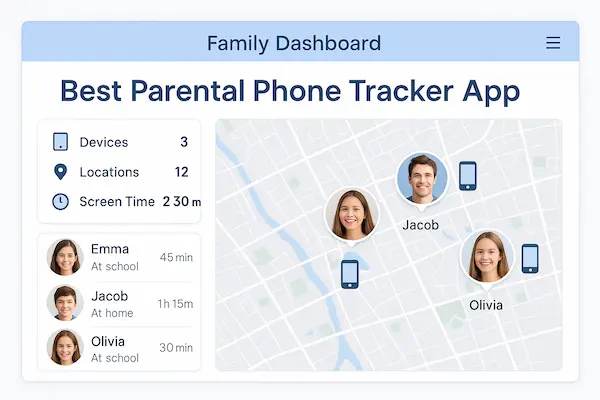
Traditional tools often focus on one device at a time. A service like PhoneTracker247 can bring location, basic usage patterns and risk signals together at a family level, so you see the bigger picture instead of chasing each phone or tablet separately.
2. Balancing Location, Usage Insights And Respect For Privacy
Used well, PhoneTracker247 is less about reading every tap and more about spotting worrying patterns: unsafe locations, sudden spikes in late night use, or devices going offline in odd ways. The key is to set clear rules about when location is visible, who can see it and how often you will look at reports.
3. When PhoneTracker247 Acts As A Layer In Your Safety Stack
Think of PhoneTracker247 as one layer in a stack: your main parental control app handles content and app limits, built in tools manage age ratings, and PhoneTracker247 adds people focused visibility and location awareness. When all three are introduced openly, with consent and regular check ins, they support a calmer, more consistent family safety plan instead of feeling like a hidden trap.
13. Implementation Checklist: Rolling Out A New Parental Control App At Home
Picking a best parental control app is only half the job. The way you roll it out decides whether it feels like support or an attack.
1. Preparing Devices And Ground Rules
- Update devices, remove old control tools
- Choose a few core features to turn on first
- Agree simple rules with your partner or co caregivers
- Decide what you will do if homework or important sites get blocked
2. Onboarding Children And Teens
- Explain in plain language what the app does and why you chose it
- Link rules to sleep, school and safety, not blame
- Promise a review date so settings do not feel permanent
3. Reviewing After The First 30 Days
- Look at patterns, not every alert
- Loosen rules that are clearly too strict and tighten rules that fail
- Ask kids what feels fair or broken and adjust a little together
If the first month feels like a test drive instead of a crackdown, the app has a much better chance of becoming a long term part of your family safety plan.
14. Case Studies: How Real Families Turned Apps Into Digital Lifelines
Real homes show how a best parental control app works best when it matches people and routines, not just features.
1. Young Kids And Shared Tablets
Two children under eight kept melting down when screen time ended. Parents chose a simple app with strong filters and fixed daily limits, put it only on shared tablets in the living room and let the timer handle the switch off. Fights dropped, evenings calmed down and screens felt like tools again, not the center of every argument.
2. Preteen, First Phone And Social Media Stress
An eleven year old got a first phone and quickly became anxious about group chats. The family used an app with light web limits, usage reports and a clear bedtime cut off, then reviewed patterns together once a week. With calmer talks and real data, the child agreed to mute stressful chats and reduce late night scrolling.
3. Two Teens And A Reset On Trust
Parents of two teenagers were stuck in constant battles over hidden accounts and confiscated phones. They sat down with the teens, named a few non negotiable risks and picked one main control app to support only those rules. After a one month trial and small adjustments on both sides, phones stayed in use, guard rails were clear and everyone felt more like they were back on the same team.
FAQs About Choosing The Best Parental Control App
1. Do families really need a best parental control app or just clear rules
Clear rules come first. A best parental control app simply helps devices follow those rules so you argue less and stay more consistent.
2. When is the right age to start using parental control apps
Start light controls when kids first watch or play alone, then tighten or relax settings as they grow and use more devices.
3. Can one parental control app cover phones, computers and consoles
Often one main app can cover phones and computers, but consoles and smart TVs usually need their own built in family settings.
4. How much online privacy should older teens have with these tools
Older teens need more space but not total secrecy. Keep light limits on big risks and use check ins instead of reading everything.
5. What should parents do when children find ways around the app
Treat it as a signal, not just bad behaviour. Ask why they bypassed limits, adjust unfair rules and close real safety gaps together.
6. How often should we review or change our parental control settings
Review settings once or twice a year, and after new devices or serious incidents, so limits keep matching age and routine.
7. How do I know if an app is safe to trust with family data
Check what data it collects, how long it keeps it, where it is stored and whether you can delete it. If that is unclear, skip the app.
8. What is the simplest way to pick the best parental control app for my home
Shortlist three tools, test each for a week on real days, then choose the one that feels easiest to live with while still protecting what matters most.
Conclusion: One Page Checklist To Choose Your Best Parental Control App
In the end, you do not need perfect control. You need a setup that your kids can live with and that you can manage on tired weekdays. A best parental control app is simply the one that helps your family stay safer and calmer without turning every screen into a fight.
Quick Summary Table
| Area | Key question now | Simple test this week | One action this month |
|---|---|---|---|
| Safety | Are the worst risks actually blocked | Try a few obviously bad searches or app installs | Tighten filters or app limits where they still slip |
| Time | Do sleep and school get real protection | Watch one normal weekday evening | Add or adjust one no screen time block |
| Devices | Do we cover all the screens kids really use | List phones, tablets, consoles and TVs | Put controls on any device that is still uncovered |
| Trust | Do kids understand what is monitored and why | Ask them to explain the rules in their own words | Plan one short check in to hear their side |
| Privacy | Are we keeping more data than we need | Look at reports you never read | Turn off or shorten any history that is not useful |
| Crisis | Do we have a plan if something serious happens | Ask who you would call and what you would save | Write a simple three step crisis note together |
Pick one row in yellow or red and start with that. The rest can wait.
Why The Next 30 Days Matter
Apps, trends and group chats will keep changing whether you act or not. A clear decision in the next month matters more than another round of research. Choose one realistic tool, turn on a few core rules and treat the first month as a test drive, not a final verdict. Adjust what is too strict, fix gaps that feel risky and keep the conversation moving. That is how an ordinary app quietly becomes your real world best parental control app.
Next Step: Add PhoneTracker247 As Your Quiet Radar
Content filters and time limits can sit at the front. Behind them, you still need a simple way to see where devices are and when something looks unusual without reading every message. That is where PhoneTracker247 can help.
Use PhoneTracker247 to:
- Follow location and basic usage patterns in a clear, consent based way
- Notice sudden spikes in late night activity or unusual movement
- Support the rules you already agreed, instead of adding more secret checks
If you do one thing after this guide, do this: shortlist your apps, test one for 30 days on real family days and let PhoneTracker247 act as the quiet radar that keeps your plan honest. Small, steady steps now will do more for your family’s digital safety than waiting for a perfect moment that never comes.
For daily updates, subscribe to PhoneTracker’s blog!
We may also be found on Facebook!