Before changing any settings, it helps to ask why so many people now want to Stop Sharing Phone Location. When you understand how constant tracking affects your daily life, your relationships and your personal safety, it becomes much easier to decide where you still want location on and where you are ready to turn it off.
1. Why More People Want to Stop Sharing Phone Location in 2026
In 2026, location sharing has become the default in phones and apps. For many people, choosing to Stop Sharing Phone Location is not about hiding, but about feeling less watched and more in control of daily life.
1. Everyday reasons people turn off phone location sharing
What starts as a handy way to meet friends or let family know you got home can slowly feel like pressure. Maybe someone comments on everywhere you go, checks why you are “off the route” or uses your location in arguments. Wanting a little quiet space from constant tracking is a normal reaction.
2. Real privacy and safety risks of oversharing your location
Oversharing is not only about discomfort. When many apps and people know exactly where you are, it becomes easier for stalkers, aggressive ex partners or thieves to misuse that information. A shared location link or a group map can reach far more eyes than you expected.
3. When stopping phone location sharing is a healthy boundary
Turning off or limiting location can simply be a way to set boundaries in a relationship, after a breakup, when changing jobs or when travelling alone. In some cases you may only keep sharing with one or two trusted contacts and Stop Sharing Phone Location for everyone else, so your phone supports your safety without broadcasting your every move.

2. How Phone Location Sharing Actually Works on Your Devices
To Stop Sharing Phone Location properly, you need to know where it is being pulled from and who can see it. Your phone, your apps and your online accounts each play a different role.
1. System level location services on iPhone and Android
iPhone and Android use GPS, Wi Fi and mobile networks to work out where you are. This is controlled by Location Services in Settings. When this is on, any app with permission can ask for your location in the background or while you use it.
2. Location sharing inside maps, social and family safety apps
On top of that, apps like maps, messengers and family trackers add their own sharing features. A map app can show your live position to a friend, a chat app can share your route and a family app can place you on a circle map. To really Stop Sharing Phone Location, you have to check these app level switches as well as the system one.
3. Location history and cloud accounts that still store where you have been
Your Google account or Apple ID may also keep a history of places you have been, even when you are not sharing live. Options like Location History and Timeline can quietly build a map of your past movements. Pausing this history or clearing old data is an important part of taking back control of phone location.

3. Safety and Legal Basics Before You Stop Sharing Phone Location
Before you change anything, it is worth checking when it is safe to Stop Sharing Phone Location, when location can still protect you and what rules might apply to your device.
1. When it is safe and smart to stop sharing phone location
It is usually safe to cut back location sharing when you are only dealing with friends, social groups or old family circles that no longer make sense for you. If someone uses your location to comment on your every move, control your time or pressure you to explain where you are, setting limits is a smart boundary. In those cases, adjusting or turning off sharing is simply part of protecting your privacy and mental health.
2. Situations where location sharing can actively protect you
There are moments when keeping some location on is still a good idea. First dates, late night trips, long rides with strangers or walking home in a new area are all times when a trusted contact seeing your position can improve your safety. Instead of removing location everywhere, you might keep emergency sharing with one or two people you fully trust and only Stop Sharing Phone Location for wider groups or casual contacts.
3. What laws and work policies might say about phone tracking
If you use a company phone, a work managed app or a device that is part of a fleet or delivery system, there may be rules about tracking already in place. Some countries also have strict laws about how location data is collected and used. The aim of this guide is to help you control personal sharing, not to bypass legal or workplace requirements, so it is wise to read basic local guidance or check your employer’s policy before you make big changes.
4. How to Stop Sharing Phone Location on iPhone Safely
If you use an iPhone, there are a few key places you need to adjust so you can Stop Sharing Phone Location without breaking every useful feature. Think in layers: system settings, Apple services and individual apps.
1. Turn off or limit Location Services in iOS Settings
Open Settings, go to Privacy and Security, then tap Location Services. From here you can switch Location Services off completely, or keep it on and limit which apps can see your location. For most people, it is better to leave Location Services on and only allow location for a small group of apps that truly need it, such as maps or emergency tools.
2. Stop sharing your location in Find My and Family Sharing
Next, open Settings, tap your name, then Find My. Here you can see whether Share My Location is enabled and which people or devices are linked to you. You can turn off Share My Location fully or stop sharing with specific contacts or family members while keeping it for others you still trust.
3. Disable location sharing in iMessage and Apple Maps
In Messages, open any chat where you previously shared your location, tap the contact name and check if Share My Location or Send My Current Location is active. Turn off any ongoing sharing. In Apple Maps, check for any live location share or ETA share you may have left on and end it so your position is not updated in the background.
4. Review and tighten location access for each iPhone app
Go back to Settings → Privacy and Security → Location Services and scroll through the app list. For each app, choose the lightest setting that still lets it work, such as While Using the App or Ask Next Time, and set Never for apps that do not need location at all. Removing location from old games, social apps and random utilities reduces how widely your movements are shared.
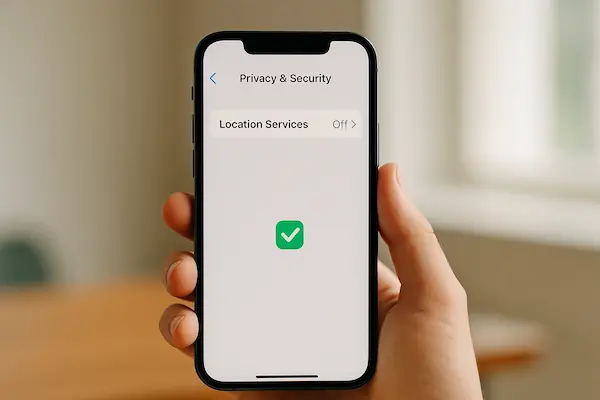
Table 1 – Quick overview of iPhone location controls
| Layer on iPhone | Where to change it | What it controls | Recommended setting for privacy |
|---|---|---|---|
| Location Services | Settings → Privacy and Security | Core GPS and system location | On, limited per app |
| Find My and Family Sharing | Settings → Apple ID → Find My | Location sharing with people and devices | Share only with a few trusted contacts |
| Messages and Apple Maps | Inside Messages and Maps | Live and temporary location sharing | Use only for specific trips or checks |
| Per app permissions | Settings → Privacy and Security → Location Services | Each app’s access to your location | While Using or Ask Next Time, Never for extras |
5. How to Stop Sharing Phone Location on Android Safely
On Android, turning off tracking is also about layers. To really Stop Sharing Phone Location, you need to adjust the main location switch, your Google account settings and the permissions each app uses.
1. Turn off device location and Google Location Services
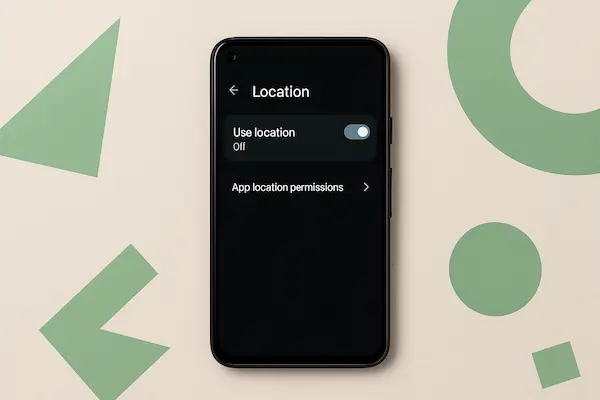
Open Settings and look for Location. You can turn the main Location toggle off, which blocks most apps from seeing where you are. If you prefer to keep it on for maps or weather, you can still reduce accuracy by turning off extra scanning options like Wi Fi and Bluetooth scanning in the same menu.
Some phones also have Google Location Services or Google Location Accuracy. These features use more data sources to improve your position. If you want less detailed tracking, you can switch them off so your phone relies less on constant background updates.
2. Pause or delete Google Location History and Timeline
Next, check what your Google account has saved. Open your Google account settings, go to Data and privacy and find Location History. Here you can pause new history from being recorded and review or delete old entries in Timeline. This step does not change your live location sharing in apps, but it stops your daily movements from being stored as a long term map in the background.
3. Stop sharing location in Find My Device and similar tools
Android devices can be tracked through Find My Device if that option is enabled. In Settings, go to Security or Find My Device and see whether your phone is visible. If you do not want this feature, you can turn it off, but remember it is helpful if your phone is lost or stolen. A balanced option is to keep Find My Device on for recovery, while you Stop Sharing Phone Location inside social and family apps that show you on a live map to other people.
4. Review and adjust location permissions for Android apps
Finally, open the App permissions or Location permissions section in Settings. You will see a list of apps that can access your location. For each one, choose between options like Allow all the time, Allow only while using the app, Ask every time or Deny. Downgrade most apps to While using the app or Ask every time and deny location to anything that does not truly need it. Cleaning up these permissions greatly reduces how often your location is shared or logged without you noticing.
6. How to Stop Sharing Phone Location in Popular Apps
Even after you change your phone settings, many apps can still show where you are to friends, groups or family circles. To really Stop Sharing Phone Location in daily life, you also need to clean up sharing inside the apps you use the most.
1. Stop sharing live location in messaging apps
Messaging apps often include quiet location features that stay on longer than you remember. In WhatsApp, Messenger, Telegram, Signal and similar apps, open any chat where you have shared your live location, tap the contact or group name and look for a live location or location sharing section. If you see that sharing is still active, turn it off so your position stops updating in the background.
For future use, prefer short, time limited shares instead of open ended ones. That way, your location automatically stops being visible when the trip or meeting is over, instead of staying on until you remember to switch it off.
2. Turn off long term location sharing in maps and ride apps
Maps and ride apps are built around location, so they often encourage you to share it. In Google Maps or Apple Maps, check any options for sharing your real time location with contacts or for letting people follow your journeys. In ride apps like Uber, Lyft or regional services, review trip sharing settings and turn off anything that keeps broadcasting your movement after the ride ends.
A good rule is simple: share your location only for active trips or deliveries, not as a permanent state. That lets people see you with enough detail to help when it matters, without turning every journey into a tracking feed.
3. Control location tagging and check ins on social media
Social media can reveal your movements even when you think you have managed to Stop Sharing Phone Location. Platforms like Instagram, Facebook, Snapchat and TikTok add location tags to posts, stories and check ins. Go into each app’s privacy or location settings to turn off automatic location tagging and avoid posting live check ins from your home, work or places you visit regularly.
You can still post about trips or events later without revealing exactly where you are in the moment. Delayed posting and manual location choices give you more control over who can link a place and time back to you.
4. Leave or adjust circles in family tracker and safety apps
Family locator and safety apps can be useful when everyone agrees on how they are used, but they can also feel intense if your life situation has changed. Open apps like Life360 or other family tracker tools and review the circles or groups you belong to. You may decide to leave old circles that no longer make sense or change your sharing level from constant tracking to simple alerts when you arrive or leave general areas.
Talking to the people in those circles first usually helps. It is easier to adjust or Stop Sharing Phone Location in these apps when everyone understands you are keeping a few safety features but no longer want to be watched every minute.
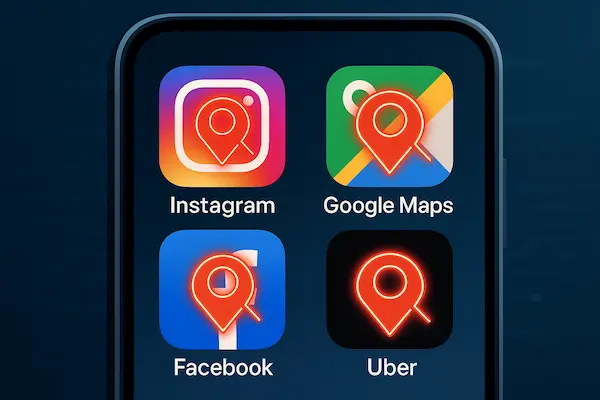
Table 2 – App by app location sharing controls
| App type | Common location feature | Where to disable it | Tip to keep some safety without oversharing |
|---|---|---|---|
| Messaging apps | Live location in chats and groups | Chat info or settings → Live location | Use short, time limited shares only |
| Maps and rides | Trip sharing, live ETA, check ins | In app settings → Location or Sharing | Share for active trips, then turn it off |
| Social platforms | Check ins, story location stickers | Privacy or Location section in app settings | Turn off auto tagging and live check ins |
| Family trackers | Real time circles and alerts | Circle settings or account settings | Switch to alerts only or leave old circles |
7. How to Stop Sharing Phone Location Without Damaging Relationships
Location is not only a technical setting, it is also a signal of trust. If you suddenly Stop Sharing Phone Location with people who are used to seeing you on a map, they may feel confused or even worried. Handling the change calmly helps you protect both your privacy and your connections.
1. How to explain your need for more location privacy
Start with a simple, honest reason rather than a long speech. You can say that constant tracking makes you feel tense, that you want a bit more space in your daily routine or that you are tightening your digital privacy in general. Focus on your feelings instead of blaming the other person.
It also helps to reassure them about what is not changing. Make it clear that you are still willing to call, text or share your plans, you just do not want your live position visible all the time.
2. Moving from always on tracking to time limited sharing
You do not have to go from full sharing to zero in one step. A softer move is to switch from always on tracking to time limited sharing for specific moments, such as a late night journey or a long drive. Most messaging and maps apps already support temporary shares that expire automatically.
Explain that you are not refusing to share; you are simply choosing when it makes sense. That way people still feel included when safety really matters, while you quietly reduce how often your phone broadcasts your location.
3. Keeping emergency location options while reducing daily tracking
Even if you decide to Stop Sharing Phone Location in group chats or family apps, it is usually wise to keep some emergency options in place. Check your phone’s emergency or SOS settings and make sure one or two trusted contacts can still receive your location if you trigger an alert or make an emergency call.
Knowing that this safety net exists can make everyone more comfortable with your new boundaries. You get the privacy you need most of the time and the people who care about you still know there is a way to find you quickly if something genuinely goes wrong.
8. Best Practices After You Stop Sharing Phone Location
Once you Stop Sharing Phone Location, you are not finished forever. Phones, apps and habits change over time, so a few simple routines will help you keep control instead of slowly drifting back into oversharing.
1. Regular privacy checkups for your phone and online accounts
Set a reminder every few months to review location settings on your phone and in your main apps. Check system Location settings, Google or Apple account pages and a handful of apps you use the most. Remove permissions from tools you no longer trust or no longer use, and make sure new apps have not quietly been given full access to your location.
2. Reducing other digital traces that reveal where you go
Location is not the only way people can track your movements. Photos often store where they were taken, calendars show your routine and social posts can reveal patterns. Turning off location in the camera app, limiting public event details and waiting to post about trips until after you leave all reduce the clues that point to your daily routes.
3. Balancing privacy and safety at different stages of life
Your ideal settings will not be the same when you are a teenager, a student, a frequent traveller or a parent. Review what you really need at each stage. You might open up temporary sharing when travelling abroad with friends, then lock things down again when you are back home. Treat your decision to Stop Sharing Phone Location as part of a wider habit of checking in with yourself about what feels safe, what feels intrusive and what genuinely helps you live more freely.
9. Troubleshooting When People Still See Your Location
Sometimes friends or family say they can still see you on a map even after you Stop Sharing Phone Location. Before you panic, it is worth checking a few common causes.
1. Hidden devices, old accounts and second phones that still share
Start by thinking about every device linked to your accounts. A forgotten tablet, an old phone in a drawer, a work device or a smartwatch can still be sending location even when your main phone is locked down. Open your Apple ID or Google account and review the list of devices. Sign out of anything you no longer use or remove it from the account so it cannot keep sharing in the background.
If you have used family tracker apps in the past, make sure you left all old circles and groups on every device, not just the one you use daily.
2. Cached data, delayed updates and app glitches
In some apps, the map you see is not completely live. It may show the last known position until the next update. That means someone could be looking at an old dot and think it is real time. Ask them to close and reopen the app or refresh the map and see if your icon disappears.
If an app still shows you in the wrong place, try logging out and back in, or reinstalling it. These small resets often clear stuck data and fix location displays that do not match your current settings.
3. When to reset settings or ask a professional to check your phone
If you have adjusted phone settings, app permissions and account devices and the problem will not go away, you can take a deeper step. On many phones you can reset location and privacy settings back to defaults, then rebuild permissions from scratch. As a last resort, a full backup and factory reset can clear hidden configuration problems, although it takes more time.
If you suspect someone has installed tracking software without your consent, or you still cannot explain what is happening, ask a trusted technician or security specialist to examine your device. The aim is to make sure your choice to Stop Sharing Phone Location is respected in practice, not just in your settings menus.
FAQs: Stop Sharing Phone Location Safely
1. Is it safe to stop sharing phone location with family or friends?
Yes, as long as you explain your reasons, agree how you will stay in touch and keep at least one trusted contact for emergencies.
2. How can I stop sharing phone location without turning off GPS completely?
Keep GPS on for maps, but turn off location sharing inside apps and limit permissions so only a few tools can see where you are.
3. Why can someone still see my location after I turned it off?
An old device, app or account may still be sharing, or the map may show your last known position until it refreshes.
4. Do I need location turned on for emergency services to work?
In many places, emergency calls can still use basic location, but it is best to keep emergency and SOS settings active for safety.
5. How often should I review my phone location privacy settings?
Every three to six months is usually enough to catch new apps, updates and changes in how your data is used.
6. What should I do if I think someone is tracking my phone without consent?
Check devices, apps and accounts, remove anything suspicious and, if you still feel unsafe, get help from a trusted technician or local support service.
7. Can I stop sharing phone location with some people but keep it for others?
Yes, most phones and apps let you turn off sharing for specific contacts or groups while keeping it for a small trusted circle.
8. Will turning off location break all my apps?
No, many apps still work without precise location, and you can switch it back on temporarily for maps, rides or deliveries when you really need it.
Key Takeaways and Quick Summary for Stopping Phone Location Sharing
Location data has quietly turned into one of the most sensitive parts of your digital life. In 2026, learning how to Stop Sharing Phone Location where it is not needed is no longer a niche privacy hobby, it is basic self protection. At the same time, you still want smart safety tools ready when you or your family genuinely need help.
Quick summary: what to fix and why it matters
Use this as a fast checklist when you review your phone and main accounts.
| Focus area | What you should do today | Result for your privacy and safety |
|---|---|---|
| Phone location settings | Audit iOS or Android Location settings and remove unnecessary access | Fewer apps tracking you in the background |
| Google and Apple account data | Pause or clean up Location History and Timeline | Less long term mapping of your daily movements |
| Messaging, maps and ride apps | Turn off live sharing and old trip sharing links | Friends and contacts stop seeing you on a map by default |
| Social and family apps | Disable auto check ins and leave outdated tracking circles | Your routines are no longer broadcast to big groups |
| Emergency and safety options | Keep SOS and emergency location for a small trusted list | You still have help if something serious happens |
Once you have gone through these layers, your phone shifts from being a live tracker for everyone else to a tool that works more on your terms.
Use PhoneTracker247 as your safety and location control hub
Taking back control of location does not mean you have to manage everything by hand. If you are a parent or you share devices in your family, you can use PhoneTracker247 as a central place to review how your child’s phone is used, which apps really need location and when location sharing makes sense for safety.
Instead of guessing what is happening on each device, PhoneTracker247 gives you a clear view of key activity and helps you combine two goals that matter in 2026: stronger privacy and real world safety. You decide where to Stop Sharing Phone Location, where to keep limited sharing for emergencies and how to update those choices as life changes.
If you are ready to act, do not leave this as theory. Start by running a simple privacy checkup on your own phone, then set up PhoneTracker247 on the devices you are responsible for. With a few careful changes and one consistent dashboard, you turn location from a constant risk into a controlled part of your overall safety plan.
For daily updates, subscribe to PhoneTracker’s blog!
We may also be found on Facebook!